In this step, you will learn how to...
- Send a Welcome Email
For Further Help:How will I know when a Client has Requested Services Online?
Note: Before you can invite your clients to use the portal, please complete the tutorial section Tutorial 9-3: Payments.Now that you have set up your services, staff and learned how to create an order, send a quote and create an invoice, it is time to learn how to invite your clients to use the client portal.
Note: Inviting your client to the portal is OPTIONAL if you do not wish to offer the ability to book services online.- the web site address (URL) for your business's client portal
- the client's unique 10 digit ID (optional). Your clients can log on to the portal using either the same email address as you have on their client data screen or their unique 10 digit account number.
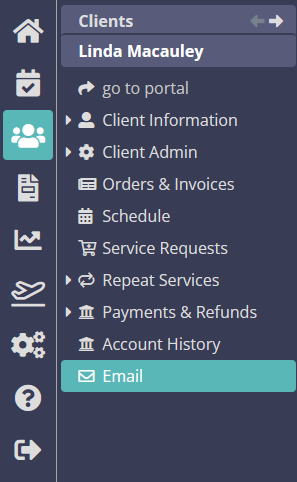
Note: Existing clients MUST already have a client record created in the software, as you did in Tutorial: 4-1 Add Client Accounts. There is a different process for asking new clients to register themselves for the first time, which you can read about later in How does a New Client Register Online?Navigation: Clients > Email
How do I Enable Existing Clients to Login for the First Time?
Scenario: Tammy wants to invite Linda Macauley to use the client portal for making online booking requests and updating her client and pet information.
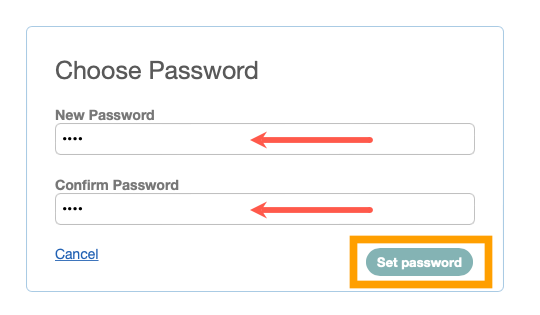
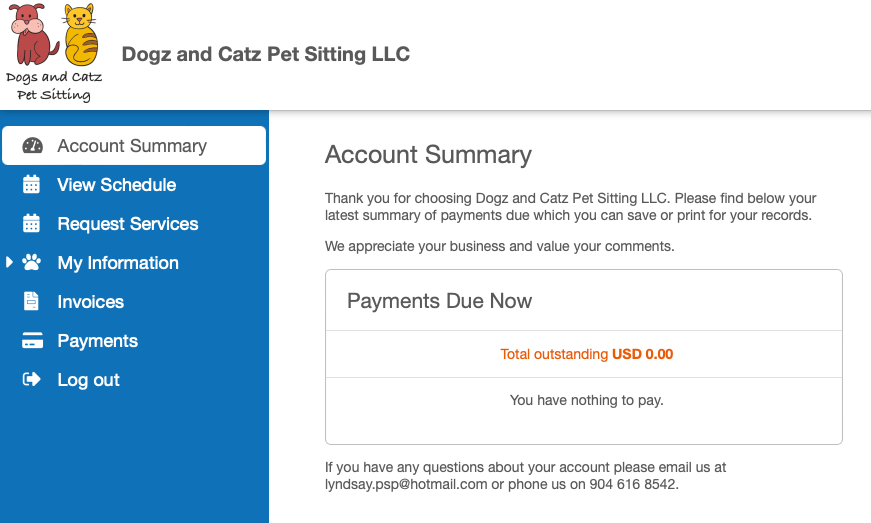
Note: In Step 4 of this tutorial, we will assume the identity of "Linda Macauley" so you can see how clients would initially set their password to log in and make an online booking.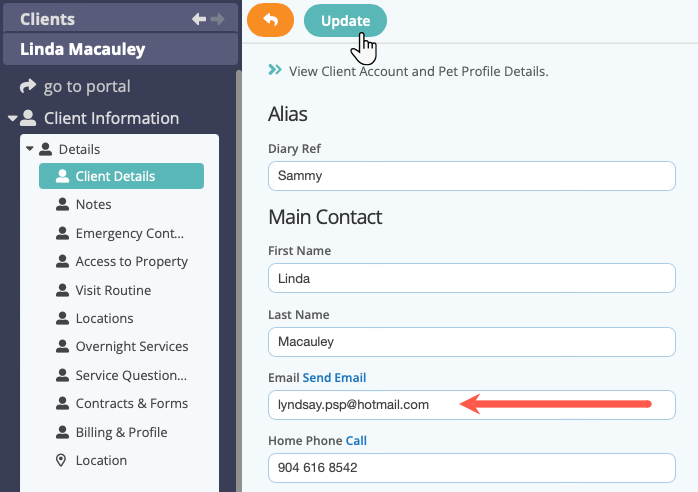
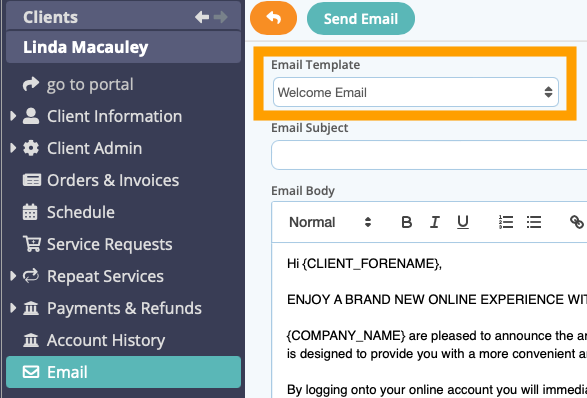
Note: The "merge codes" you can see in the { } brackets – eg. {CLIENT_FORENAME} – will automatically populate with the data in the client record, in this case "Linda" as the client's forename.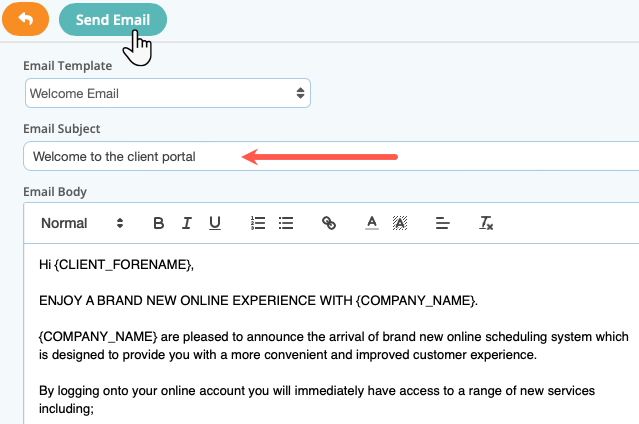
4. If applicable, you can add email attachments in addition to the Invoice and Account Summary. This could be a Price List, Care Plan or further information about the pets service, just click the "+Attachments" button underneath the email body.
Note: When adding Email Attachments, supported File Types are: .jpeg, .jpg, .png and .pdf. File Size is restricted to 5MB and a maximum of 5 attachments can be sent.
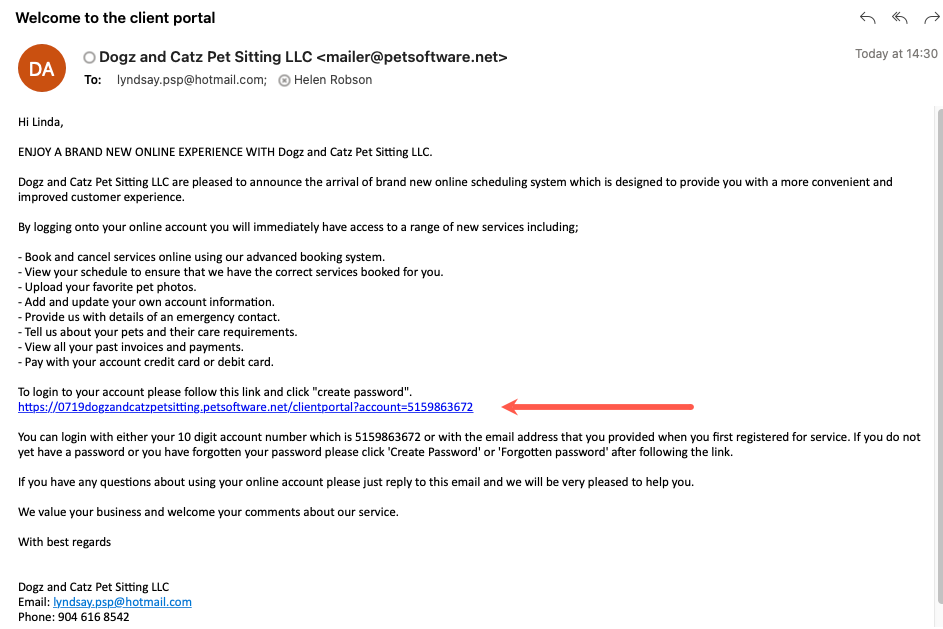
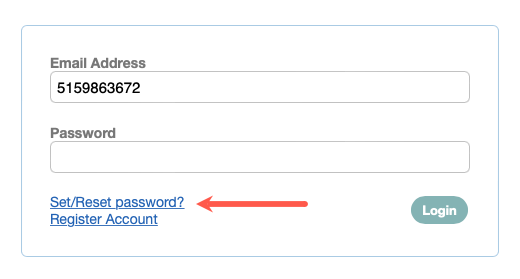
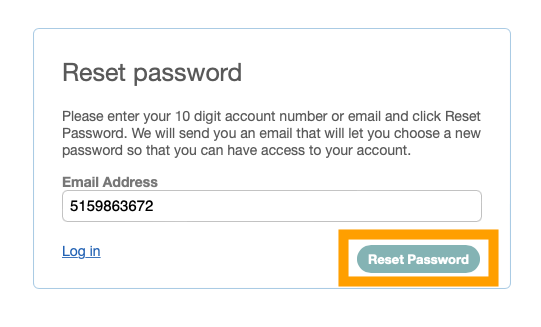
- Click "Set/Reset Password" again.
Note: This link must be clicked within 2 hours or the link will expire and you will have to follow the process again.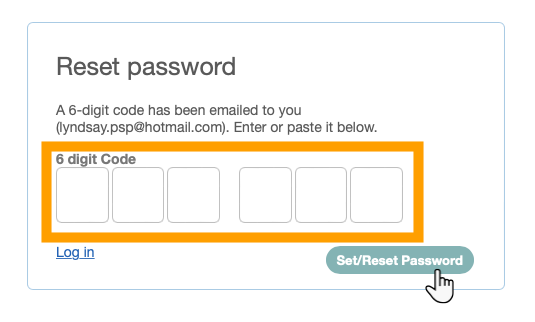
Congratulations! You have completed this stage.
New to Pet Sitter Plus?
Scheduling, client portal, invoicing and staff management for pet sitting and dog walking businesses — all in one place. Try it free for 30 days, or let us show you around.
Was this article helpful?
That’s Great!
Thank you for your feedback
Sorry! We couldn't be helpful
Thank you for your feedback
Feedback sent
We appreciate your effort and will try to fix the article