More About Service Requests
Tips: Here are a few helpful additional controls and features you can use for scheduling service requests.
- Prevent/Block or Restrict Clients from requesting Services from their Client Portal with Service Availability Controls.
- Staff Time Off conflicts. If you use the Staff Time Off Calendar, any Time Off Conflicts are displayed on the Service Requests Screen.
- Schedule Requests from the client's account.
- If Duplicated Service Requests are a problem for your business, switching on notify admins of potential scheduling conflicts in Advanced Service Request settings will help to reduce this issue by providing warnings to admins of potential duplicates.
How Do I Edit a Service Request?Navigation: Scheduler > Schedule > Service Requests
Navigation: Scheduler > Schedule > Service Requests
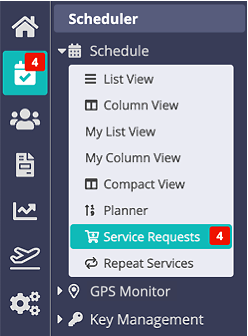
Step 1
- Click the blue link for the service request.

Step 2
- Select each service individually or check the box in the column heading to “select all."
- Click “Edit Requests.”

There are various elements of a service available to edit from a Service Request, these are:
Date
Service Item
Time
Timeframe ± or Time Block
Show Time
- When "No" is selected, the exact service time is NOT shown in the schedule. Instead the time is only be used to govern which schedule column the service is displayed in.
- When "Yes" is selected, the exact service time shows in the schedule and the time also governs which schedule column the service is displayed in.
Staff
Quantity
Client Notes
If a client adds a note when requesting services from their client portal, Client Notes are copied to Staff Notes, but also retained and displayed when editing services.
Staff Notes
Staff Notes now appear (in red) above Invoice Notes and are displayed in the admin and staff schedules, providing a reminder of special instructions. They do not appear on invoices and are not seen by clients.
Invoice Notes
Invoice Notes now appear below Staff Notes and are displayed on the invoice beside the service description and will be seen by clients. These are different from "Admin Notes" which can be added to an invoice and will appear in the Unpaid Invoice report.
Note: If you are adding a range of services, Invoice or Staff notes added here will be added to ALL services in the range. If you want your note to appear on one service, enter services without notes and use "Edit Services" to add notes to the appropriate services. The process is the same for any view of the Schedule (List View, Column View or Compact View). You can also add to or overwrite existing invoice/staff notes to other services.Step 3
- Make edits.
- Click “Update.”

Note: If services appear in red, the staff member is NOT available to perform these services.
Was this article helpful?
That’s Great!
Thank you for your feedback
Sorry! We couldn't be helpful
Thank you for your feedback
Feedback sent
We appreciate your effort and will try to fix the article