In addition to keys, Clients who use Lockboxes or a Keysafes can also have these added to their Client Profile. Unlike Keys, Lockboxes are not assigned to individual Staff as they are permanently located at the Client's property for Staff to use with an access code. You can edit the name, reference and description on any Key or Lockbox record and delete them when they are no longer needed.
TABLE OF CONTENTS
- How Do I Know if a Client Has a Key or Lockbox?
- How Do I View a List of Issued or Unissued Keys?
- How Do I Assign / Reassign Keys?
How Do I Know if a Client Has a Key or Lockbox?
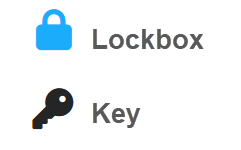
Note: In the Schedules, Keys are colour coded:
- red key indicates the scheduled staff for the service has not been assigned the key.
green key indicates the scheduled staff for the service has already been assigned the key
black key indicates the key is in the office or the visit is in the past.
indicates a lockbox is available at the Client's property
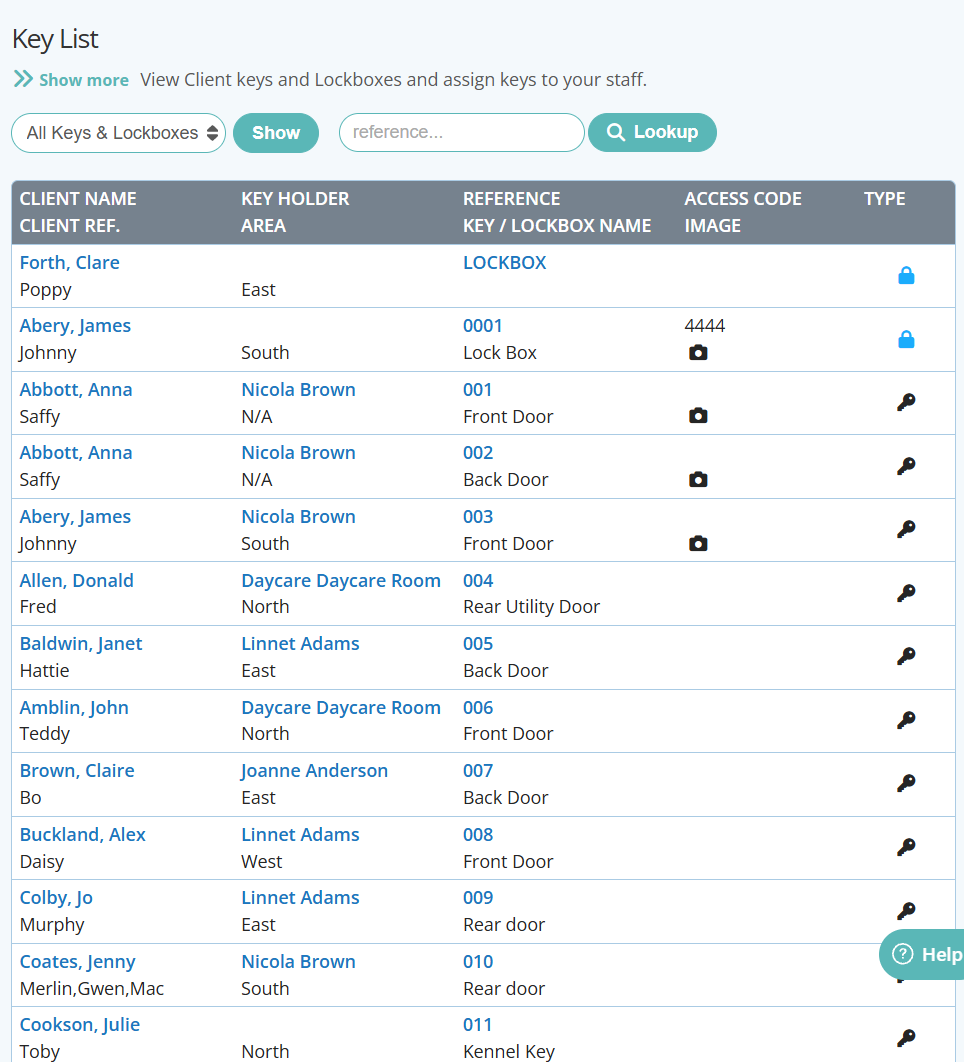
- Client Name
- Client Ref - Usually the Pets Name
- Area
- Key Holder (Staff assigned the key)
- Key Reference: The reference in blue links to the key details.
- Key/Lockbox Name
- Access Code for the Lockbox
- Image of the Key or Lockbox
- Type - Key or Lockbox
Tip: You can Reassign keys in bulk from this report as well as search by "Key Reference."
How Do I View a List of Issued or Unissued Keys?
Navigation: Scheduler > Key Management > Key List

Step 1
- To view ALL keys and lockboxes , select "All Keys & Lockboxes"
- Click "Show"
Step 2
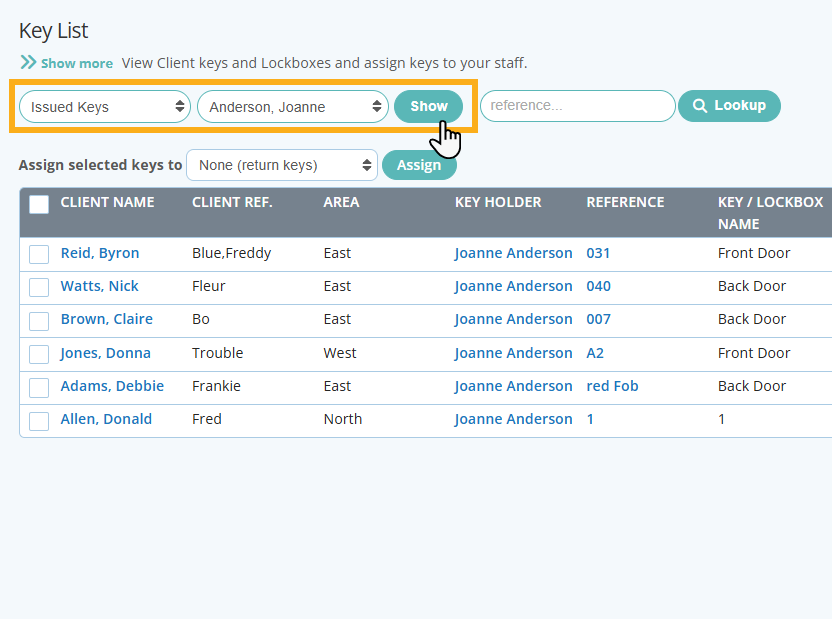
- To view keys that have been issued to a staff member, Select "Issued Keys" from the drop down list, then select the staff member name.
- Click "Show"
Step 3
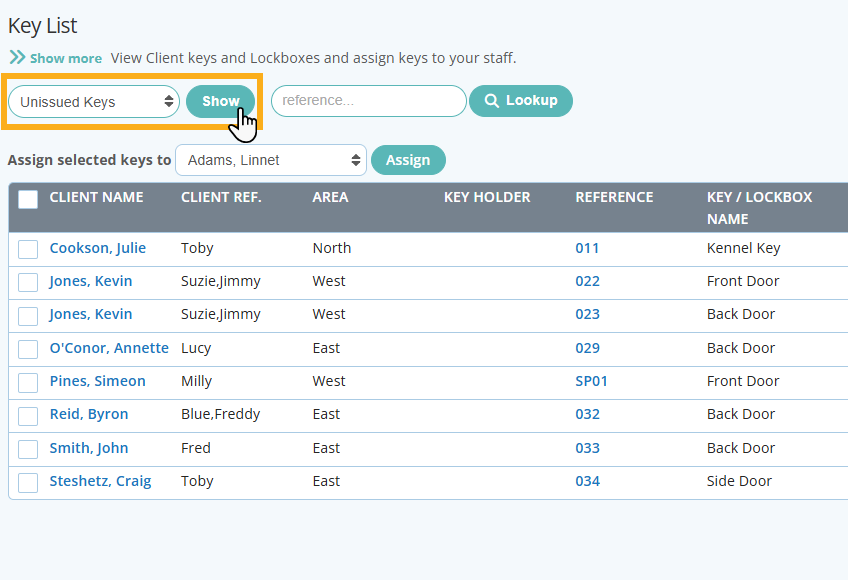
- To view ALL Unissued keys, click "Unissued Keys" from the dropdown.
- Click "Show Keys."
How Do I Assign / Reassign Keys?
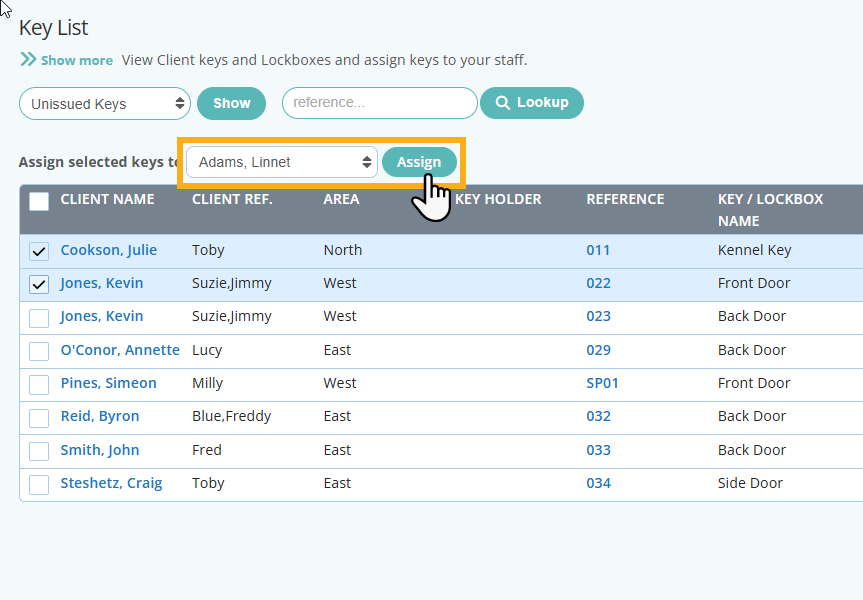
- Check the box beside the keys to assign to another staff member.
- Select the sitter to assign the keys to in the dropdown.
- Click "Assign."
Was this article helpful?
That’s Great!
Thank you for your feedback
Sorry! We couldn't be helpful
Thank you for your feedback
Feedback sent
We appreciate your effort and will try to fix the article