TABLE OF CONTENTS
- How Do I Enable Two-Factor Authentication For All Staff?
- How Do I Allow Staff To Switch ON Two-Factor Authentication?
Using Two-Factor Authentication (2FA) when accessing web-based software or applications adds an essential layer of security that helps protect your account from unauthorised access.
Pet Sitter Plus provides this optional vital security measure so Business owners and Admins can choose whether to use it. Enabling Two-Factor Authentication means even if someone manages to obtain a staff password, they cannot log in without the second verification step. This greatly reduces the risk of data breaches and keeps all your sensitive information safe.
Its quick and easy to access your account when Two-Factor Authentication is enabled. Login as normal and Pet Sitter Plus will automatically email a 6‑digit verification code which you simply copy and enter in the box provided when prompted.
Admins can decide to enforce Two-Factor Authentication for All staff, or leave it up to individual staff to switch on at their discretion.
Enabling Two-Factor Authentication is a quick and effective way to strengthen your account security and give you peace of mind.
How Do I Enable Two-Factor Authentication For All Staff?
Navigation: Admin > Settings > Staff Access
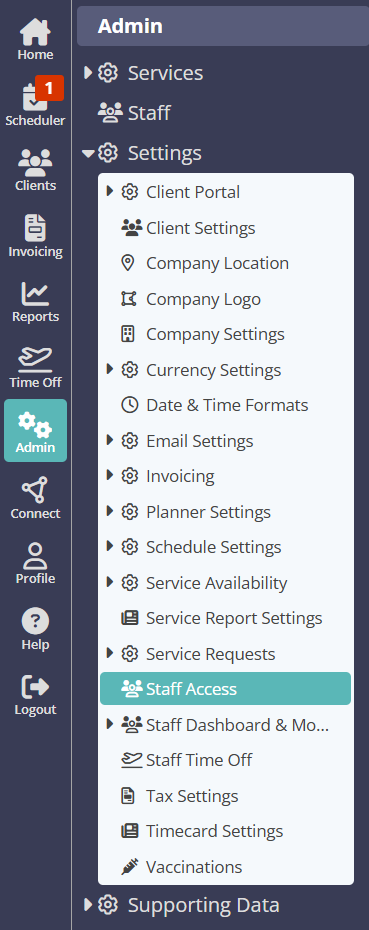
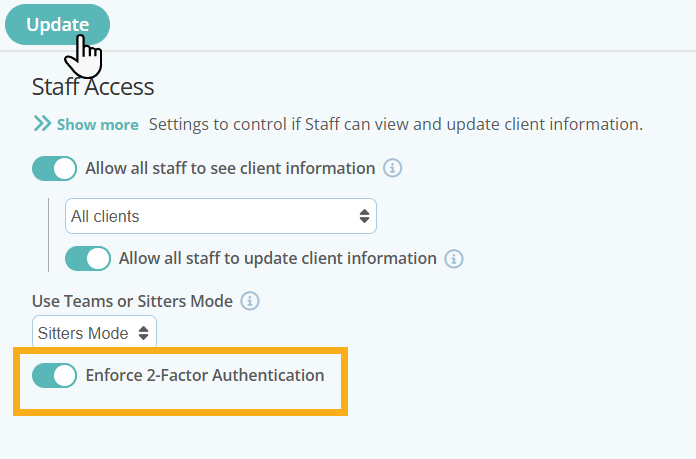
- From the Staff Access page, switch ON "Enforce 2-Factor Authentication"
- Click "Update" to save changes.
- This will atomically switch on for all staff and when they log into their account, a 6‑digit verification code is automatically emailed to them.
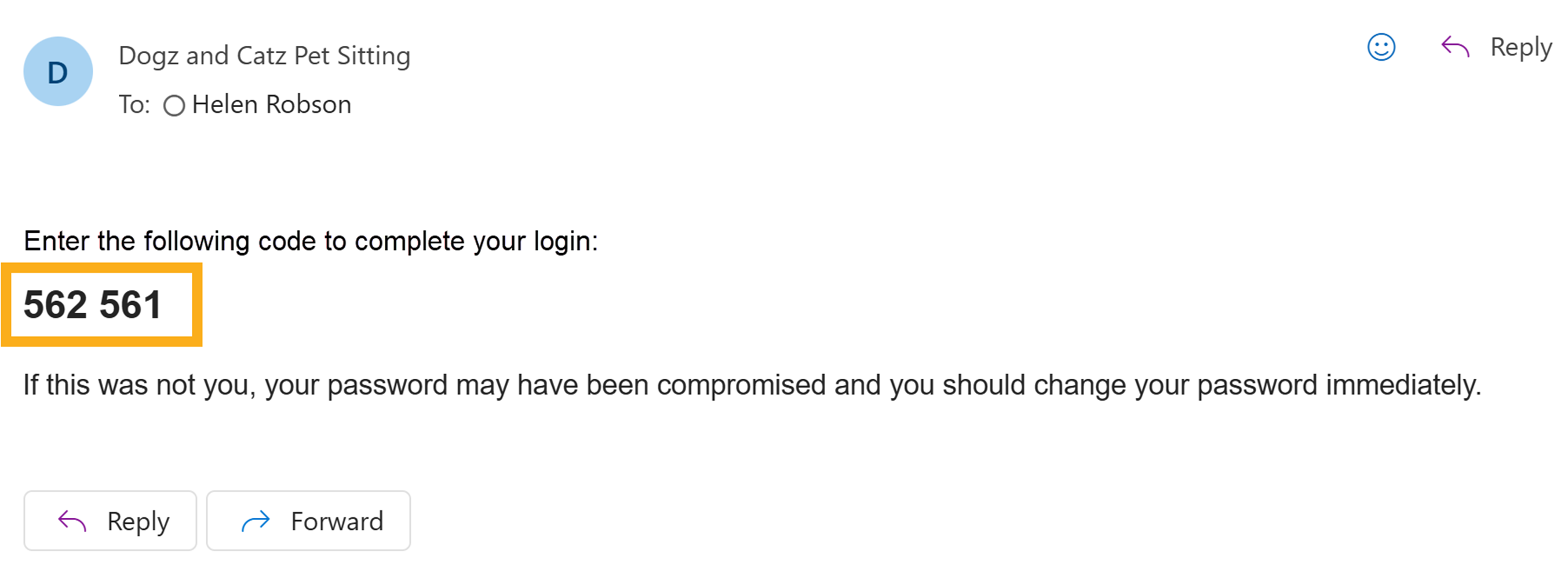
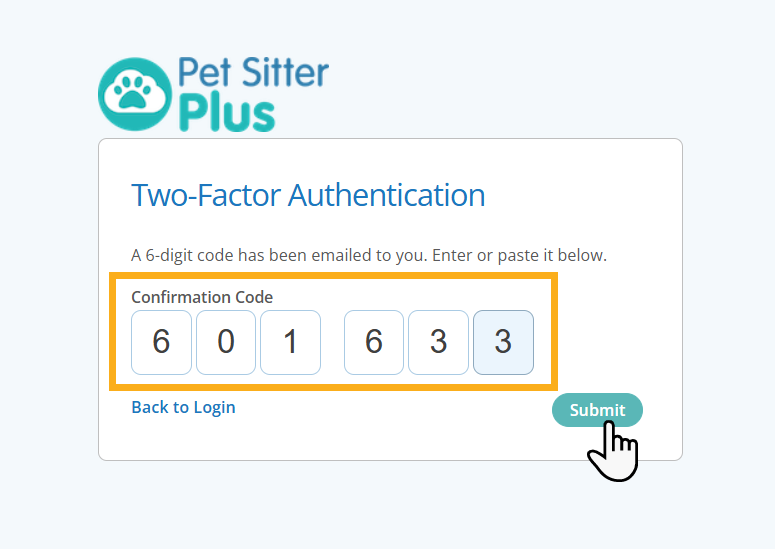
- Copy the Code and then paste, or enter in the Confirmation Code box provided on the login page.
- Click "Submit".
How Do I Allow Staff To Switch ON Two-Factor Authentication?
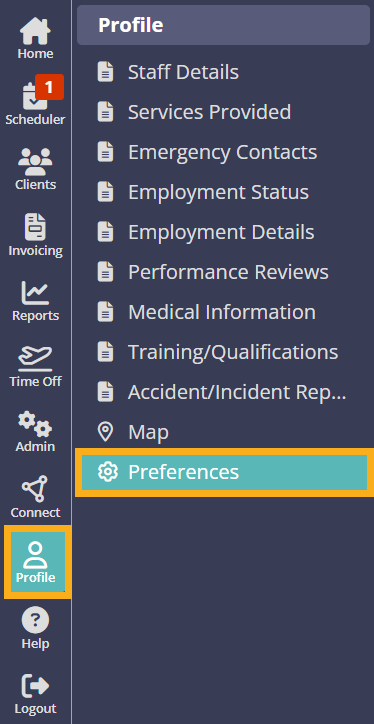
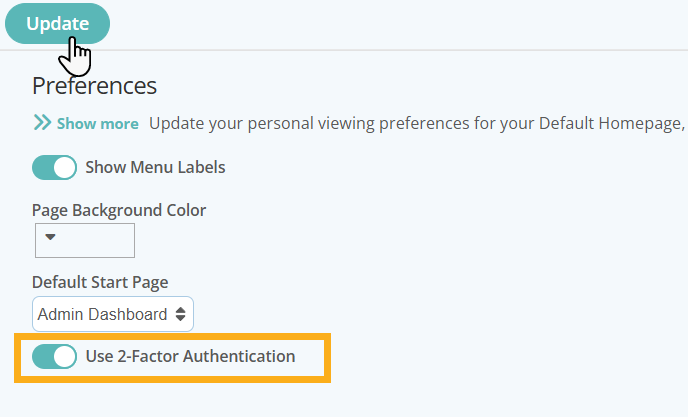
Admins or Business Owners can leave it up to individual staff to decide whether or not to switch on Two-Factor Authentication. Switching OFF "Enforce 2-Factor Authentication" under Staff Access will allow each staff member to choose whether or not enable this feature from their own Profile and Preferences page.
Navigation: Admin > Settings > Staff Access
- From the Staff Access page, switch OFF "Enforce 2-Factor Authentication"
- Click "Update" to save changes.
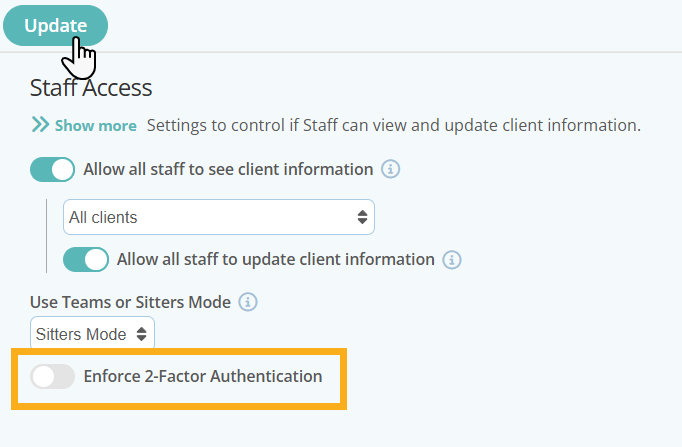
Staff can then decide whether or not to enable this feature themselves.
Navigation: Profile > Preferences
Switch ON "Use 2-Factor Authentication"
Was this article helpful?
That’s Great!
Thank you for your feedback
Sorry! We couldn't be helpful
Thank you for your feedback
Feedback sent
We appreciate your effort and will try to fix the article