For Companies who operate over multiple sites or franchise networks with separate Pet Sitter Plus systems, Linked Accounts provides a simple way for Application Owners to have access to their own accounts in one place.
Access can be gained from a central dashboard, making multi-location management a breeze. This eliminates the need for multiple logins and allows company owners to access their other Company Databases from their own main account.
Important:
- Only the Application or Business Owner can provide access to another Pet Sitter Plus account
- Linked Accounts are designed to simplify logging in and do not merge accounts, each account stays separate.
- Contact Support to activate Linked Accounts on your system.
TABLE OF CONTENTS
- Who should have Access To Linked Accounts?
- Who should have Access to Linked Accounts?
- How do I Gain Access to my other Pet Sitter Plus Accounts?
- How Do I Access My Linked Accounts?
Key Benefits of Linked Accounts
- Secure and controlled access
- One login for Application Owners managing multiple accounts
Who can Grant Access to Linked Accounts?
- Application/Business Owners
Who should have Access to Linked Accounts?
- Application/Business Owners
How do I Gain Access to my other Pet Sitter Plus Accounts?
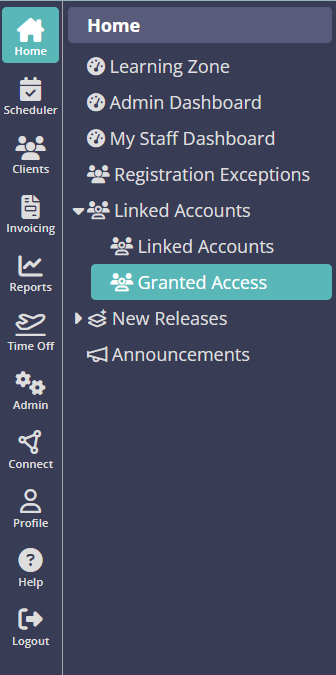
Important: Only the Application or Business Owner can provide access to another Pet Sitter Plus accountNavigation > Home > Linked Accounts > Granted Access
- Login to your main Pet Sitter Plus Account.
- Select Granted Access from the Linked Accounts menu.
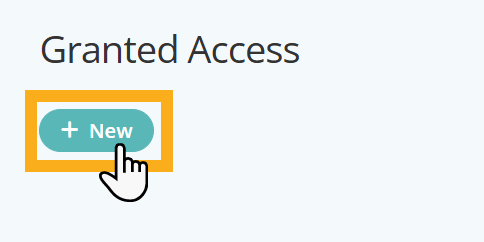
- Click "New".
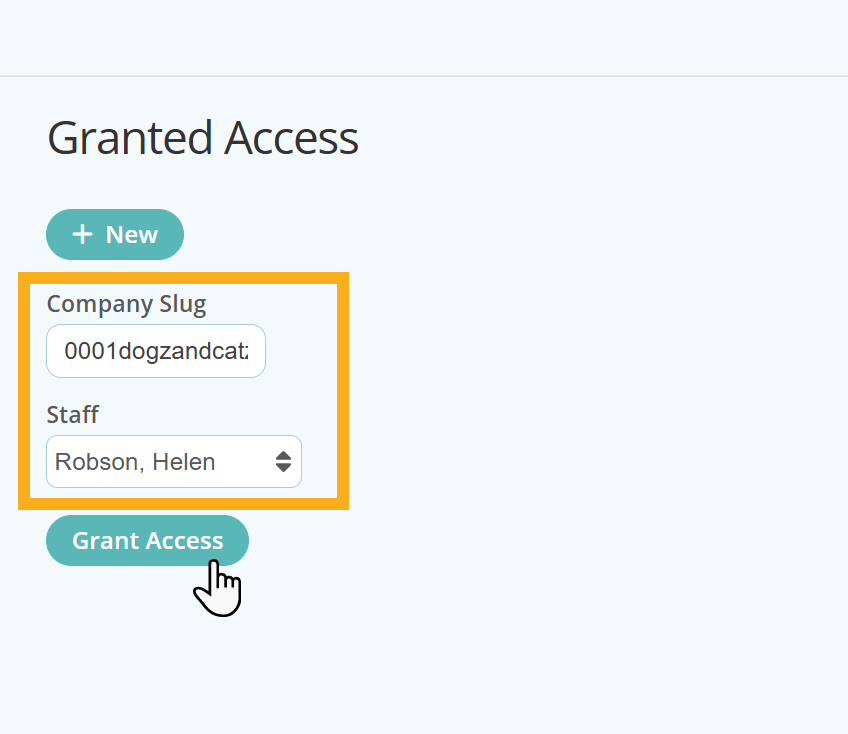
You will then need to enter the "Company Slug" for the other Company's Pet Sitter Plus Account URL where you are registered as the application owner.
The "Company Slug"
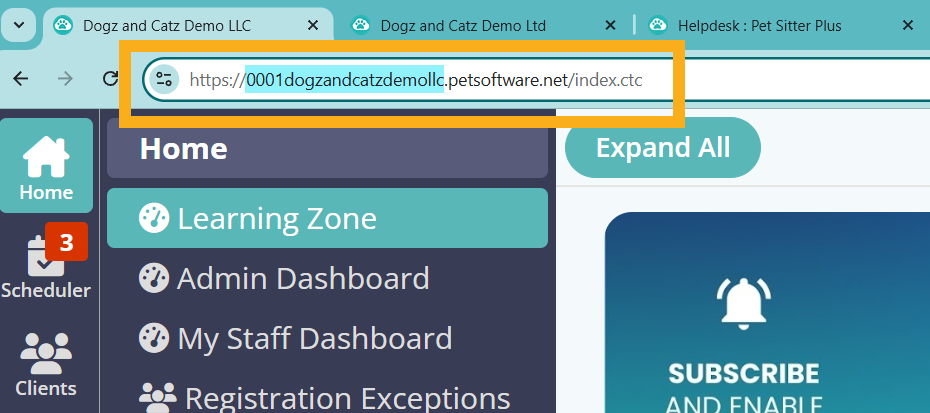
The Company Slug is the Unique Identifier for each Pet Sitter Plus Account and can be found in the URL located in the browser bar.
The slug is usually comprised of 4 digits, then your Company Name, such as "0001dogzandcatzdemollc" as highlighted below:
- Copy and paste the Slug into the "Company Slug" box provided.
- Select your name (as the Application Owner) and click "Grant Access".
How Do I Access My Linked Accounts?
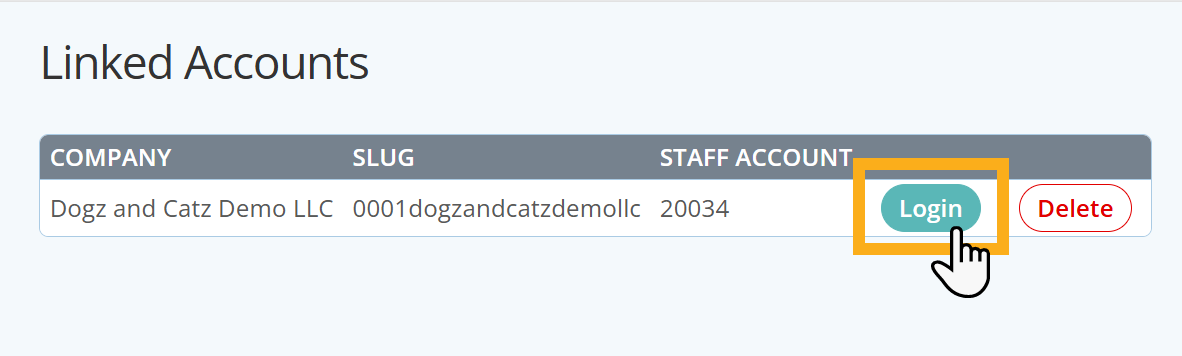
The Linked Accounts page displays all the company databases the Application/Business Owner has Granted Access to through Linked Accounts.
From here, you can:
- View the companies linked to your account
- Switch between multiple company databases (if applicable).
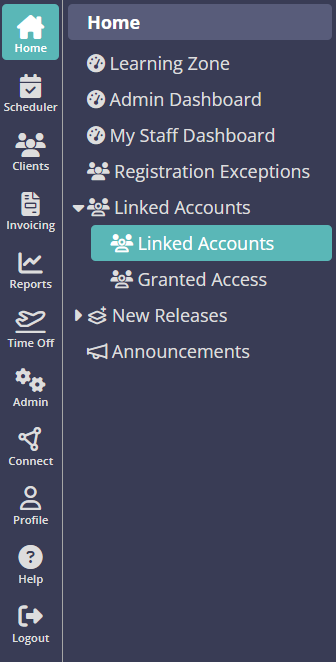
Navigation: Home > Linked Accounts > Linked Accounts
Simply click the "Login" button to gain immediate access to your other Pet Sitter Plus account/s.
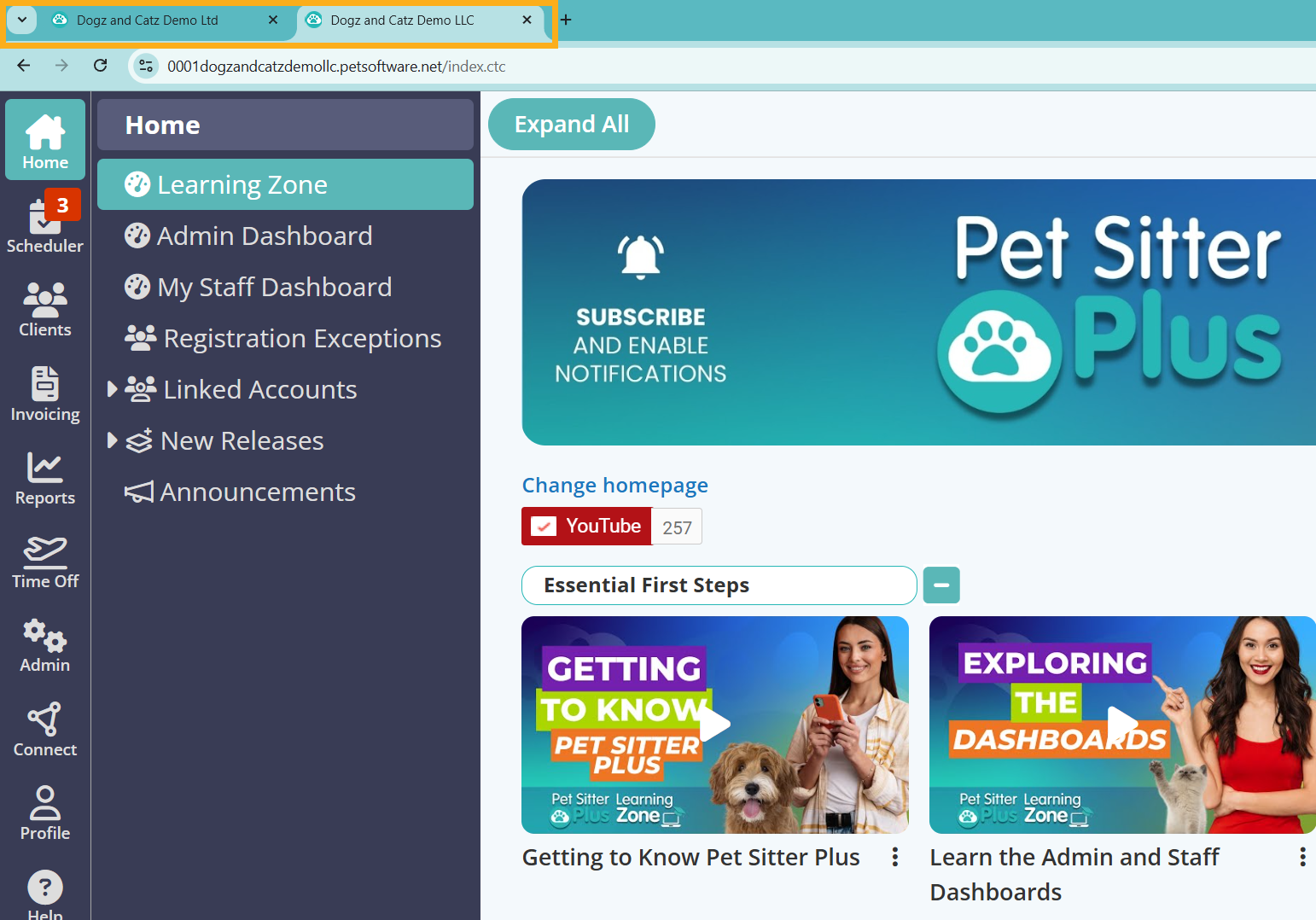
Your Linked Account will then open in a separate window.
Was this article helpful?
That’s Great!
Thank you for your feedback
Sorry! We couldn't be helpful
Thank you for your feedback
Feedback sent
We appreciate your effort and will try to fix the article