Each Client Profile has a "Keys & Lockboxes" page for key management. Clients can have as many keys attached to their profile as needed, such as duplicate keys, or both front and back door keys. Keys can also be assigned to specific staff, tracked and returned using the Key Management Report.
TABLE OF CONTENTS
- How Do I Know if a Client Has a Key or Lockbox?
- How Do I Add a Lockbox to a Client Profile?
- How Do I Edit a Lockbox?
- How Do I Delete a Lockbox Record?
How Do I Know if a Client Has a Key or Lockbox?
If a Client's property has a LockBox/Key Safe, this can also be added to the Client Profile. You can edit the name, reference and description on any Key or Lockbox record and delete them when they are no longer needed.
When a client has a Key and/or Lockbox on record, it displays on the Schedules indicating to Staff that a Key is required or a Lockbox is present.
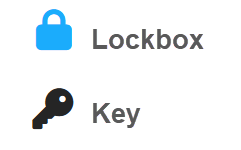
Note: In the Schedules, Keys are colour coded:
- red key indicates the scheduled staff for the service has not been assigned the key.
green key indicates the scheduled staff for the service has already been assigned the key
black key indicates the key is in the office or the visit is in the past.
indicates a lockbox is available at the Client's property
Note: The Key Management system supports key reference numbers for key tracking and security, should a key be lost, which is often an insurance policy requirement. "Key Reference" is searchable, so you can assign keys the same reference code used for labeling.How Do I Add a Lockbox to a Client Profile?
Navigation: Clients > access a client's account > Client Admin > Keys and Lockboxes
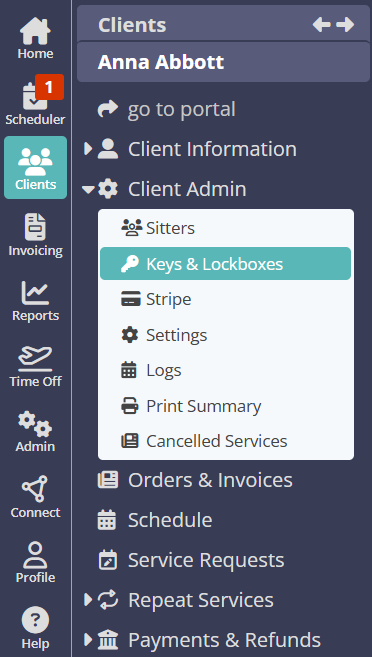
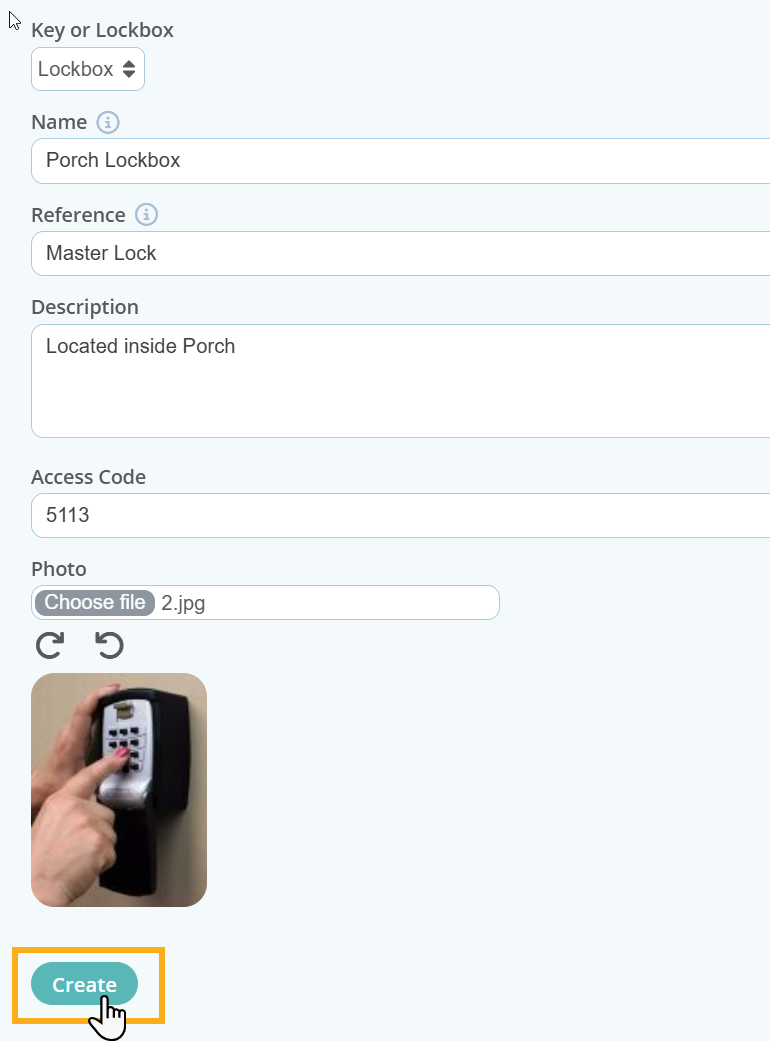
- Click "+ New"
- Select "Lockbox" from the Key or Lockbox drop down menu
- Enter the "Name" - used to describe the Location of the Lockbox such as Front door, back door, gate.
- Enter "Reference" - enter a unique reference for the lockbox as this field can be used to search for the lockbox in Key Management. (e.g. make/model or client/pet reference)
Tip: The reference is stored against the Key/Lockbox record under Keys & Lockboxes within the Client Admin section of the Client Profile. Examples of Key/Lockbox References include:
- A key fob number
- A label or identifier attached to a set of keys
- The make and model of a lockbox
- A client or pet reference associated with a lockbox
- Enter a "Description" - this can be used for any special instructions.
- Enter the Access code for the Lockbox
- Add a photo of the Lockbox
- Click "Create"
How Do I Edit a Lockbox?
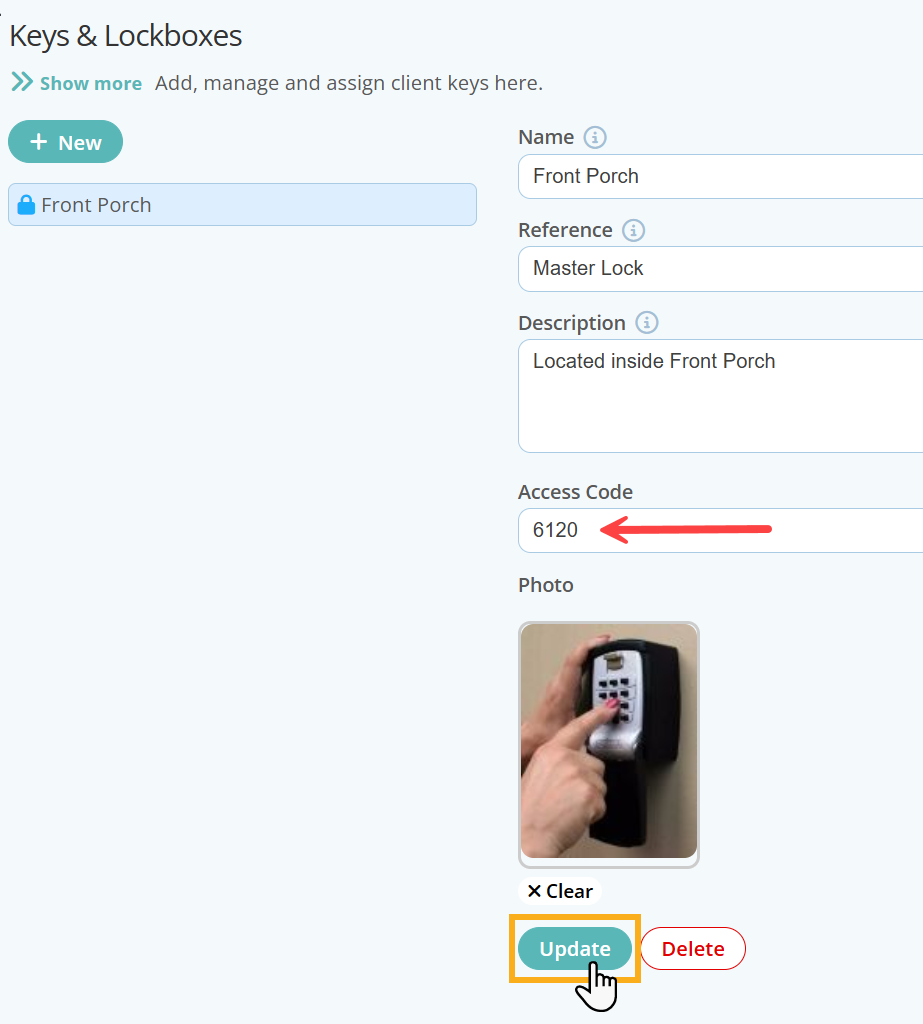
- To Edit a Key, select the key.
- Edit the details.
- Click "Update."
How Do I Delete a Lockbox Record?
- Select the Lockbox.
- Click "Delete."
- A confirm appears. Click "Delete" to confirm, or "Cancel."
Important: Make absolutely sure you have selected the right Lockbox before clicking Delete, it cannot be undone.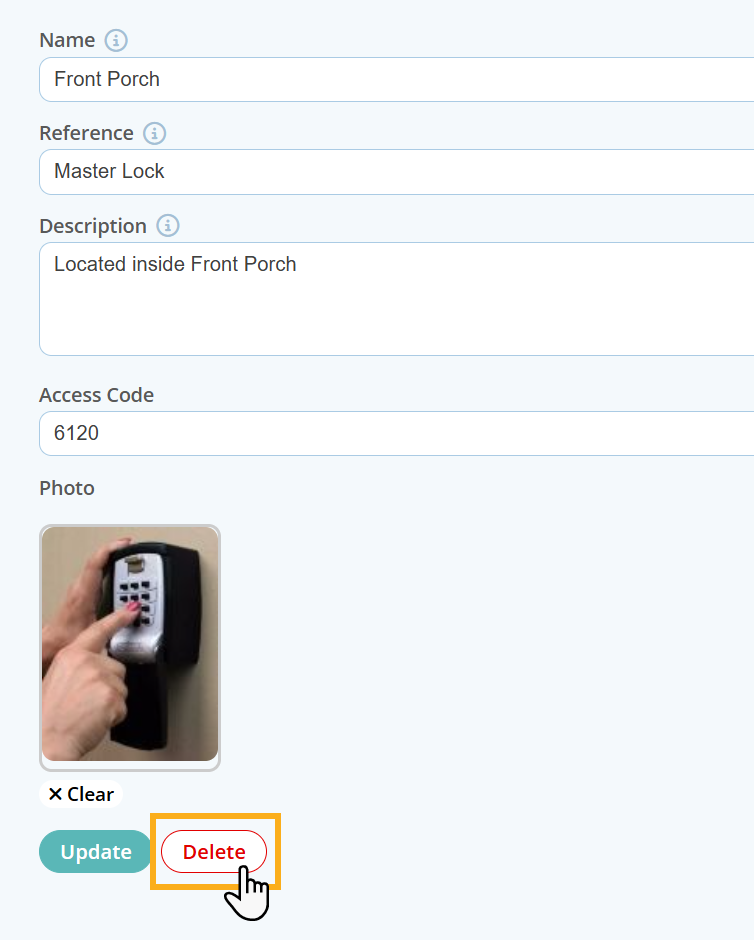
Tip: The Key Management Report lists all clients with keys. The report contains client name, key and key assignment and allows you to reassign keys.
Was this article helpful?
That’s Great!
Thank you for your feedback
Sorry! We couldn't be helpful
Thank you for your feedback
Feedback sent
We appreciate your effort and will try to fix the article