In the Unpaid Invoices Report (or credit control report) you can view and filter all invoices with a balance due. Use the Unpaid Invoices report to:
- List all outstanding invoices.
- Take Payment from clients with a payment card on file.
- Enter "Payment in Full" Receipts, one at a time or in bulk which are emailed to the client.
- List debts for a particular service type (such as dog walking or daycare).
- Re-send Invoice payment reminder emails.
Tip: For email reminders, "Last Sent" is a helpful function as it sorts the list by the last date you sent a reminder.
Note: When you use the Unpaid Invoices Report to send payment reminders, the emails can be personalized and sent individually, or in batch. Each reminder email will have a copy of the invoice and account summary attached.How Do I Email a Payment Reminder to Multiple Clients from the Unpaid Invoices Report?
Navigation: Invoicing > Unpaid Invoices

Step 1
- To view Invoices by one Invoice Type, select the appropriate Invoice Type from the first drop down list. To view All Invoices leave the default setting of "All Invoice Types."
- Select the date criteria you'd like the report to search on, there are four options to choose from:
- The due date is on or before
- The Invoice date is on or before
- The service start date is on or before
- The service end date is on or before
- Select a date.
- Click the checkbox in the header to select all clients, or sort by a column and individually select clients.
- Optional: Add an Email Attachment.
- Click "Email."
Note: When adding Email Attachments, supported File Types are: .jpeg, .jpg, .png and .pdf. File Size is restricted to 5MB and a maximum of 5 attachments can be sent.Tip:
- Filter the report by Date and Invoice Type and sort by Due Date, Ageing, Client, Date Invoice was last emailed, Service Start or End Date, Amount Due, and Invoice Type.
- Sort this report by clicking a Column Name in the Header Row, click again and sort it in reverse.
- Use the Pin
function to keep headers, filters and buttons visible at all times as you scroll, particularly useful when viewing on a mobile device.
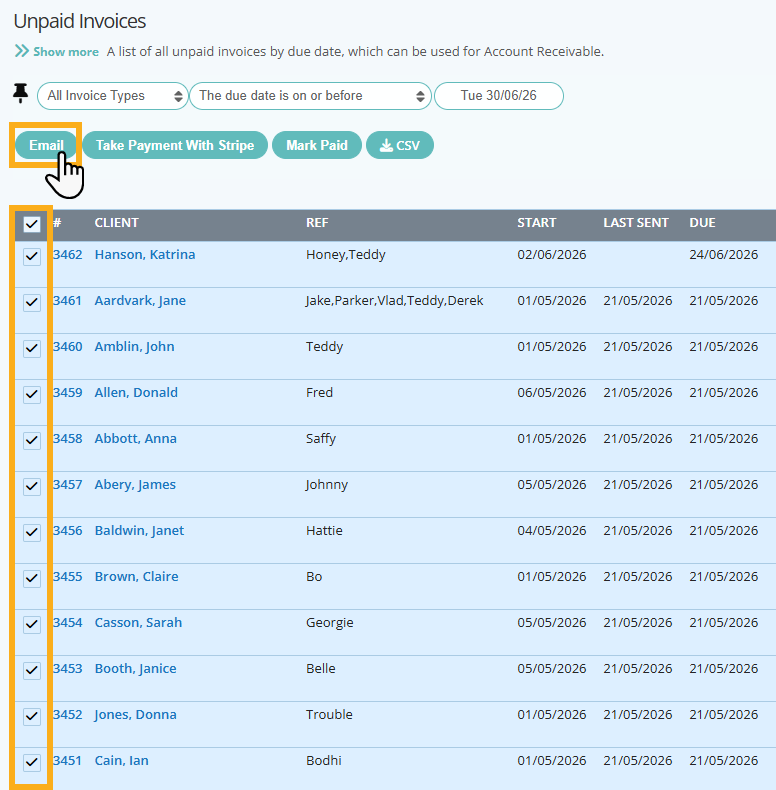
Step 2
- Choose an email template from the dropdown.
- Click "Send Email."
- An email is sent to each client selected with a copy of the invoice and account summary attached.

The Unpaid Invoices Report Explained:
- #: Invoice number. Click on the invoice number to access the invoice screen. To return to this report, click "Back" button.
- Client: Client's Last Name, First Name. Click client name to access Client Record. To return to this report, click "Back" button. Sort by ascending or descending Surname.
- Ref: Schedule Ref for this client. Sort by ascending or descending Pet Name.
- Start: Service start date for the Invoice. Sort by ascending or descending Start Date.
- Last Sent: Date invoice was last sent to client. Use it to determine when to send it again. Sort by ascending or descending Last Sent Date.
- Due: Invoice due date, based on the Invoice Type for this Invoice. Sort by ascending or descending Due Date..
- Ageing: Number of days until the due date. If the number is positive (10), the invoice is 10 days overdue. If the number is negative (-10), the invoice will be due in 10 days. Sort by oldest or newest due date.
- Total: Total amount of the invoice before any payments were made. Sort by lowest or highest Total price.
- Tips: Amount of Tip added to the invoice using Stripe via the Portal.
- Invoice Type: Invoice Type associated with the invoice which determines the Due Date. Refer to Invoice Types for more information.
- Stripe: If an "S" in a green box appears in this column, the client has a payment method on file. For these clients, you can take payment via this report. Sort by whether a client has a card on file or not.
- Overdue: Amount of the invoice that is still due, after any payments have been deducted. Sort by lowest or highest Total price.
Was this article helpful?
That’s Great!
Thank you for your feedback
Sorry! We couldn't be helpful
Thank you for your feedback
Feedback sent
We appreciate your effort and will try to fix the article