TABLE OF CONTENTS
- What do I need before I start?
- How do I add Pet Sitter Plus to my home screen in Chrome?
- What if I can't see "Install and create shortcut"?
- How do I stay logged in from my home screen shortcut?
- How do I remove the shortcut?
- Frequently asked questions
- In summary
Navigation: Android > Chrome > ⋮ > Install and create shortcut
What do I need before I start?
- Your Pet Sitter Plus login link.Staff will find it in the welcome email from their business (see Email template: Welcome New Staff). Business owners and admins can use the link they normally log in with. It's the same link on every device. If you are brand new to Pet Sitter Plus, you will find the link to your software on the Login and Welcome email sent to you by your Software Coach.
- A browser. Chrome or Firefox work best. On Samsung Galaxy phones you can also use Samsung Browser.
- An up-to-date browser. Update Chrome , Firefox or Samsung Browswer in the Google Play Store (or Galaxy Store) if the option is missing.
Tip: Add the shortcut while you're on the Pet Sitter Plus login page, not a page inside Pet Sitter Plus. That way the icon always opens in the right place.
How do I add Pet Sitter Plus to my home screen in Chrome?
- Open Chrome and go to your Pet Sitter Plus login link. You can tap the link in your login email or paste it into the address bar.
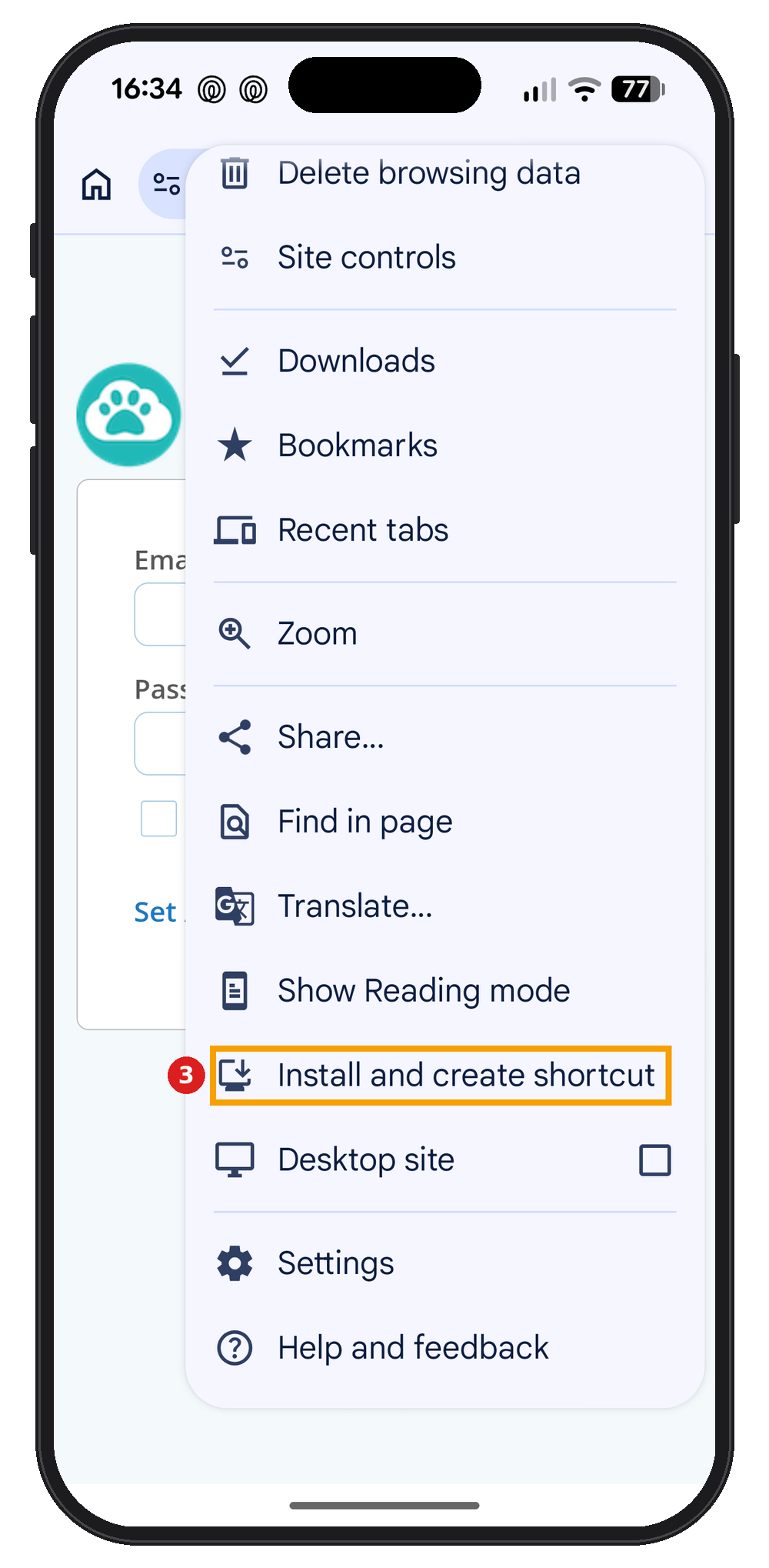
- Click ⋮ (More) at the top right of the screen.
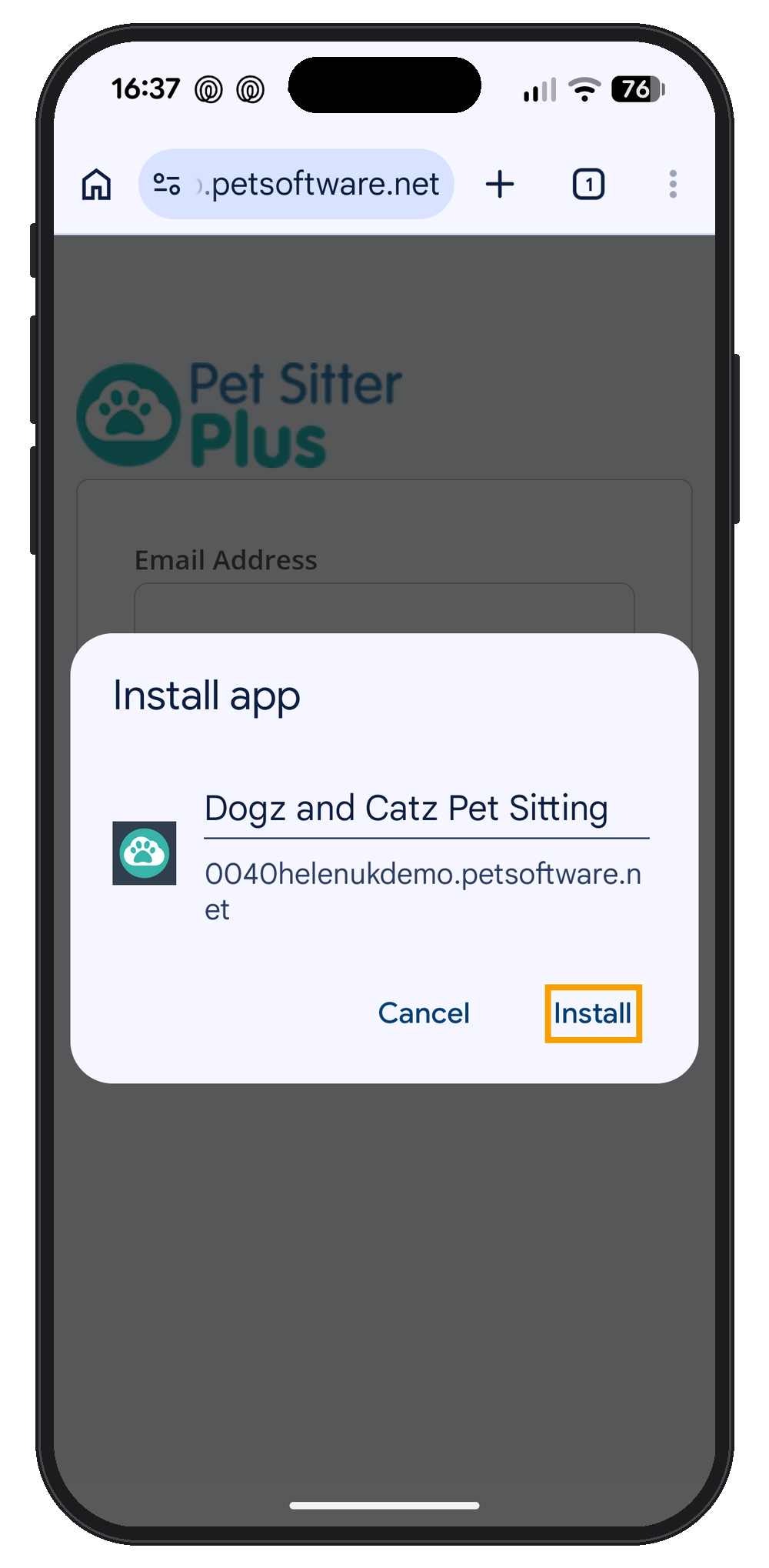
- Click install and create shortcut.
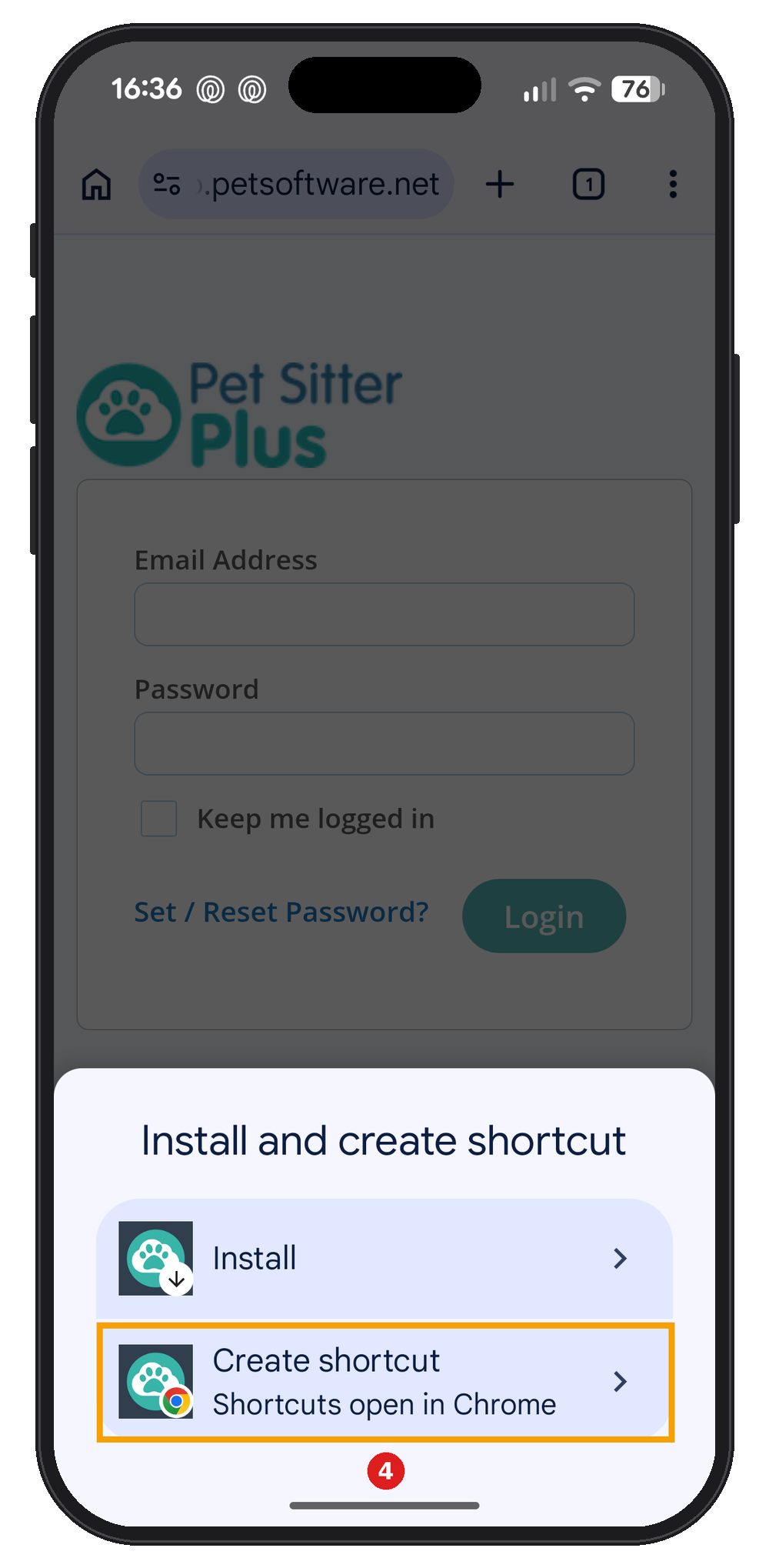
- Choose Create shortcut.
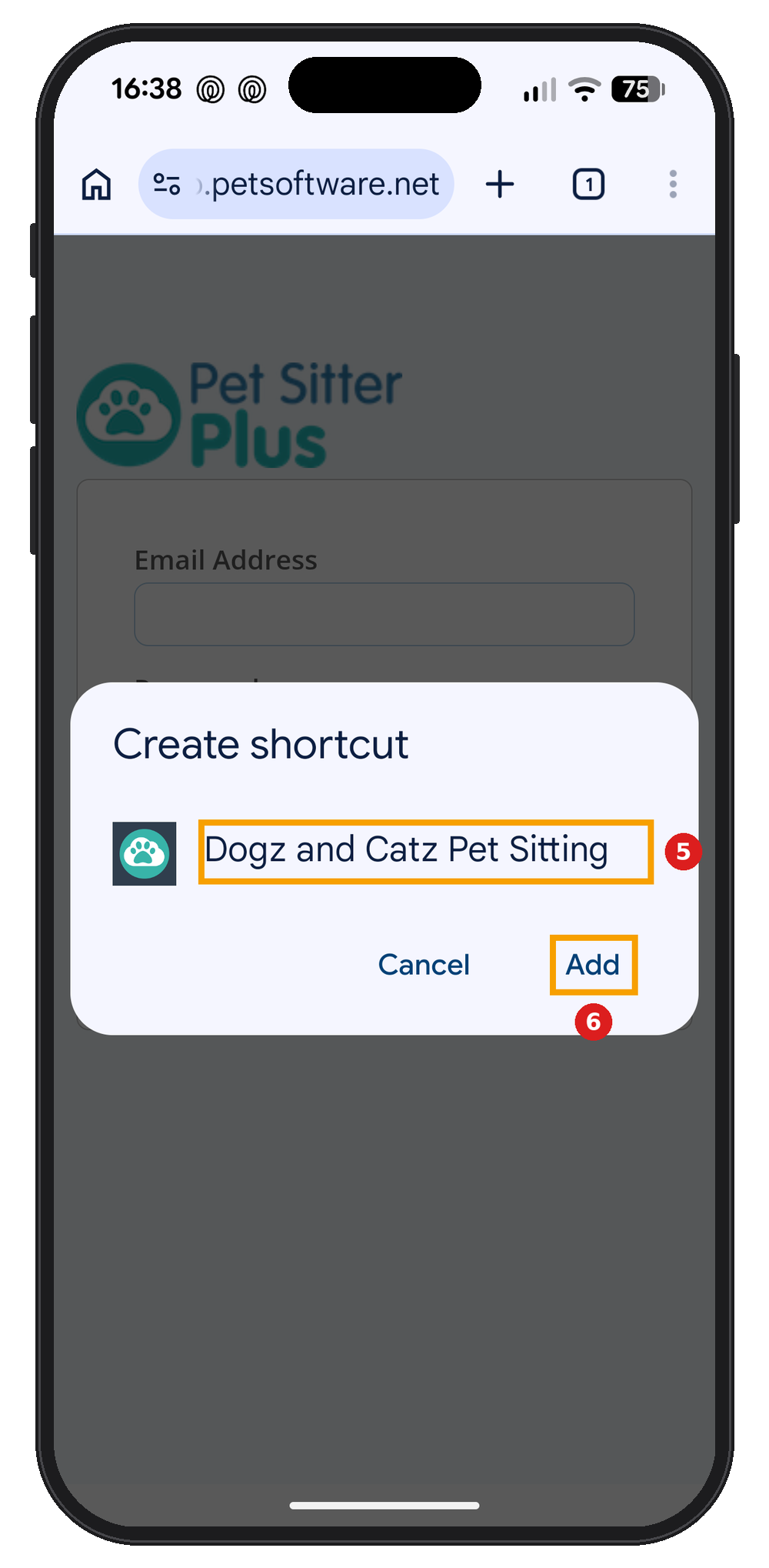
- Check the name. It shows your business name, and you can shorten it so it fits neatly under the icon.
- Click Add.
- Click Add to home screen. You can also touch and hold the icon to drag it where you want it.
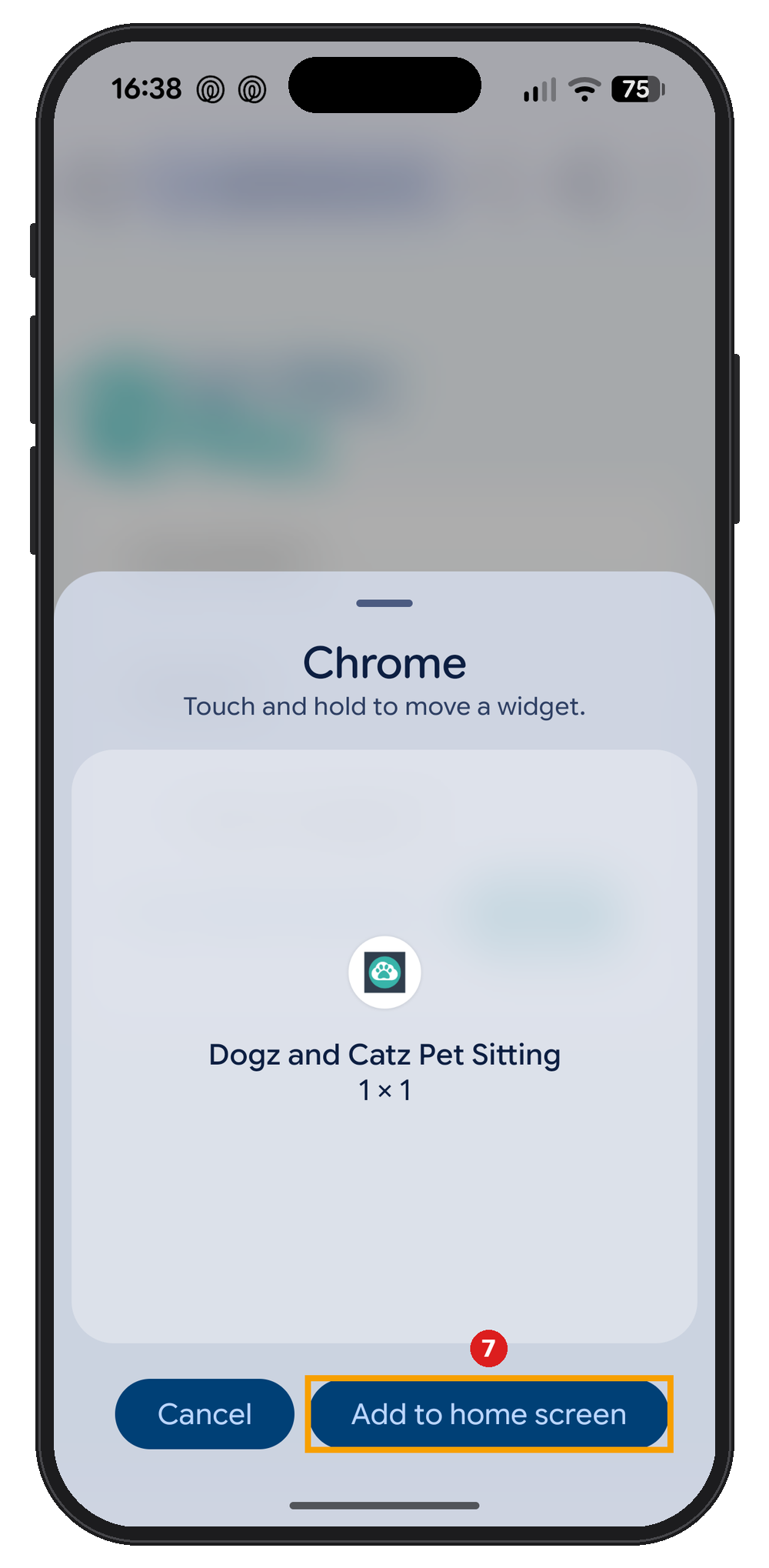
The Pet Sitter Plus icon now appears on your home screen, with a small Chrome badge. Tap it to go straight to your login page.
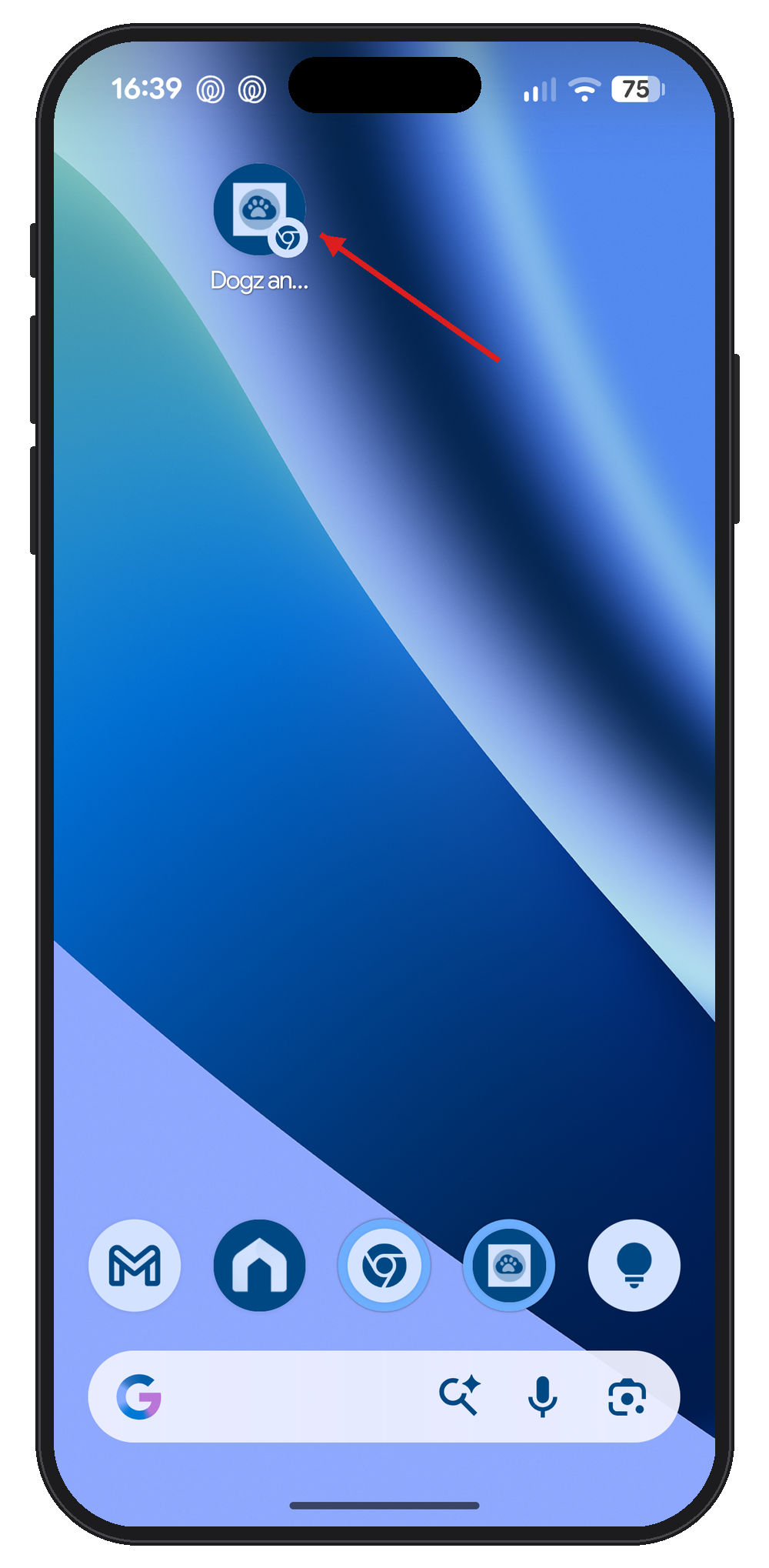
Tip: Prefer Pet Sitter Plus to open full screen, without the Chrome address bar? Go back to Step 4, tap Install instead, then tap Install again. It works the same way, and it also appears in your phone's list of apps.
Tip: Using Samsung Internet on a Samsung Galaxy phone? Tap the menu button (three lines) at the bottom right, then Add page to > Home screen.
Note: A shortcut opens Pet Sitter Plus in the browser you added it from. If you switch browsers later, add a new shortcut from that browser.
What if I can't see "Install and Create shortcut"?
- Look for the older name. On older versions of Chrome, the option is called "Add to home screen."
- Make sure you're on a web page. The option only shows when a page is open, so open your login link first.
- Update your browser. Open the Google Play Store (or Galaxy Store for Samsung Browser), search for your browser and tap Update.
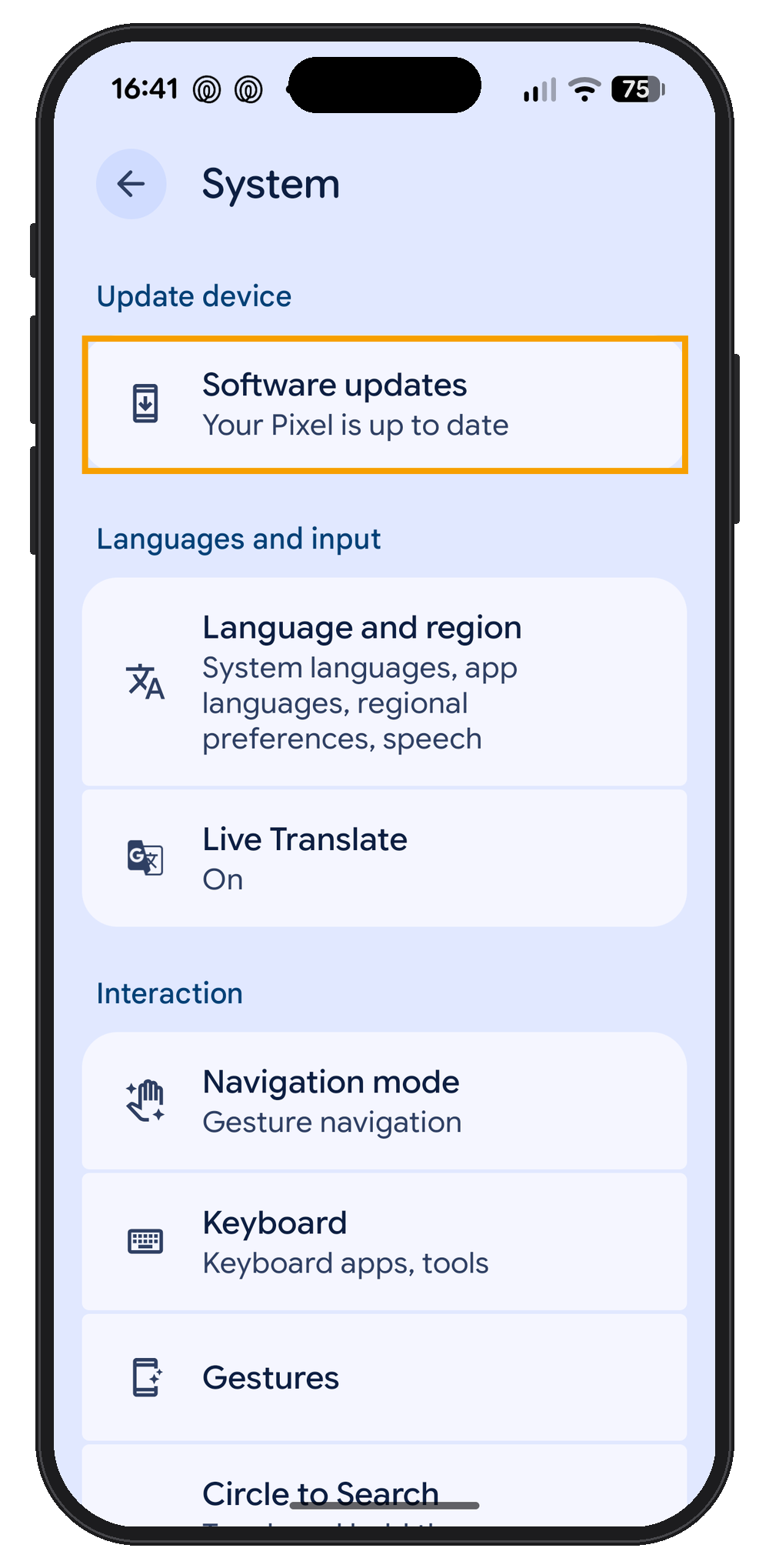
- Update your phone. Open Settings > System > Software updates (on Samsung phones, Settings > Software update).
- Try Chrome. Chrome is on almost every Android phone and always offers a home screen shortcut.
- Save a bookmark instead. If you still can't add a shortcut, tap the ☆ star in the browser menu to bookmark your login link.
If you have trouble connecting to Pet Sitter Plus at all, please contact our Support team.
How do I stay logged in from my home screen shortcut?
- On the login screen, tick "Keep me logged in".
- Tap Login.
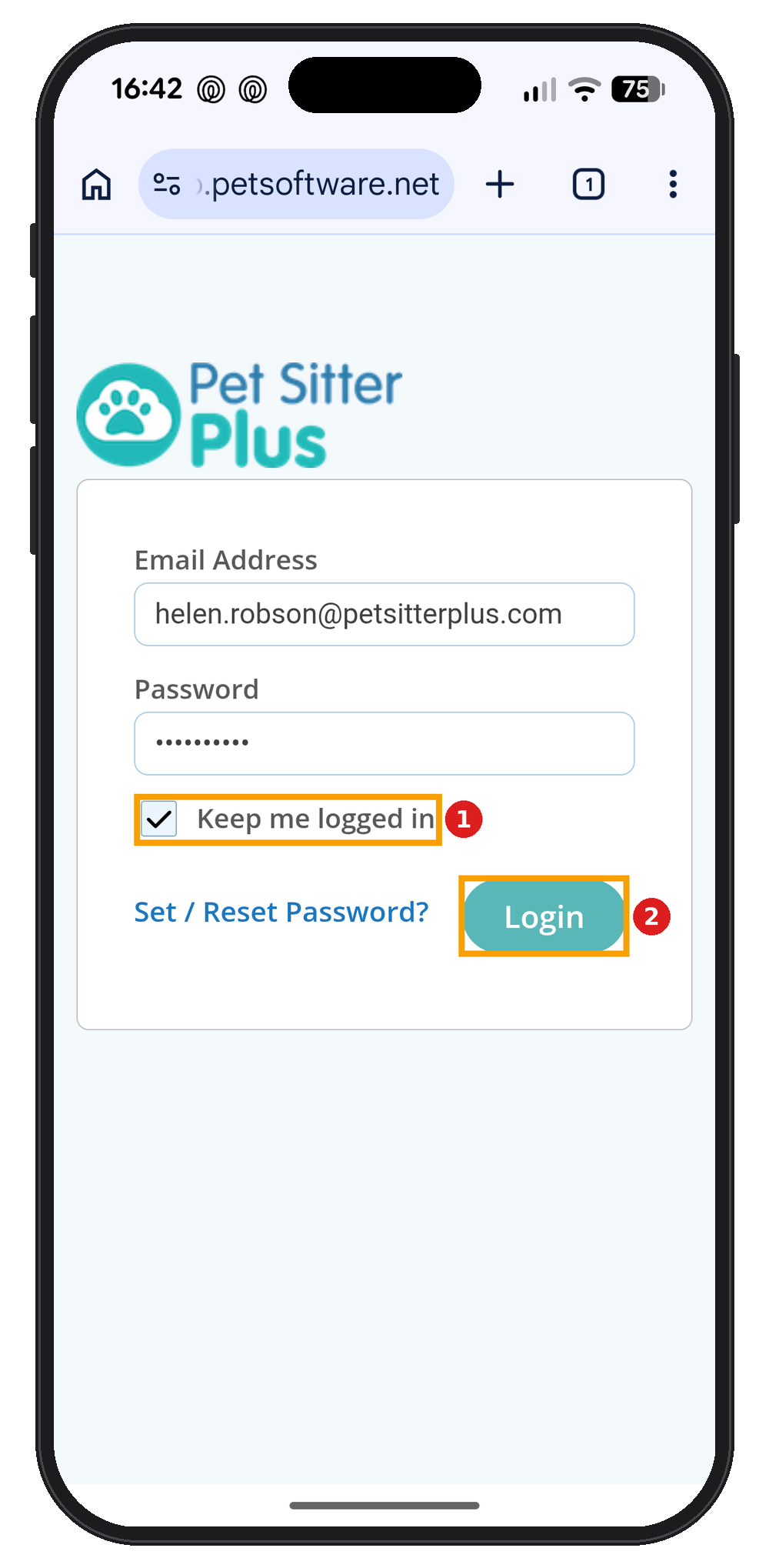
You'll now go straight to your dashboard each time you tap the icon. For full login steps, see How Can Staff Login on Mobile?.
Note: Only use "Keep me logged in" if your phone is locked with a PIN, pattern, password or fingerprint. Client details such as addresses and alarm codes can be seen in Pet Sitter Plus, so set your screen to lock quickly (Settings > Display & touch > Screen timeout on a Google Pixel; similar on other phones).
How do I remove the shortcut?
- Touch and hold the Pet Sitter Plus icon on your home screen.
- Tap Remove.
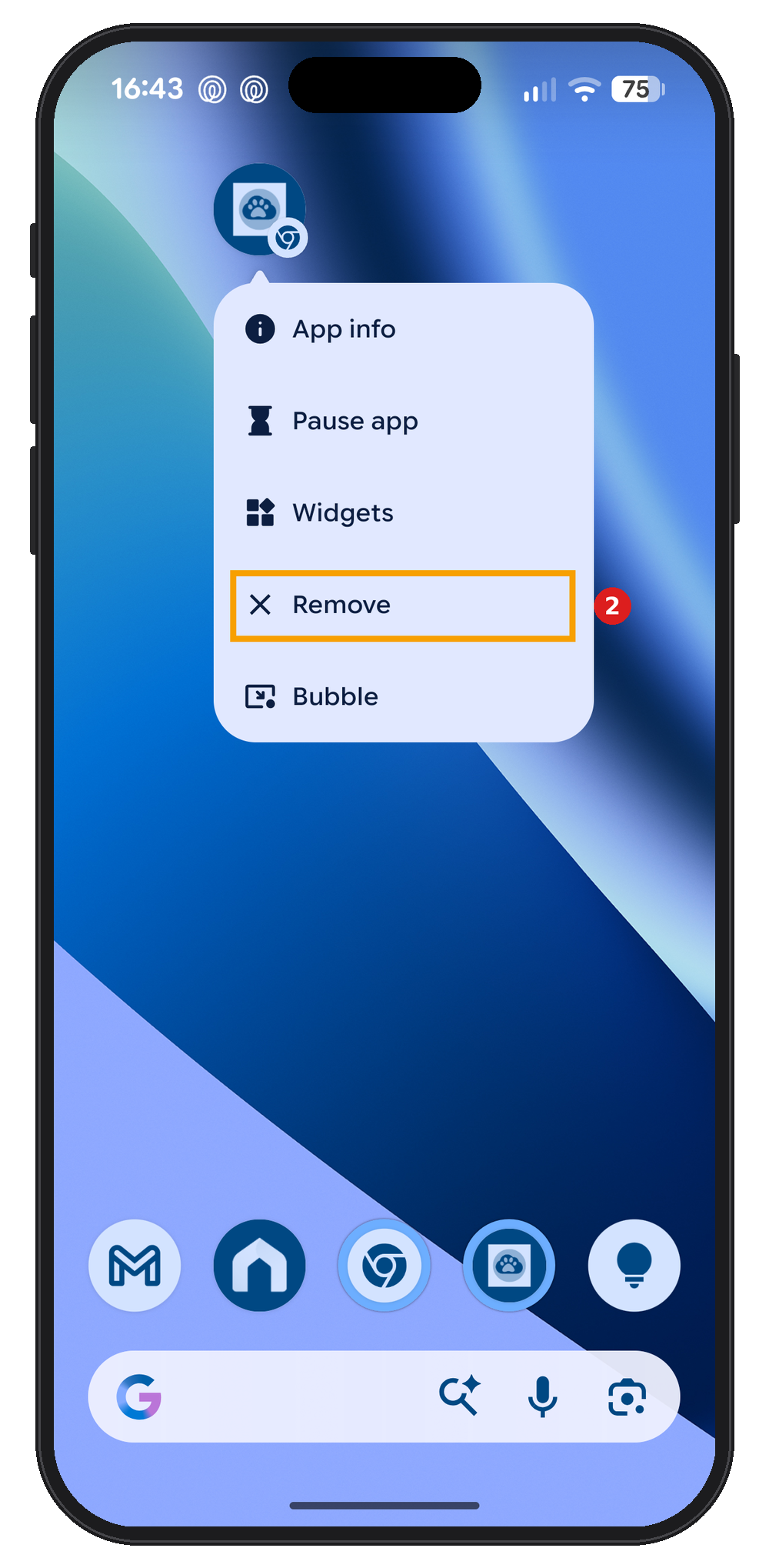
Removing the icon doesn't change anything in Pet Sitter Plus. You can add it again at any time.
Frequently asked questionsCan my staff add Pet Sitter Plus to their Android phones?Yes. Staff follow the same steps using the login link in their welcome email. They'll only see the parts of Pet Sitter Plus their Staff Profile gives them access to. Which browser should I use on Android?We recommend Chrome, as we rarely see issues with it. Samsung Internet also works on Samsung Galaxy phones. What's the difference between Install and Create shortcut?Both put a Pet Sitter Plus icon on your home screen. Create shortcut opens Pet Sitter Plus in Chrome, while Install opens it full screen without the address bar. Either works, so choose whichever you prefer. How do I add Pet Sitter Plus to an iPhone?iPhones use Safari or Chrome with slightly different steps. See How Do I Add PSP to My iPhone? |
Info: Related articles
- How Do I Add PSP to My iPhone?
- How Can Staff Login on Mobile?
- How Do Staff Login to Pet Sitter Plus?
- Email template: Welcome New Staff
- Getting Started for Staff: Using My Dashboard
- Check-in and out Not Working on Android
- FAQ: Getting Started with Pet Sitter Plus
In summary
A home screen shortcut puts Pet Sitter Plus one tap away on your Android phone, so you and your team can get to the day's visits, walks and client details quickly when you're out and about.
Not a Pet Sitter Plus client yet? Pet Sitter Plus is all-in-one business software for every kind of pet care provider, from dog walkers, pet sitters and cat sitters to dog boarders, dog day cares, trainers and groomers. It suits everyone from solo business owners to large, multi-service teams. Every subscription includes the full software with no locked features. Your plan (Solo, Team or Enterprise) is based simply on your location and the number of staff with services assigned to them. See our pricing page and Start your 30-day free trial with full access, no credit card required, and unlimited coaching and support.
Last reviewed: October 2026
Was this article helpful?
That’s Great!
Thank you for your feedback
Sorry! We couldn't be helpful
Thank you for your feedback
Feedback sent
We appreciate your effort and will try to fix the article