TABLE OF CONTENTS
- What is the Maintenance Utility?
- How To Remove A Sitter's Key Holder Reference For Multiple Clients
- How to Re-assign a different Sitter/Staff member as Key Holder to Multiple Client Profiles?
When a Staff member/Sitter changes their role, reduces availability or leaves your employment, as well as making them Inactive, you will also need to remove or re-assign their Key Holder reference on a Client Profile
Instead of updating each client profile individually, Admins can use the Maintenance utility to quickly remove or reassign Sitters/Staff members across multiple client profiles at once.
What is the Maintenance Utility?
The Maintenance Utility is an Admin tool that allows you to update Staff Member references across multiple Client Profiles at one time. This helps streamline administrative changes, improve efficiency, and reduce the risk of manual errors that can occur when updating records individually.
Bulk staff re-assignment is commonly used when a Staff Member leaves the company, changes roles, or when client assignments are being restructured.
The following Staff references on a Client Profile can be updated using the Maintenance Utility:
How To Remove A Sitter's Key Holder Reference For Multiple Clients
First, access your Staff list via Admin > Staff and select the sitter/staff member whose Key Holder designation you wish to change. From the Staff Profile menu, select the Maintenance page.
Navigation: Admin > Staff > Select Staff/Sitter > Maintenance
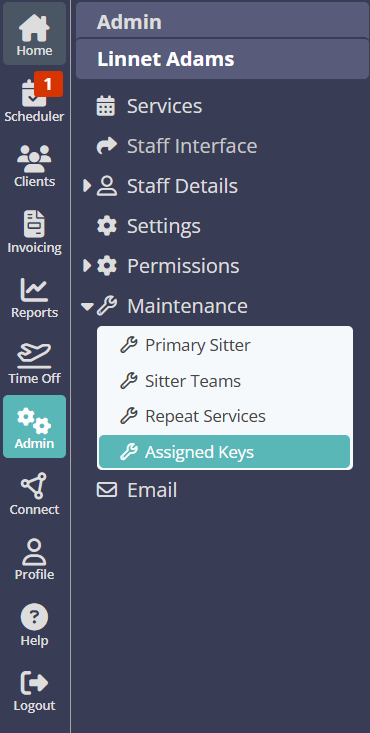
Under the Assigned Keys tab, you will see a list of all clients where the Sitter/Staff member has been designated as a Key Holder.
- Make sure the drop down reference states "No one"
- Select the "All" check box, or select individual Client Profiles.
- Click "Replace"
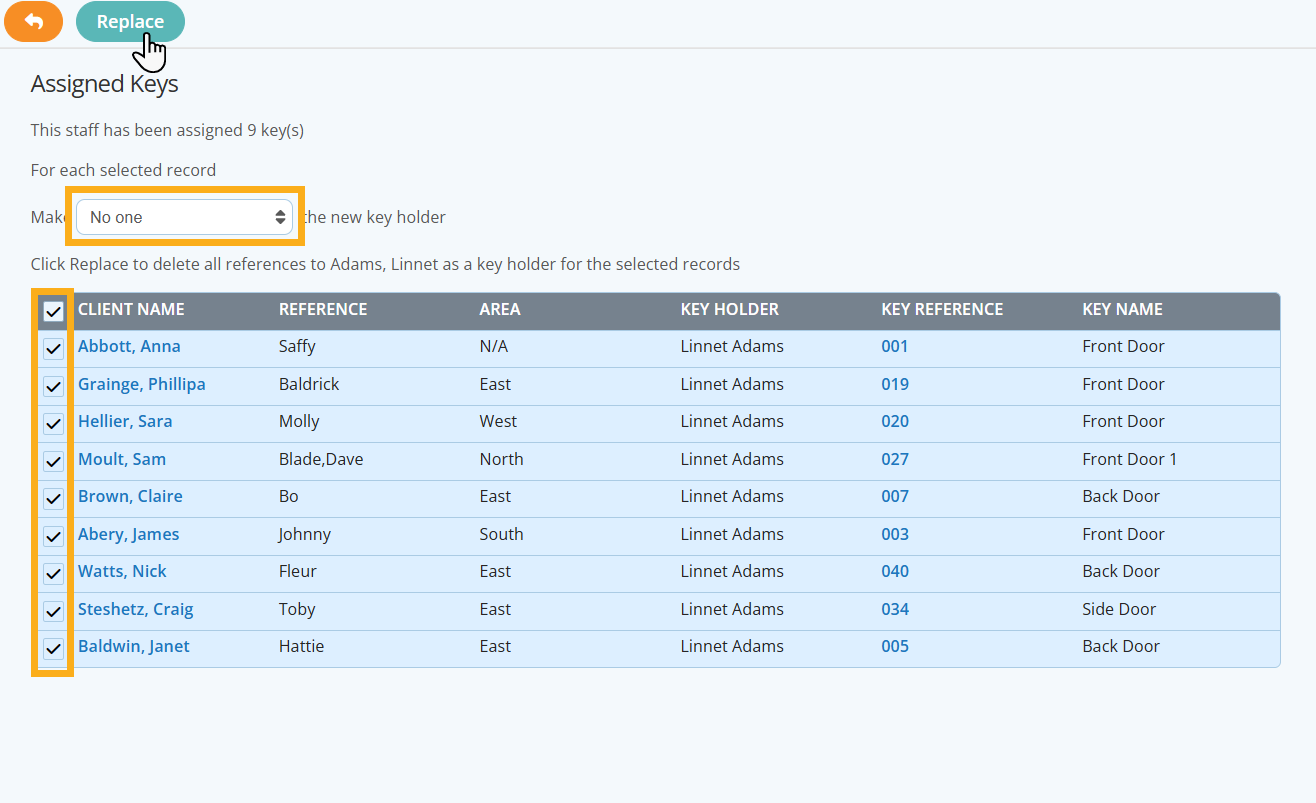
The Sitter/Staff member will then be removed as the key Holder from the Client Profiles you selected.
How to Re-assign a different Sitter/Staff member as Key Holder to Multiple Client Profiles?
First, access your Staff list via Admin > Staff and select the sitter/staff member whose Key Holder designation you wish to change. From the Staff Profile menu, select the Maintenance page.
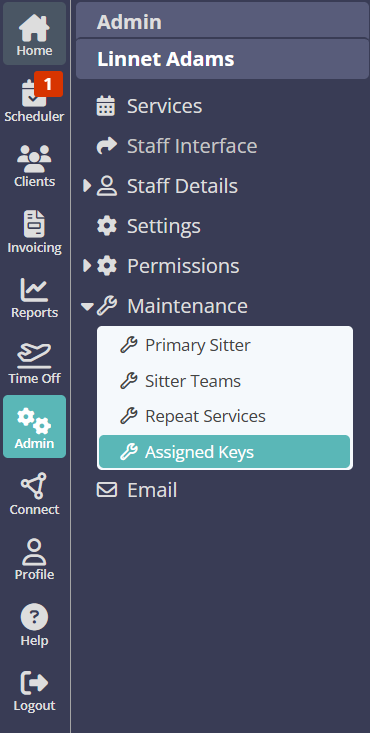
Under the Assigned Keys tab, you will see a list of all clients where the Sitter/Staff member has been designated as the regular Key Holder to carry out the Client's services.
- From the Staff list drop down, select the Sitter/Staff you wish to re-assign the Key Holder designation to.
- Select the "All" check box, or select individual Client Profiles.
- Click "Replace"
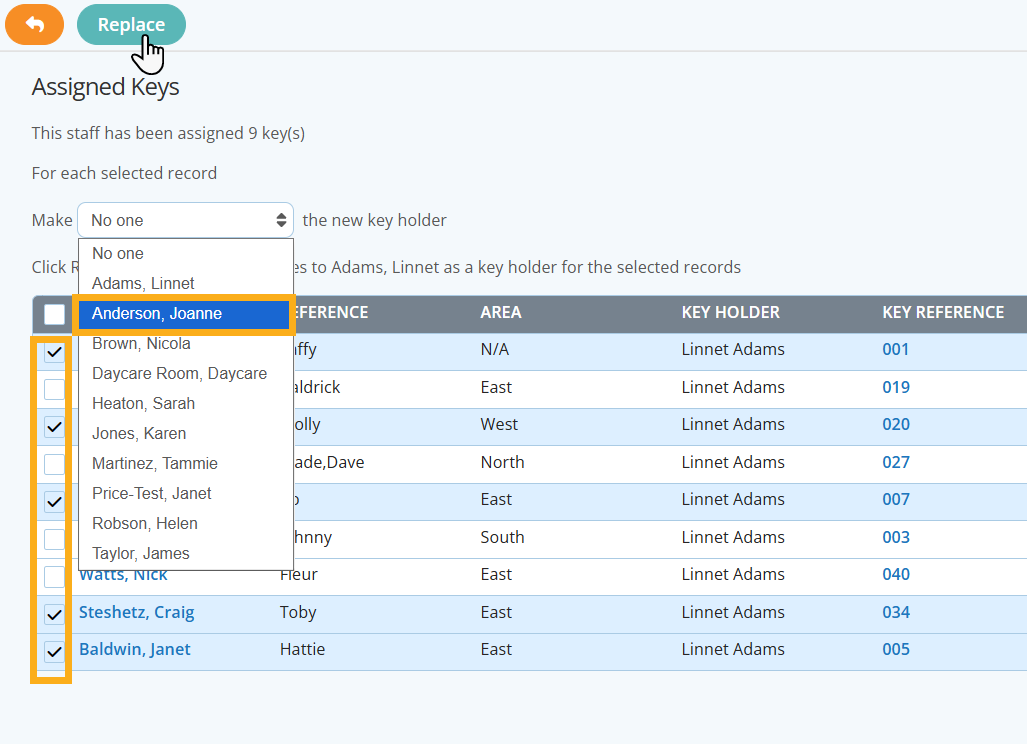
The selected Sitter/Staff member will then be replaced as the designated Key Holder on the Client Profiles you selected. Repeat this process to assign to a different Sitter/Staff member.
Tip: Learn more about how to change multiple Staff/Sitter references on Client Profiles using the Maintenance Function:
- Change Repeat Services
- Change Sitter Team
- Change Primary Sitter
Was this article helpful?
That’s Great!
Thank you for your feedback
Sorry! We couldn't be helpful
Thank you for your feedback
Feedback sent
We appreciate your effort and will try to fix the article