IMPORTANT: If you use the Pet Sitter Plus QuickBooks Online integration and also have a bank feed switched on in QuickBooks, the same client payment can be recorded twice. To stop this, record each payment only once: exclude the bank deposit in QuickBooks Online (recommended), or ignore the payment in Pet Sitter Plus.
TABLE OF CONTENTS
- Why do duplicate payments happen?
- Which option should I use?
- Option 1: How do I exclude a bank deposit in QuickBooks Online?
- Option 2: How do I ignore a payment in Pet Sitter Plus?
- Should I turn off AutoSync?
- Frequently asked questions
- In summary
Why do duplicate payments happen?
The QuickBooks Online integration is a one-way sync. It sends your invoices (sales) and the payments you record against them from Pet Sitter Plus to QuickBooks Online, so your accountant can report on everything in QuickBooks.
A bank feed brings the same money into QuickBooks a second way. When a client's payment lands in your bank, the deposit downloads into QuickBooks Online. If that deposit is then added as income or matched to the client's invoice, QuickBooks records the payment itself. When Pet Sitter Plus syncs its own copy of the same payment, the client has paid twice in QuickBooks.
Example: Sam pays his 120.00 invoice by bank transfer. The deposit appears in your bank feed and is matched to his invoice, so QuickBooks records a 120.00 payment. You also record the payment on his Client Profile in Pet Sitter Plus, and it syncs. Sam now has two 120.00 payments in QuickBooks, and his balance there no longer matches Pet Sitter Plus.
Note: The integration doesn't read anything back from QuickBooks Online. Pet Sitter Plus can't see or undo entries made from your bank feed.
Which option should I use?
You can keep both the integration and your bank feed. Just choose one place where each payment is recorded:
| Option 1: Exclude in QuickBooks Online (recommended) | Option 2: Ignore in Pet Sitter Plus | |
| Who records the payment in QuickBooks | The Pet Sitter Plus integration | You or your accountant, from the bank feed |
| What you do with the bank feed deposit | Exclude it | Record it as a payment from the right customer |
| What you do in Pet Sitter Plus | Record the payment as normal and let it sync | Record the payment, then set its transaction to "Ignored" |
| AutoSync | Can stay on | Turn off (see below) |
| Best for | Most businesses: less work, fewer mistakes | Accountants who prefer to work from the bank feed |
We recommend Option 1. Pet Sitter Plus already knows which invoice each payment is for, so letting the integration record it keeps your client balances in QuickBooks matching Pet Sitter Plus.
Option 1: How do I exclude a bank deposit in QuickBooks Online?
Excluding a bank feed transaction tells QuickBooks Online to skip it. The payment synced from Pet Sitter Plus is the one that counts.
In Pet Sitter Plus:
- Record the payment on the client's Client Profile as normal.
- Let the integration sync it: wait for AutoSync, or click "Sync Now" on the Settings & Sync page.
In QuickBooks Online:
Navigation: Accounting > Bank transactions
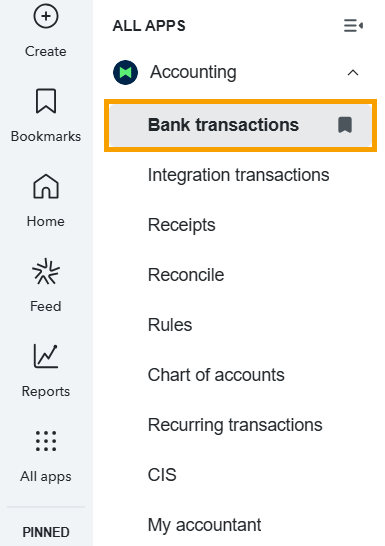
- Select your bank account, then open the For review tab (called Pending in some layouts).
- Tick the checkbox next to the client's deposit. You can tick several at once.
- Click Exclude.
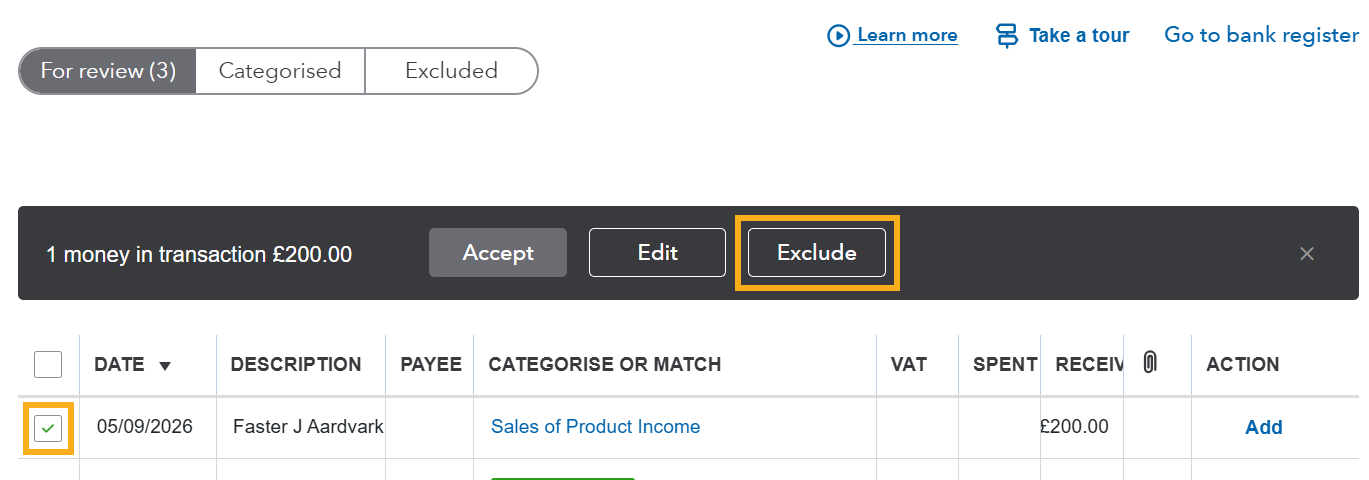
The deposit moves to the Excluded tab and doesn't appear in your account histories or reports.
Note: Don't click Match or Add on a client deposit. Matching it to the client's invoice, or adding it as income (such as "Sales of Product Income"), makes QuickBooks record the payment itself. When Pet Sitter Plus syncs the same payment, it's recorded twice.
Tip: Exclude client deposits as part of your regular bank feed review, so none get added by mistake. If you exclude something in error, open the Excluded tab, tick it and click Undo.
Option 2: How do I ignore a payment in Pet Sitter Plus?
Use this option if your accountant would rather record client payments from the bank feed. The payment is still recorded in Pet Sitter Plus, so your client balances stay right, but the integration doesn't send it to QuickBooks Online.
In QuickBooks Online:
- In Bank transactions, record the bank feed deposit as a payment from the correct customer (client), against their invoice.
In Pet Sitter Plus:
- Record the payment on the client's Client Profile as normal.
- Open the Transaction List.
Navigation: Connect > Accounting Systems > Quickbooks Integration > Transaction List
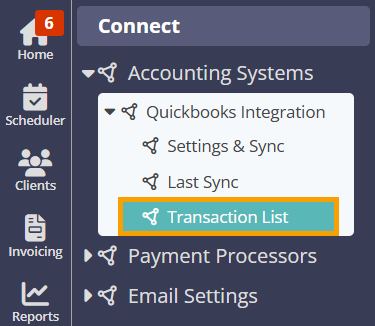
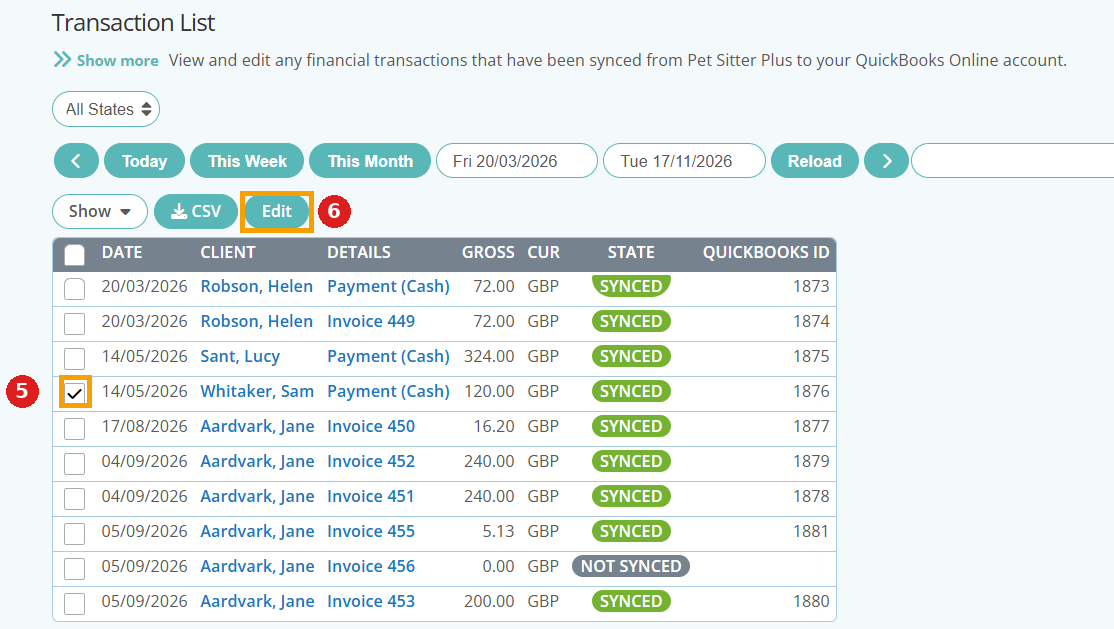
- Choose the dates, then click "Reload" to find the payment.
- Tick the checkbox next to the payment.
- Click "Edit".
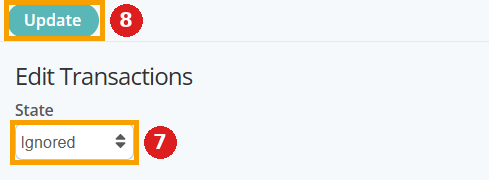
- In the Edit Transactions panel, change the State to "Ignored".
- Click "Update".
Tip: You can also ignore a payment that's waiting to sync from the Settings & Sync page. Under Data In Next Sync, click "Ignore" next to the payment.
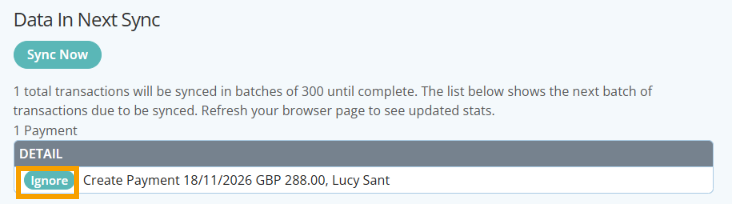
Note: Ignore the payment before it syncs. Once a transaction is set to "Ignored", it won't sync to QuickBooks Online, even when AutoSync runs or you click Sync Now.Should I turn off AutoSync?
If you use Option 2, yes. With AutoSync on, Pet Sitter Plus syncs new transactions every 5 hours. A payment could reach QuickBooks Online before you've had a chance to ignore it, creating the duplicate you're trying to avoid.
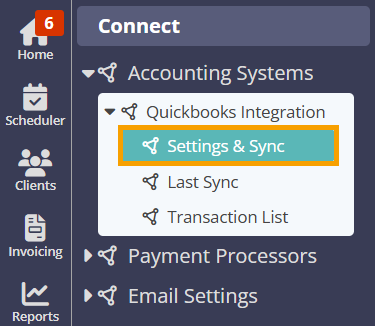
Navigation: Connect > Accounting Systems > Quickbooks Integration > Settings & Sync
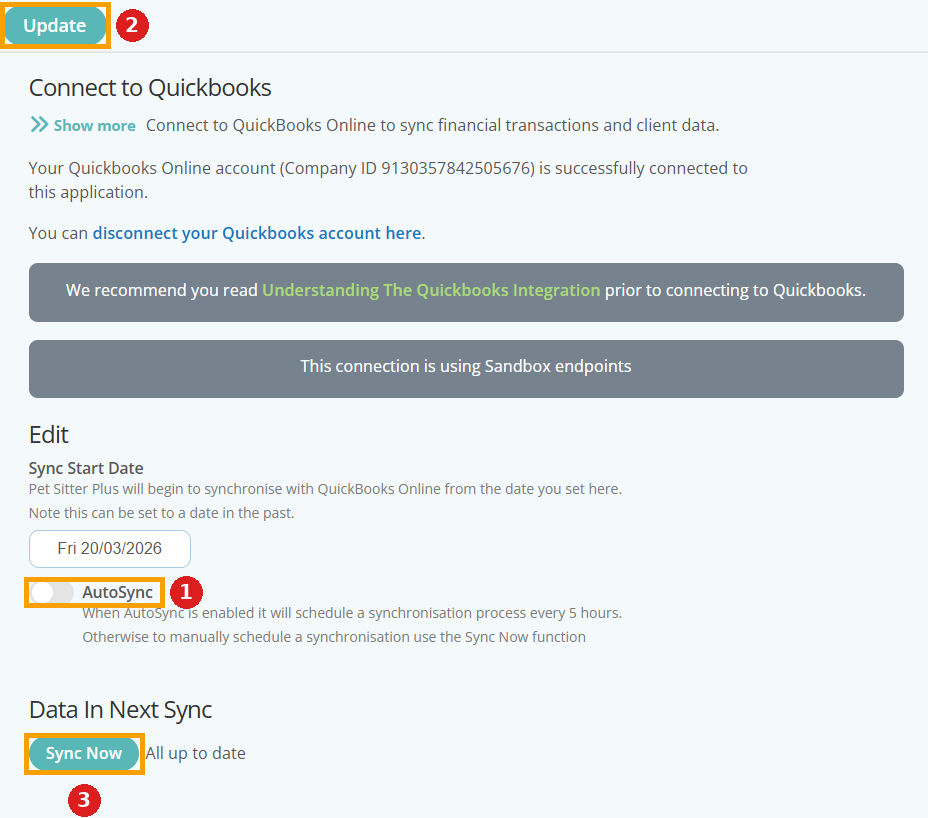
- Switch "AutoSync" off.
- Click "Update".
- After you've ignored any payments recorded from the bank feed, click "Sync Now" to send everything else (invoices and other payments) to QuickBooks Online.
If you use Option 1, you can leave AutoSync on.
Frequently asked questionsCan I use a bank feed and the Pet Sitter Plus integration together?Yes. Just make sure each client payment is recorded in QuickBooks Online once: exclude the bank deposit (Option 1), or ignore the payment in Pet Sitter Plus (Option 2). Why shouldn't I match the deposit to the client's invoice?Matching a deposit to an invoice makes QuickBooks create its own payment for that invoice. When Pet Sitter Plus syncs the same payment, QuickBooks records it again as an unapplied payment, so the client's balance no longer matches Pet Sitter Plus. Excluding the deposit avoids this. Will an excluded transaction affect my QuickBooks reports?No. Excluded bank feed transactions don't appear in account histories or financial reports. The payment synced from Pet Sitter Plus is the one that counts. Will an ignored transaction ever sync?Not while its State is "Ignored". To sync it later, edit it in the Transaction List, change the State to "Queued", then click Sync Now. I already have duplicate payments. What should I do?Ask your accountant to undo the bank feed entry for each duplicated payment in QuickBooks Online (Bank transactions > Categorised tab > Undo), then exclude it, so only the payment synced from Pet Sitter Plus remains. Our Software Coaches can help you check your Transaction List. |
Info: Related articles
New to Pet Sitter Plus?
Scheduling, client portal, invoicing and staff management for pet sitting and dog walking businesses — all in one place. Try it free for 30 days, or let us show you around.
Was this article helpful?
That’s Great!
Thank you for your feedback
Sorry! We couldn't be helpful
Thank you for your feedback
Feedback sent
We appreciate your effort and will try to fix the article