TABLE OF CONTENTS
- What is the Default Mapping Solution?
- How Do I Set My Default Mapping Solution?
- How Do I Navigate to a Visit Using My Default Map from my Dashboard?
Pet Sitter Plus allows each staff member to set their own preferred maps application for navigating to client visits. Rather than being limited to one mapping app for the whole business, staff can choose the option they're most comfortable using directly from their Preferences. After a Default Mapping Solution has been selected, it will open automatically wherever a location address is accessed in the Staff Dashboard
Tip: This is a personal preference setting. Each staff member can choose the map app that suits them best without affecting what other staff members see or use.
What is the Default Mapping Solution?
The Default Mapping Solution is a personal preference setting found in each staff member's Profile. It determines which maps application opens when a staff member navigates to a client's address for a visit.
Available options are:
- Default – uses the standard mapping behaviour built into Pet Sitter Plus (Google Maps)
- Google Maps
- Apple Maps
- Waze
From within the Client Profile, Admins and Staff will see a link to the Clients Address using their preferred map solution.
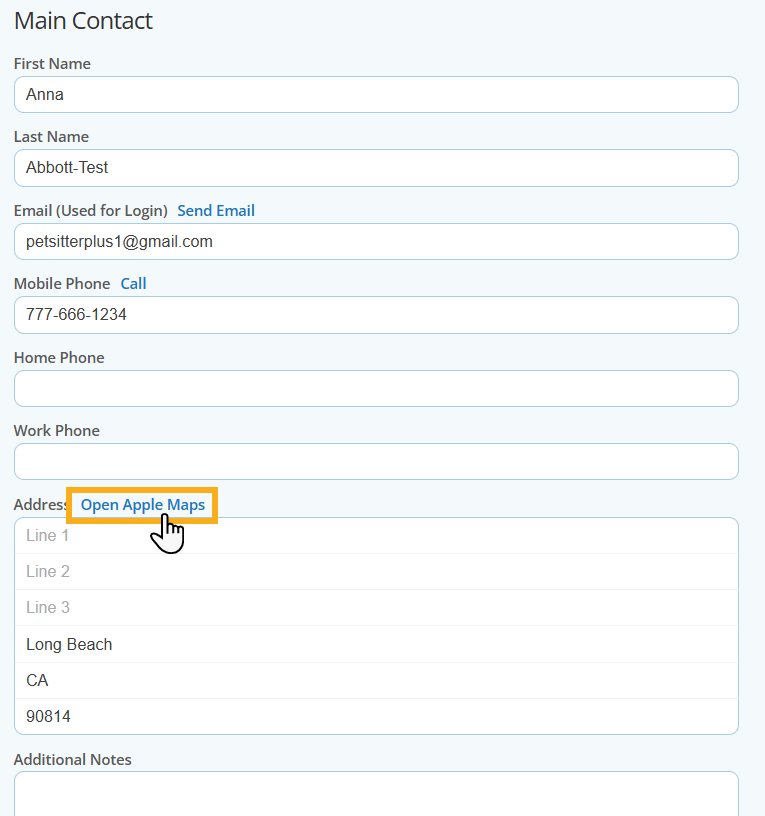
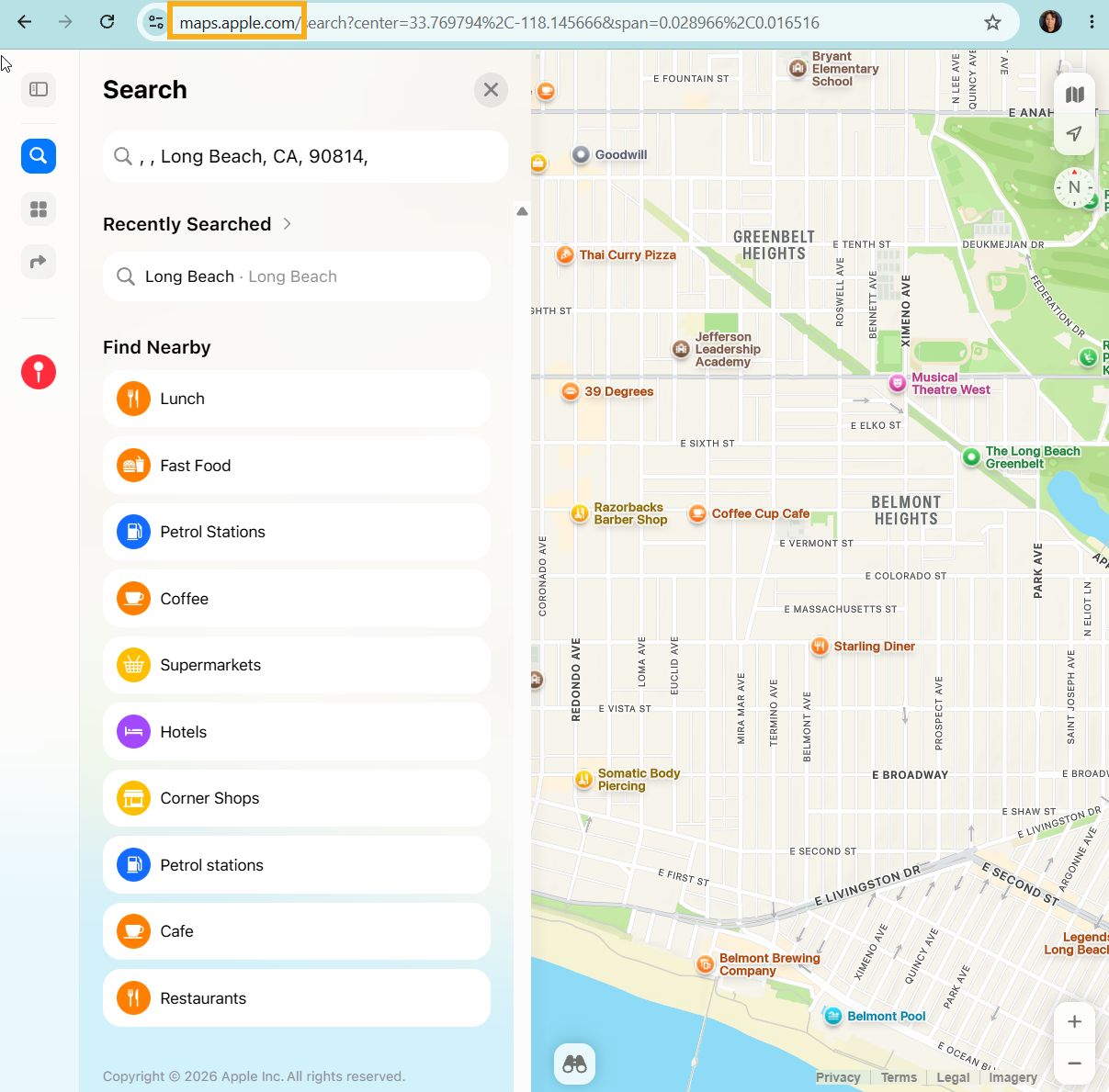
Your default map solution will then open the clients location address
How Do I Set My Default Mapping Solution?
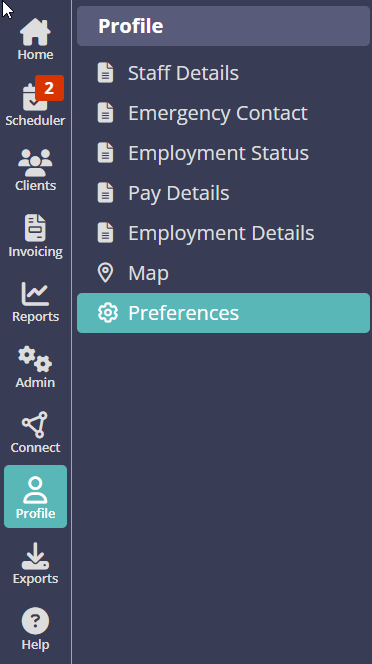
Navigation: Profile > Preferences
Step 1
- Go to your Profile.
- Select Preferences.
Step 2
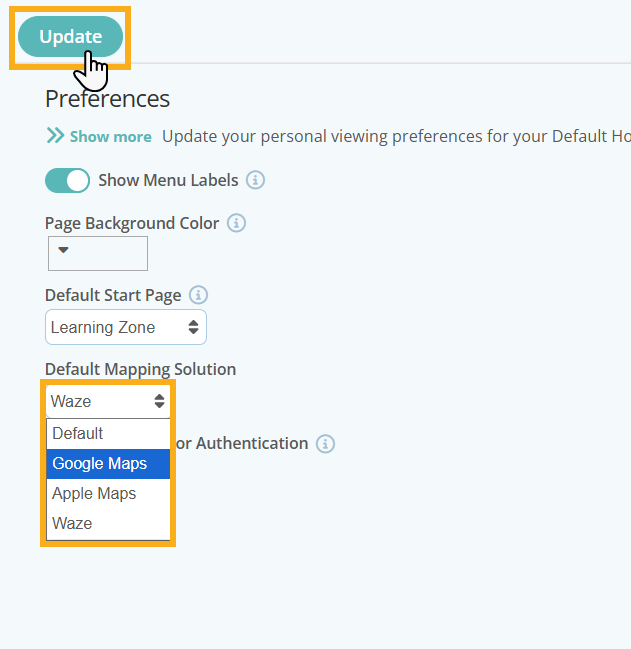
- From the Default Mapping Solution drop-down list, select your preferred option: Default, Google Maps, Apple Maps, or Waze.
- Click Update to save your changes.
Tip: If you're not sure which to pick, the Default option will use your devices standard mapping behaviour.
How Do I Navigate to a Visit Using My Default Map from my Dashboard?
Step 1
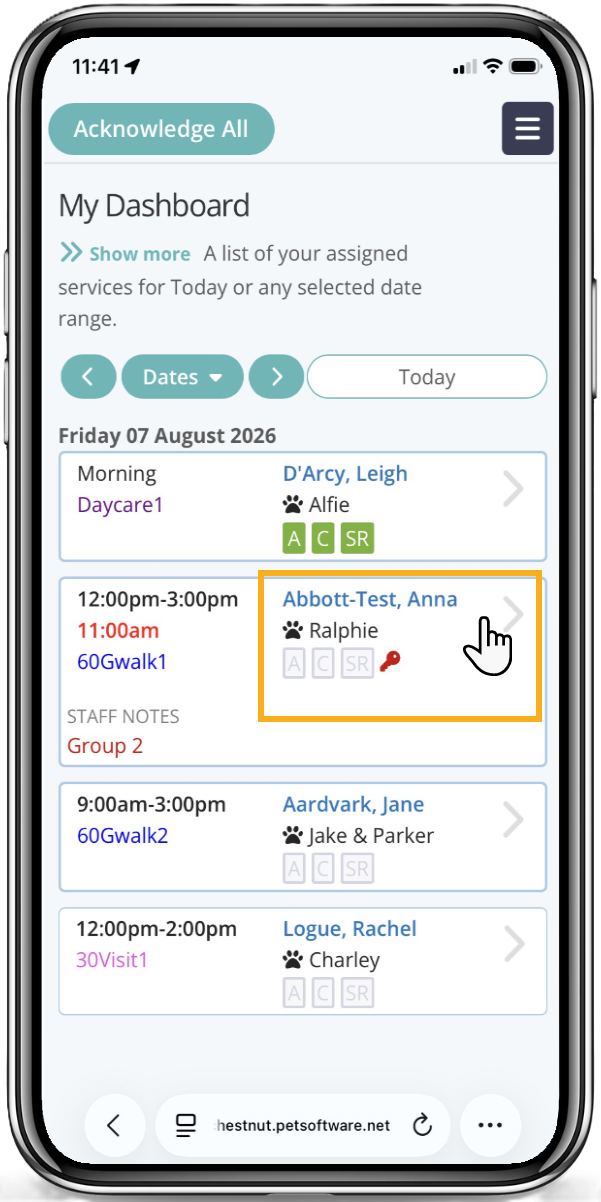
- From your Dashboard, tap on the service you wish to navigate to.
Step 2
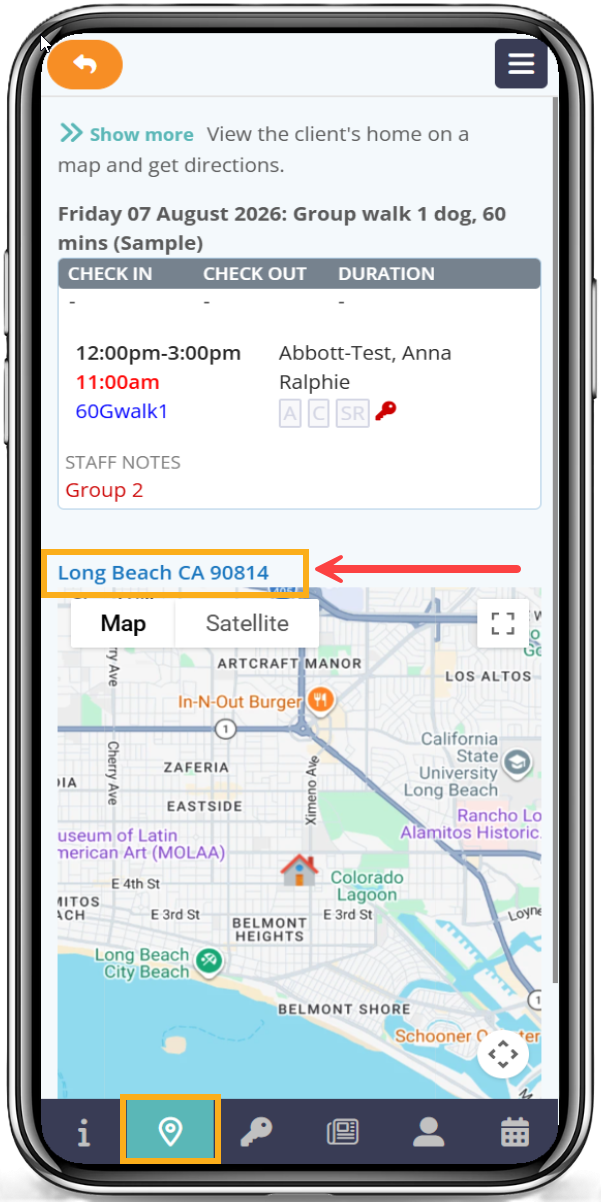
- Select Location from the service menu.
- The client's address is displayed above an embedded map.
- Tap the address to open it in your chosen mapping app and obtain the necessary directions.
Step 3
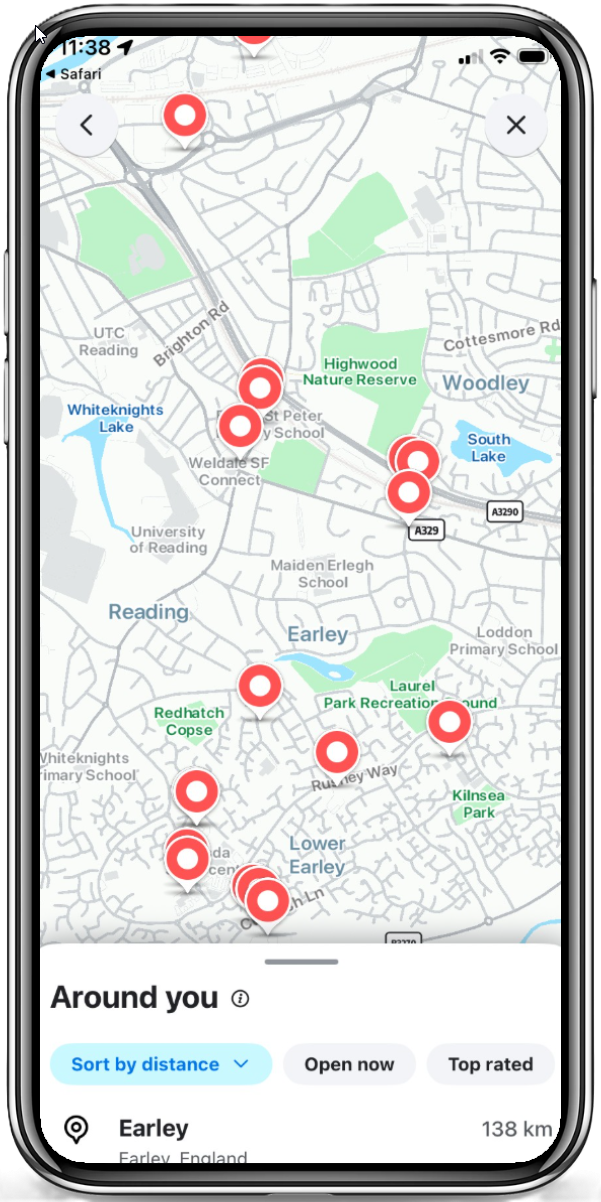
- Your chosen map solution will automatically load showing your Clients address location.
Further reading:
Learn more about your Dashboard Preferences.
Was this article helpful?
That’s Great!
Thank you for your feedback
Sorry! We couldn't be helpful
Thank you for your feedback
Feedback sent
We appreciate your effort and will try to fix the article