Service Availability settings allow Admins and Business Owners to prevent clients from requesting services that conflict with a Company's planned vacations or closures. Choose whether to completely block the ability to book services on a Company Vacation, or set custom times when Service Groups or Individual Services can be booked.
Examples of Company Vacations could be planned closures for Staff Training, compulsory time off for all staff, company shut downs, or even closures for renovations.
Setting Service Availability for company closures directly corresponds with the dates you set in the Company Vacation Calendar in Admin > Services > Company Vacations.
How To Prevent Clients Requesting Services When You Company Is Closed.
There are a few steps involved when setting your Service Availability, initially ensure the appropriate module is switched on.
Info: By default, all Service Availability Settings are enabled.
Step 1 - Enable Company Vacations Service Availability
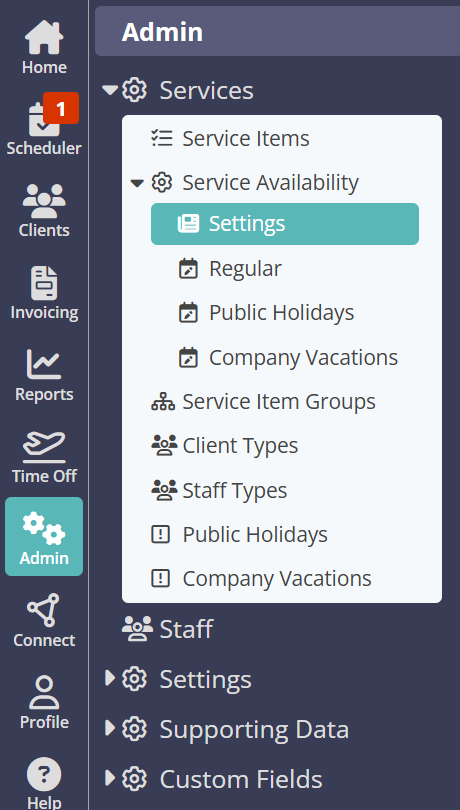
Navigation: Admin > Services > Service Availability > Settings
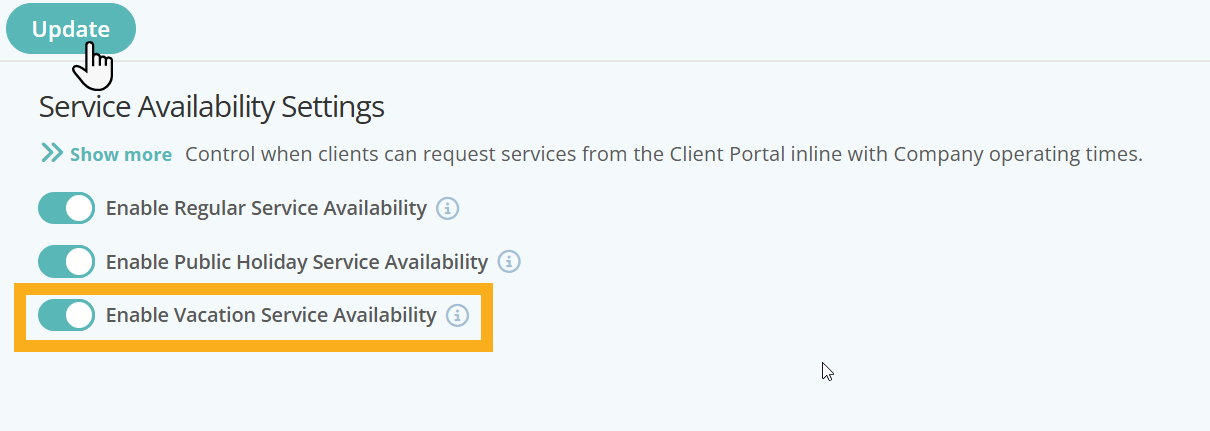
Ensure Company Vacation Service Availability is enabled by switching on "Enable Company Vacation Service Availability". Remember to click "Update" to save your changes.
Step 2 - Populate your Company Vacation Calendar
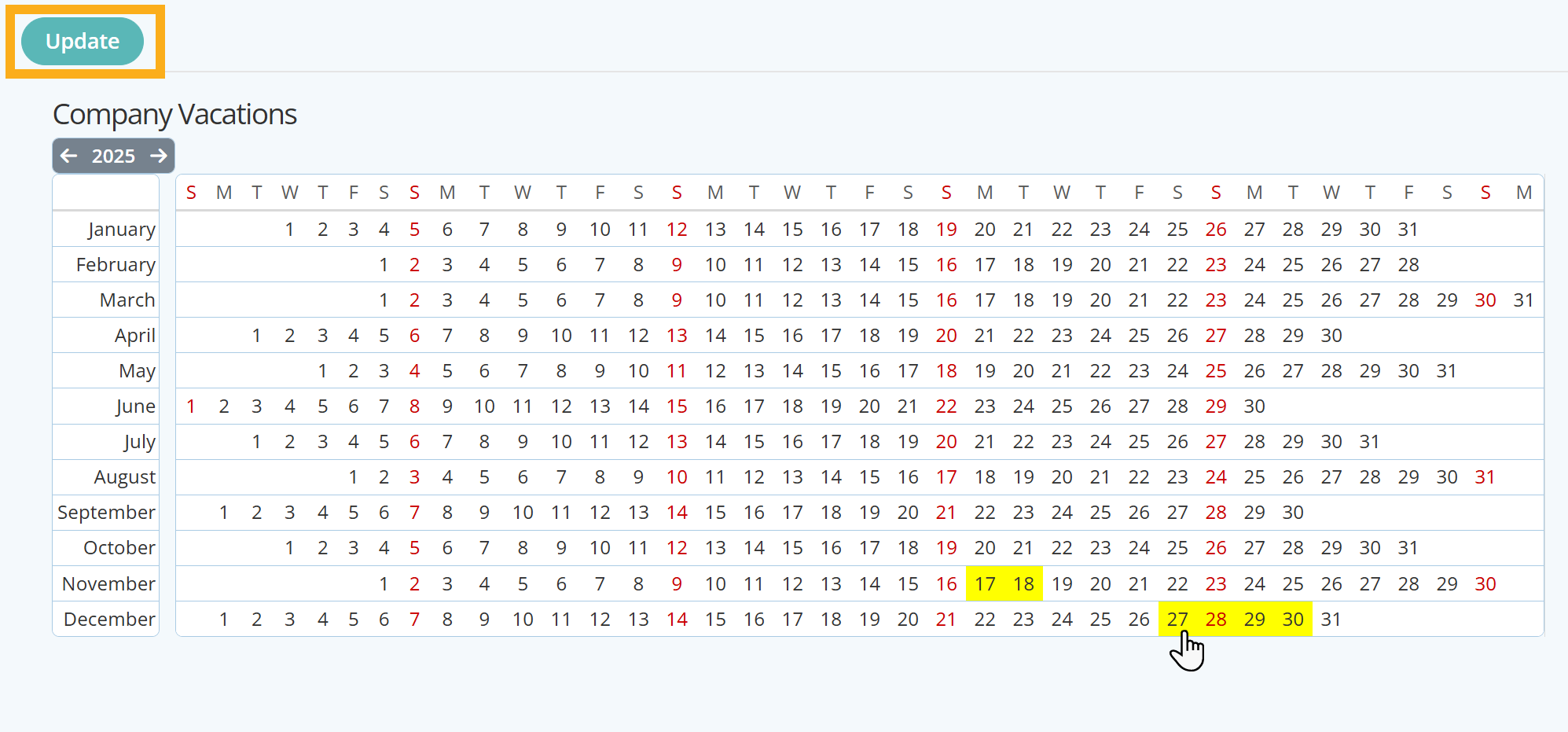
In order for you to prevent or restrict bookings for Company Vacations, you must first set when your annual Company Vacations or closures are. Company Vacations are populated through the calendar found in the Services menu.
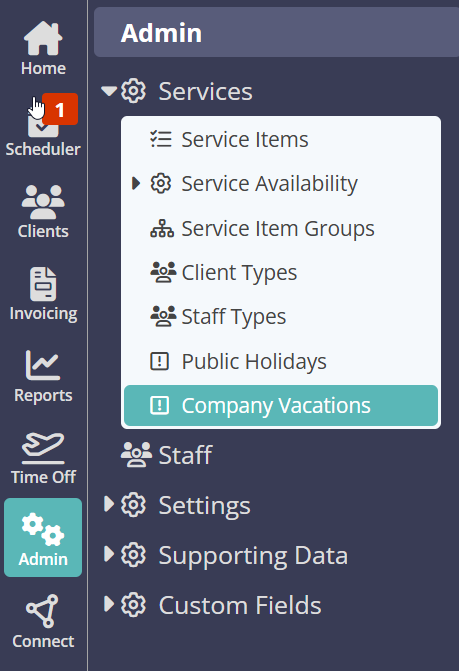
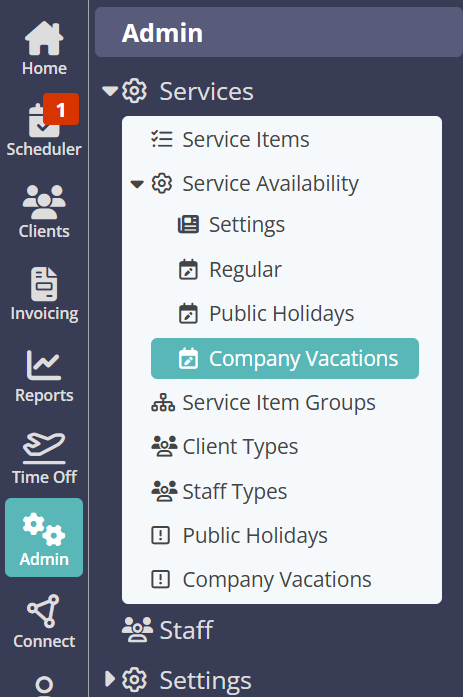
Navigation: Admin > Services > Company Vacations
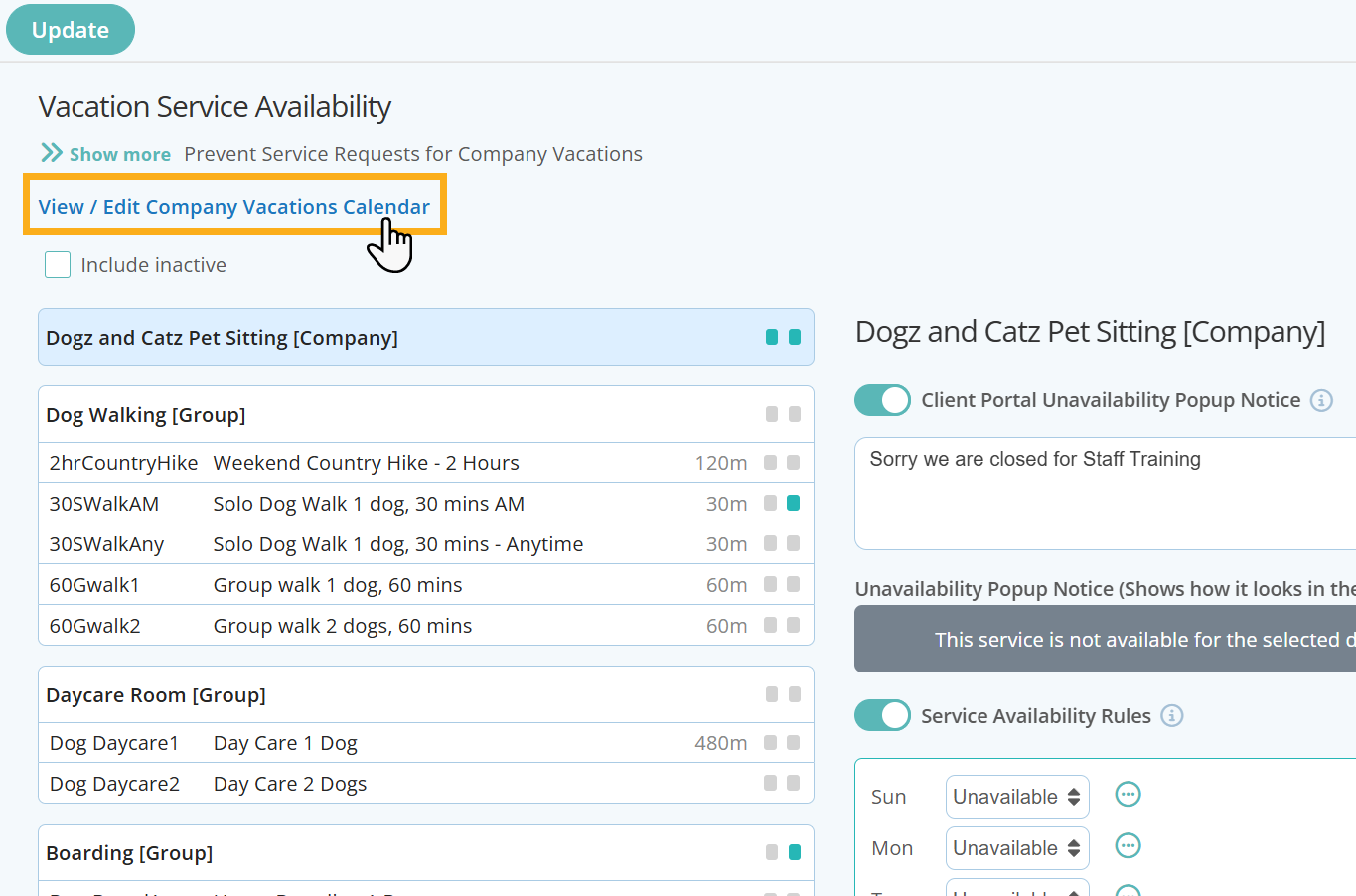
You can also access the Company Vacation Calendar directly from the Company Vacation page under Service Availability, by clicking on the shortcut link at the top of the page:
Select the dates on the annual Company Vacation Calendar and click "Update" to save your changes.
Step 3 - Configure your Company Vacation Availability
If your availability is the same across all or your Services, then simply use the Company Level Service Availability rules which will apply to all Service Groups and Services. You can apply your Service Availability Rules to each day of the week and even add different availability to specific days should this apply.
Info: When you first access Service Availability Rules, for Company Vacations each day is set to "Anytime" by default.
Navigation: Admin >Services > Service Availability > Company Vacations
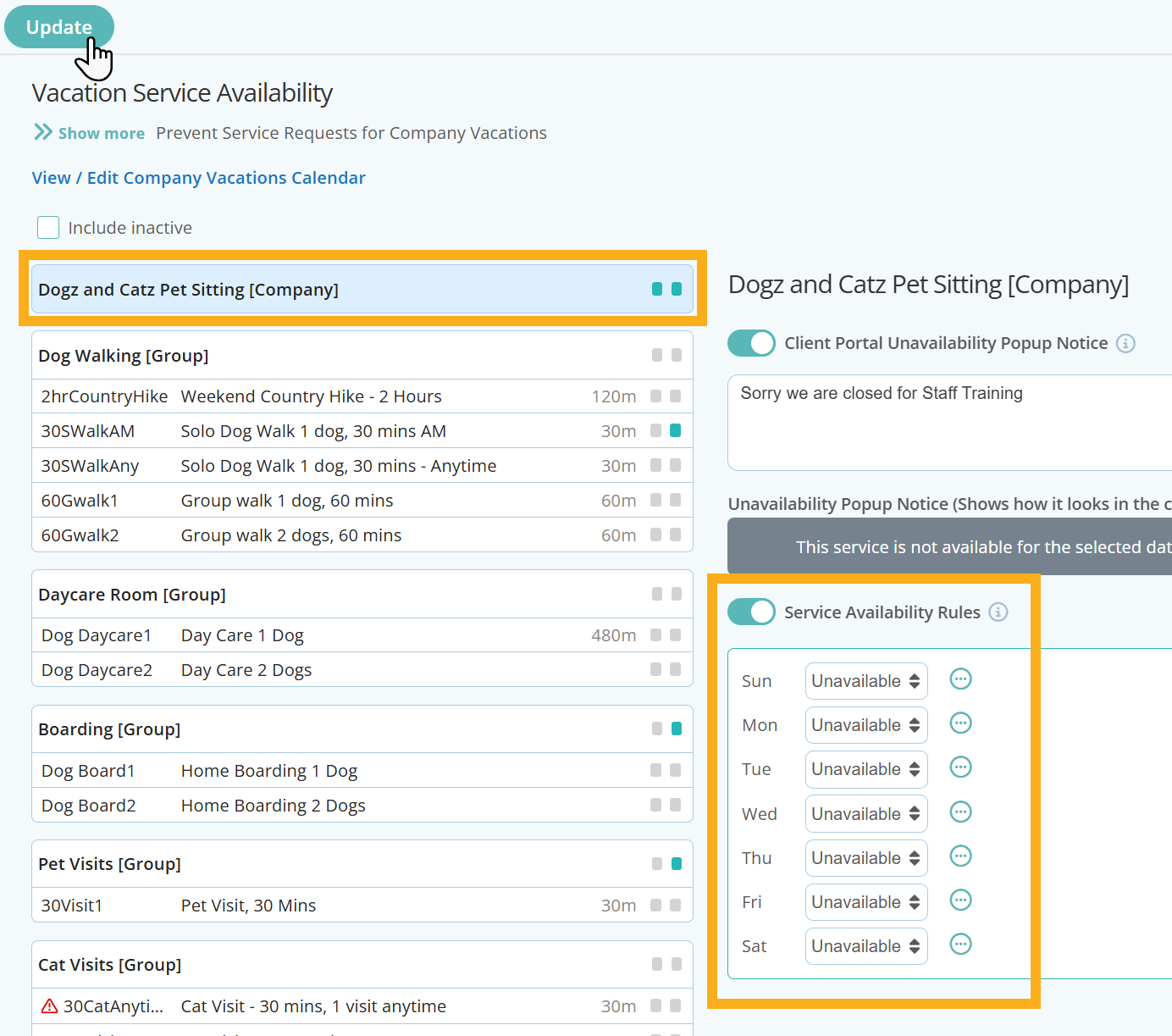
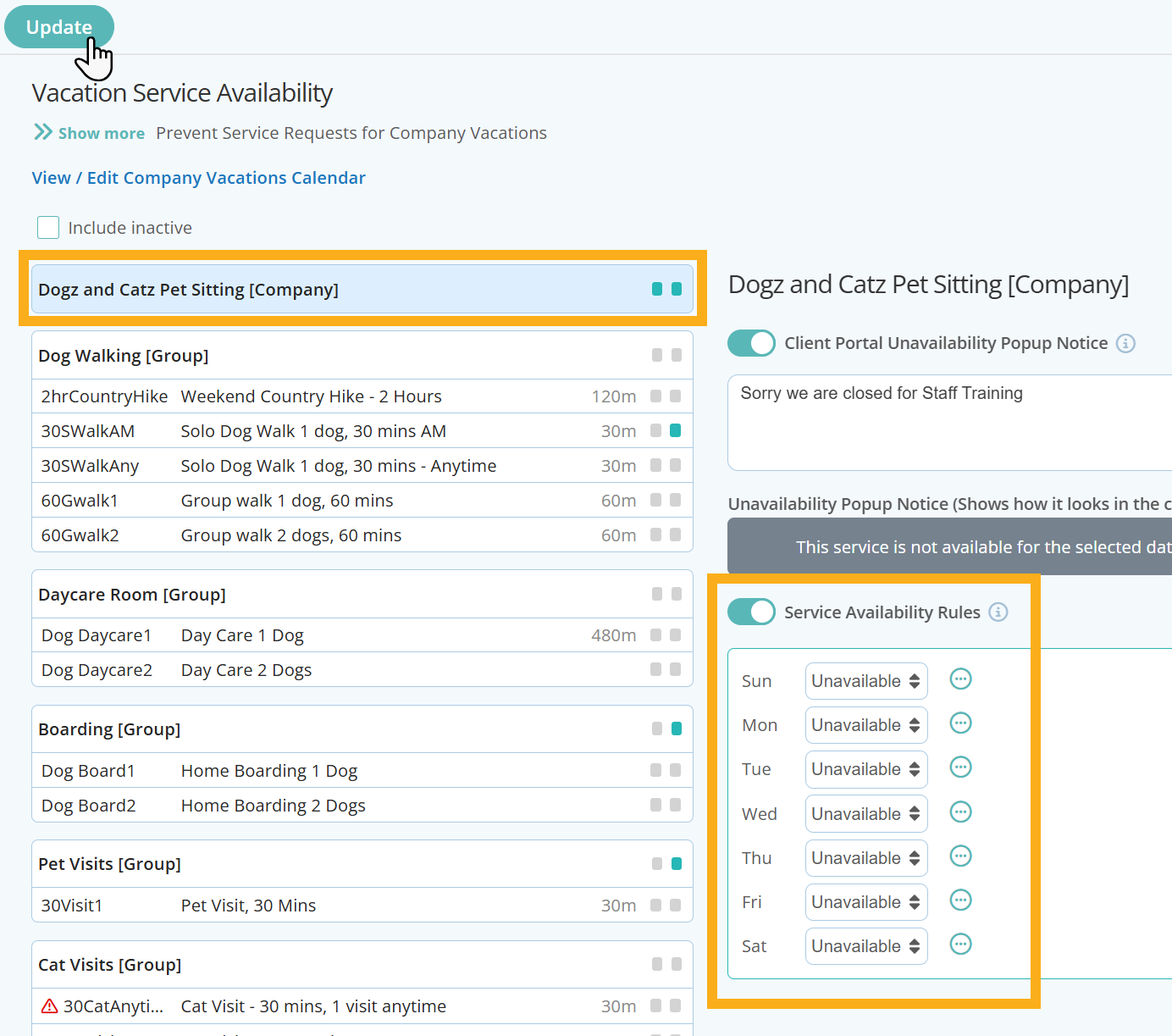
To set Company wide service availability, click your company name in the first box provided as highlighted below:
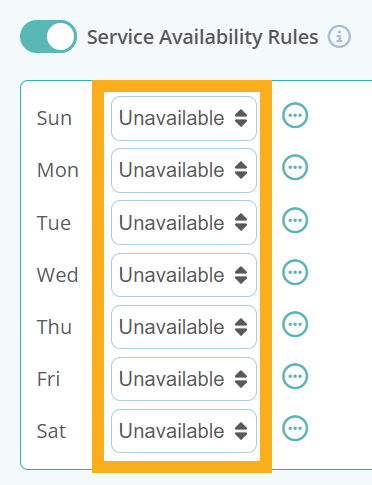
When setting your Company's daily Service Availability Rules, there are three options to choose from:
- Anytime - Select this rule if there are no restrictions to requesting this service during a 24 hour period.
- Custom - Select this rule to customise if services are only available at certain times during the day. You have the option to add up to 4 different "shifts" to create variable availability for the day.
- Unavailable - Choose “Unavailable” if this service is not available to book during the day.
Most Company's will want to prevent all booking requests during a Company Vacation or closure, in which case, all days under Service Availability Rules should be set to "Unavailable".
However, if there are certain Service Groups or Individual Services where a Company allows booking requests, these can also be configured and will override the Company Level settings.
Below are a few examples of Service Availability Rules for Company Vacations, after the Company wide availability has been set to unavailable on each day as indicated above.
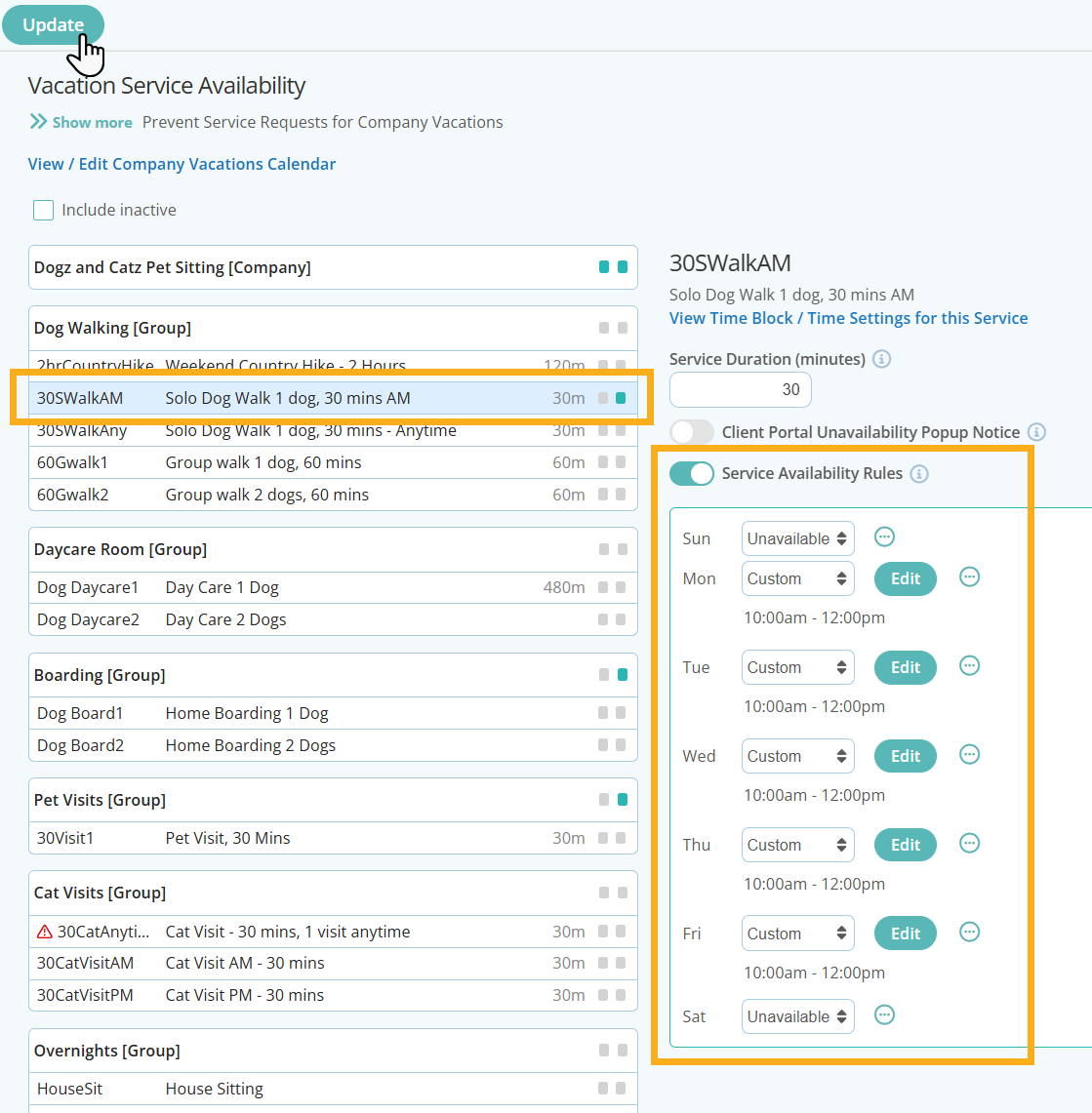
Scenario 1: The Company prevents all booking requests for services, apart from the 30 minutes Solo Dog Walk, where clients can request this service Monday to Friday between 10am and 12pm as there is always a staff member available during those times to carry out the service.
Company Level
30 minute Solo Dog Walk
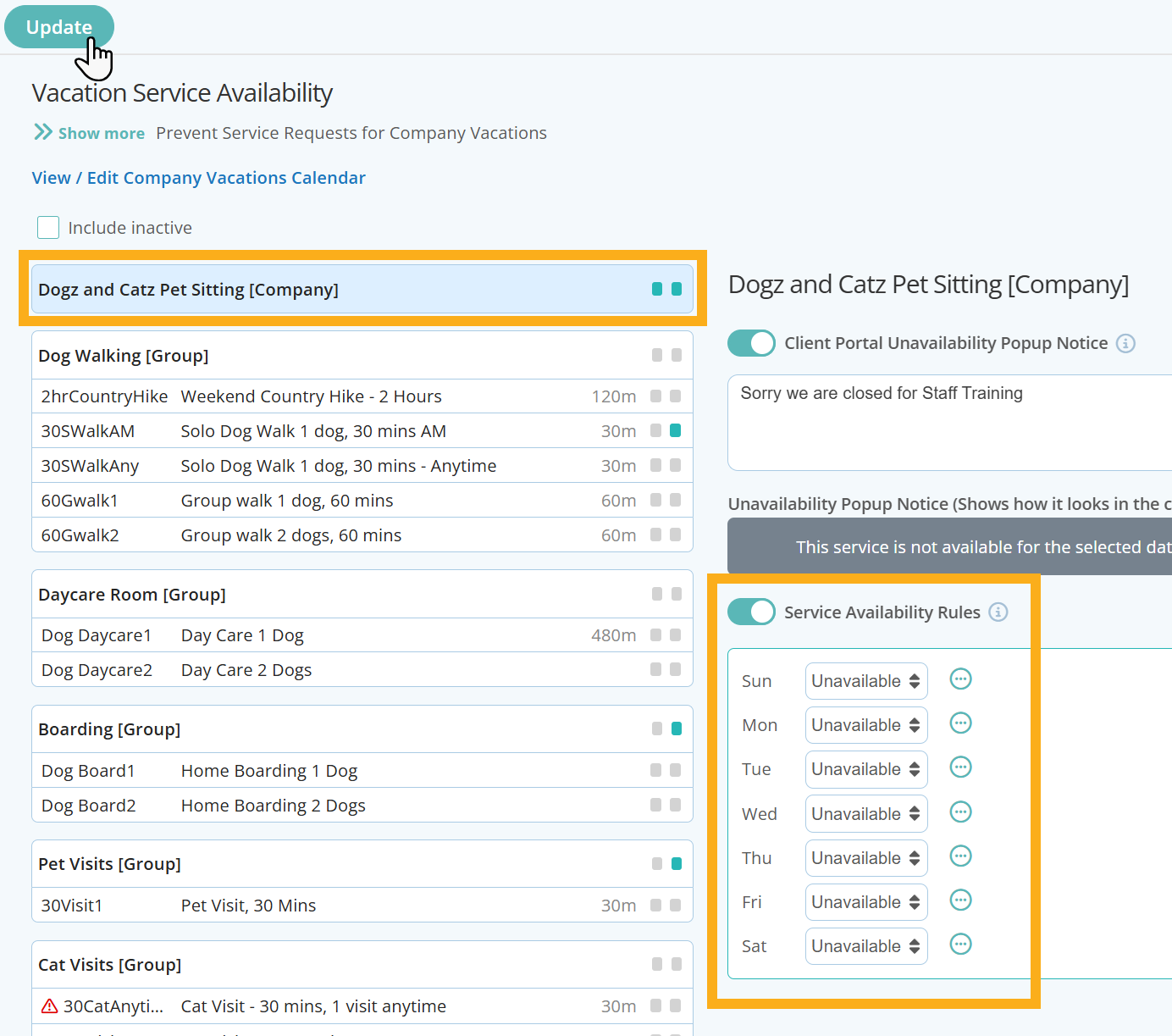
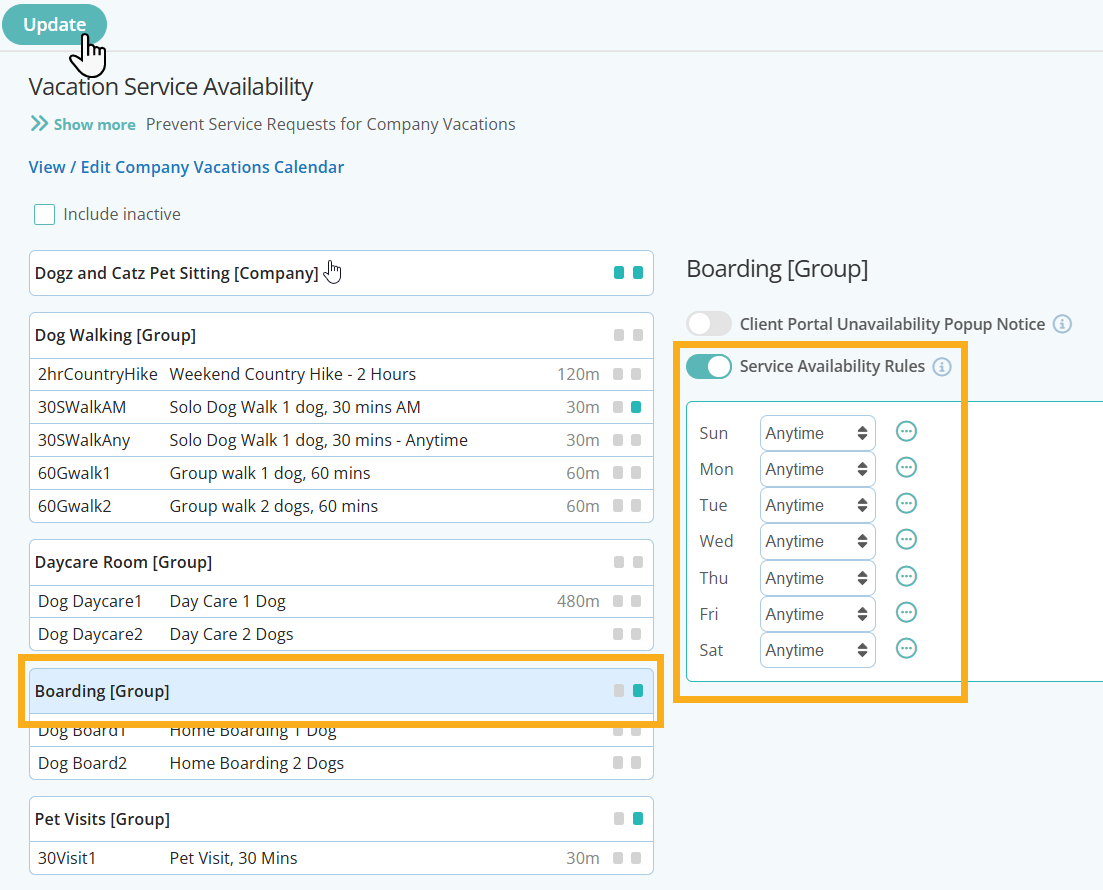
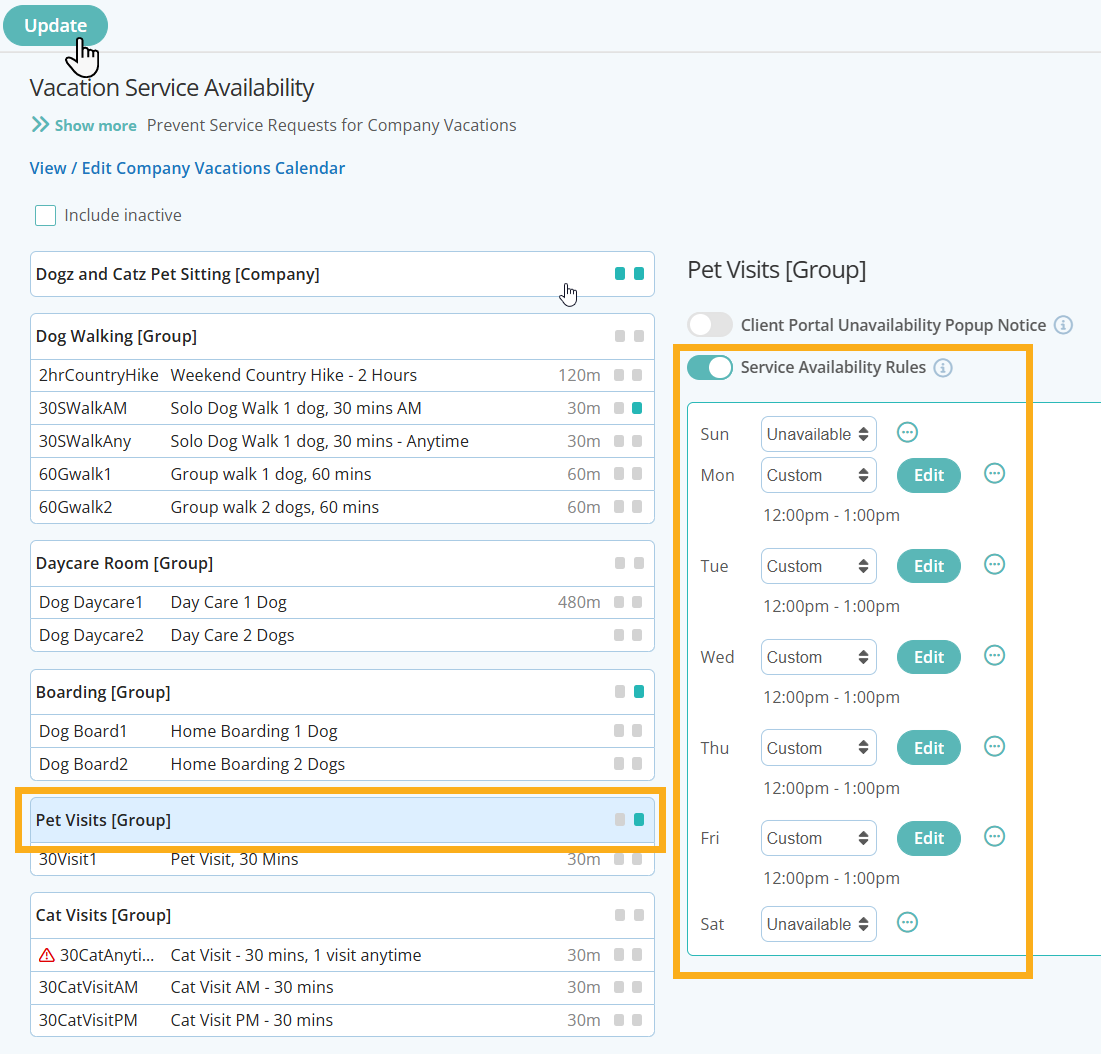
Scenario 2 - All services (Company Level) are unavailable, apart from Boarding which can be booked any day of the week at anytime and Pet Visits that can only be requested between 12pm and 1pm Monday to Friday.
Company Level
Boarding Service Group
Pet Visits Group
Step 4 - Check Service Availability Settings are Correct in the Client Portal
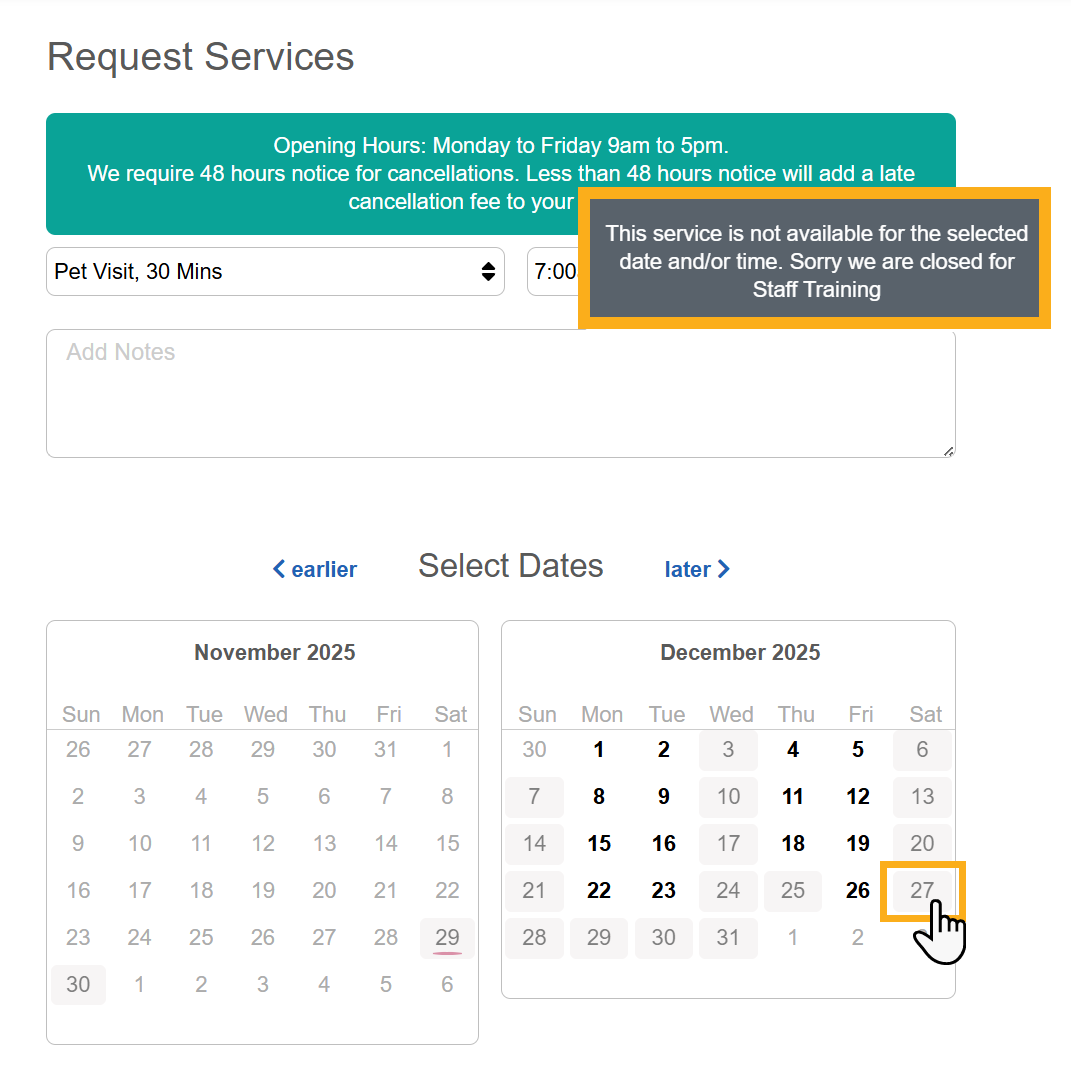
Once you have set your Company Vacation Service Availability, its a good idea to check that your settings are functioning correctly. Access a clients portal and try to select a few services and times outside of your regular operating hours.
Tip: Read more about adding specific Service Group or Service availability, or prevent clients from being able to request services when its a public holiday or company vacation. Or learn how to add customized messages to communicate with your clients about your services and availability.
Was this article helpful?
That’s Great!
Thank you for your feedback
Sorry! We couldn't be helpful
Thank you for your feedback
Feedback sent
We appreciate your effort and will try to fix the article