TABLE OF CONTENTS
- How Do I Set a Company Wide Client Portal Unavailability Popup Notice?
- How Do I Set a Service Client Portal Unavailability Popup Notice?
Providing clients with clear, timely and consistent communication is a fundamental part of Service Availability settings, allowing Company's to instantly provide details about service availability
The Client Portal Unavailability Popup Notice forms part of Service Availability Controls and is a customizable message that can be set at company level and for service groups, specific services, Public Holidays and Company Vacations.
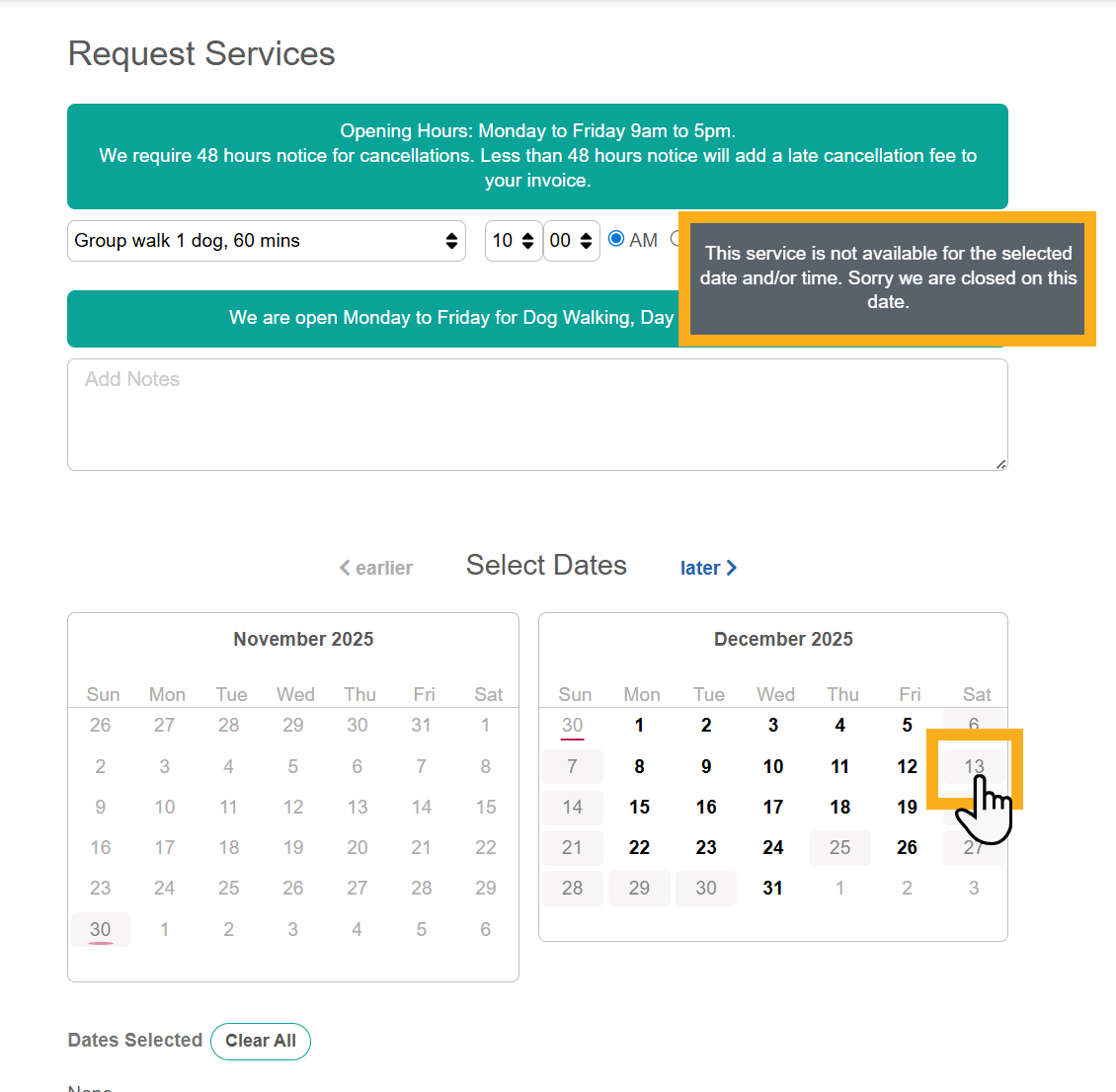
When you’ve used service availability settings to block off certain dates or times, your availability calendar will show those days as greyed out and if a client then selects one of these services, the unavailability notice will pop up to explain why that particular service is not available.
The unavailability notice includes standard system text, but you can customize this by including additional context such as explaining about a public holiday, vacation or special closures.
How Do I Set a Company Wide Client Portal Unavailability Popup Notice?
Navigation: Admin > Services > Service Availability > Regular
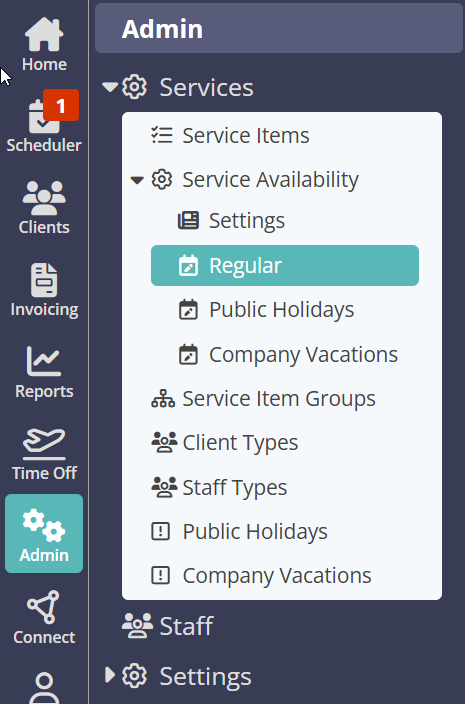
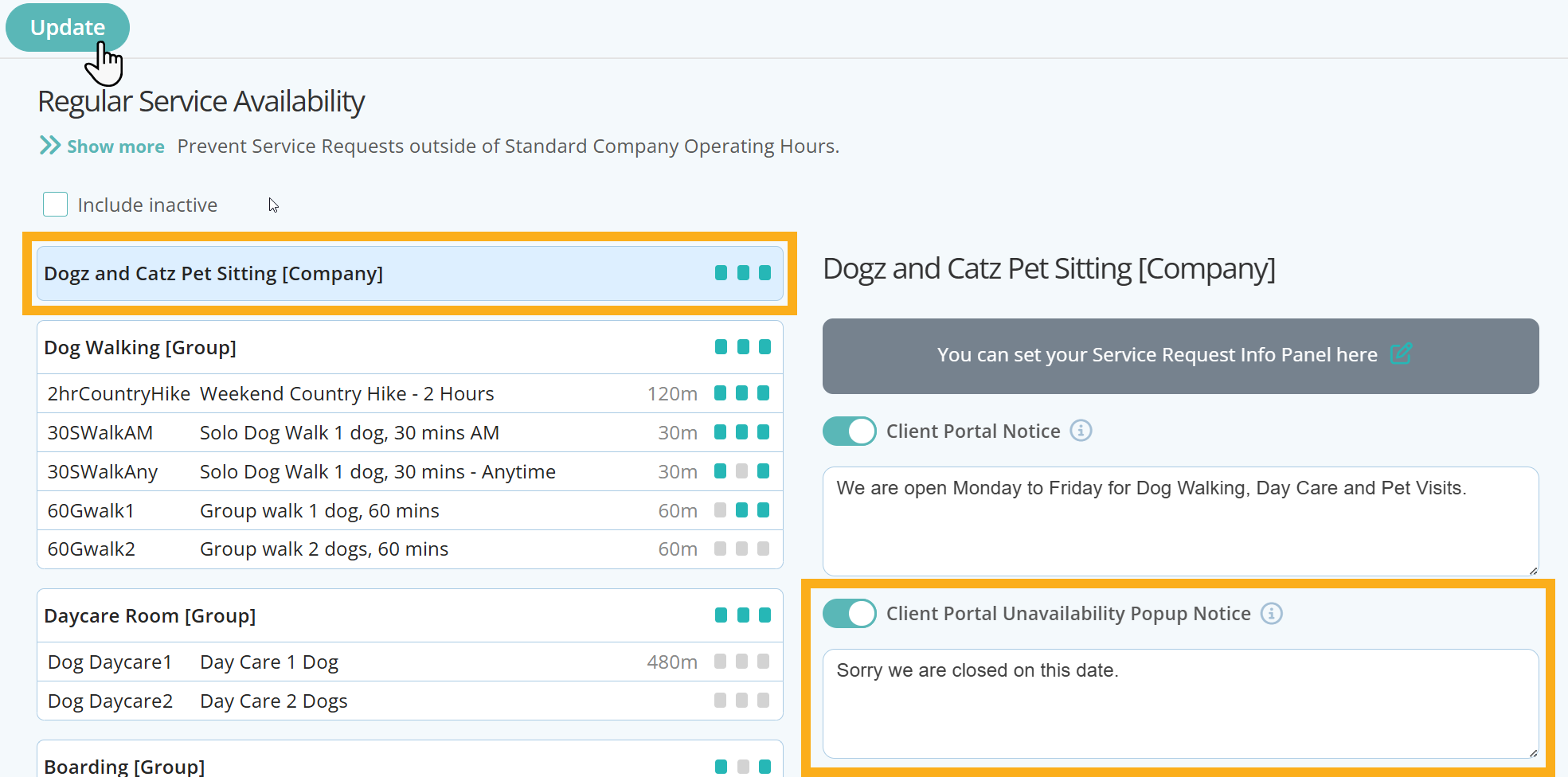
- On the regular Service Availability page, click your company name in the first box
- Switch ON "Client Portal Unavailability Pop Up Notice"
- Add your message or notice in the box provided
- Click "Update" to save your changes
When a client goes on to request any service on a date you have set as unavailable, your Client Portal Unavailability Pop Up Notice will appear.
How Do I Set a Service Client Portal Unavailability Popup Notice?
As well as a Company wide unavailability notice, you can also set notices for Service Groups, Individual Services, Public Holidays and Company Vacations, these options will override your company wide notices.
You can use additional Client Portal notices to relay key information about certain service availability, restrictions or even cancellation rules.
Navigation: Admin > Settings > Service Availability > Regular
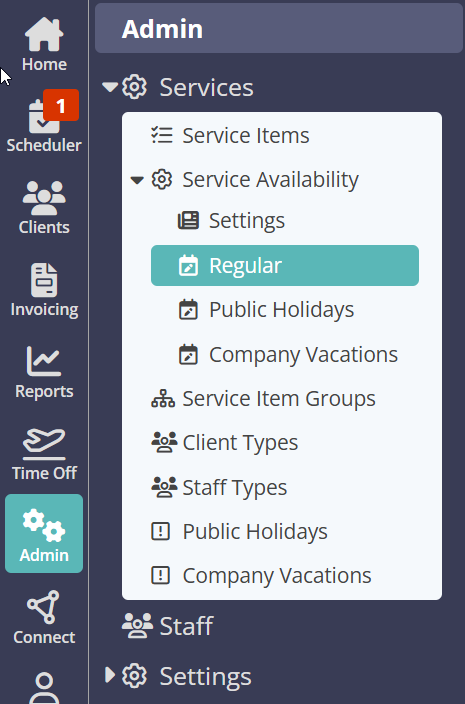
- Click the Service Group or Individual service that you wish to set a Client Portal Notice for.
- Switch ON "Client Portal Unavailability Pop Up Notice"
- Enter the text in the box provided
- Click "Update" to save your changes.
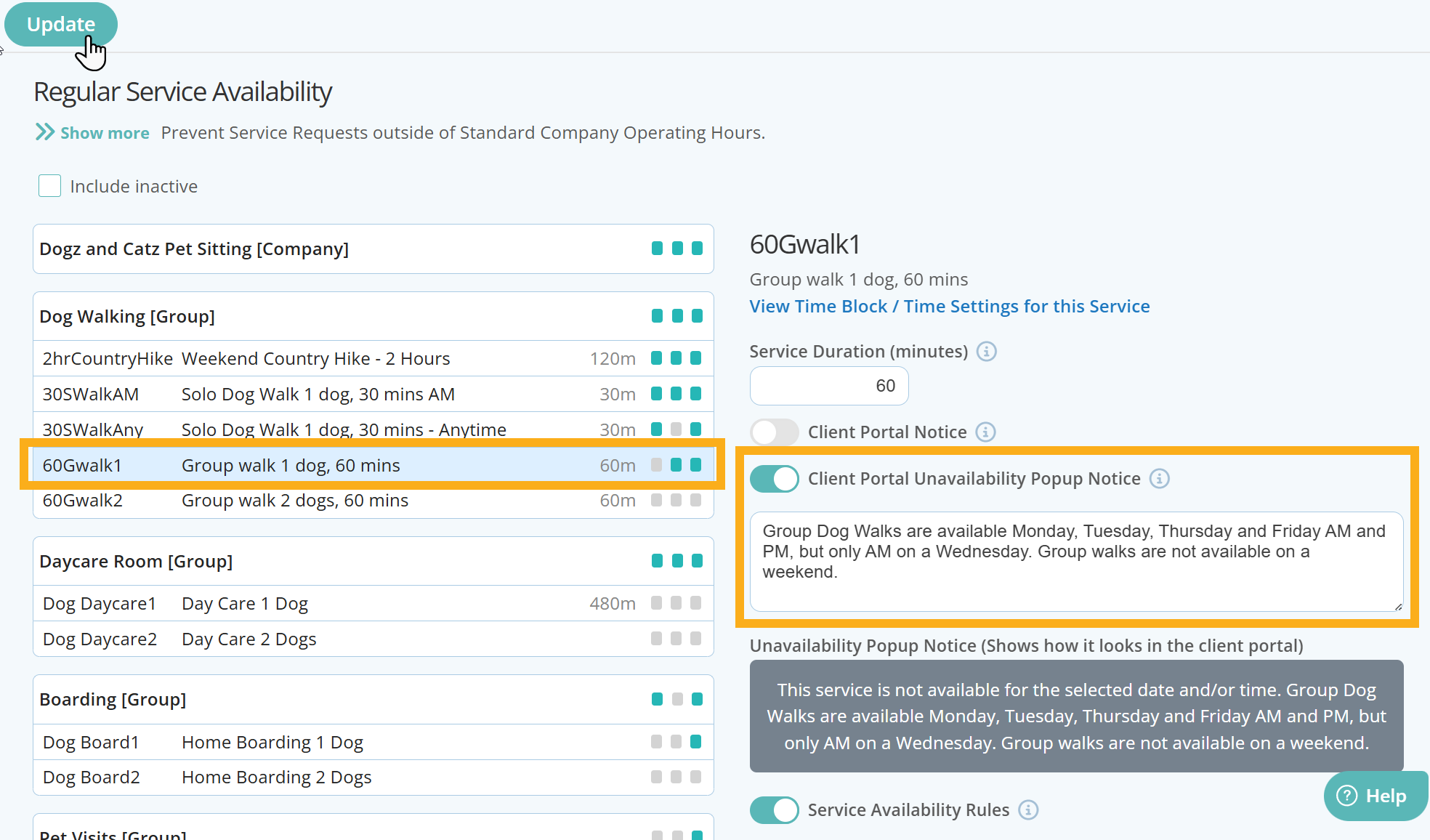
When a client goes on to request the service on a date you have set as unavailable, your Client Portal Unavailability Pop Up Notice will appear.
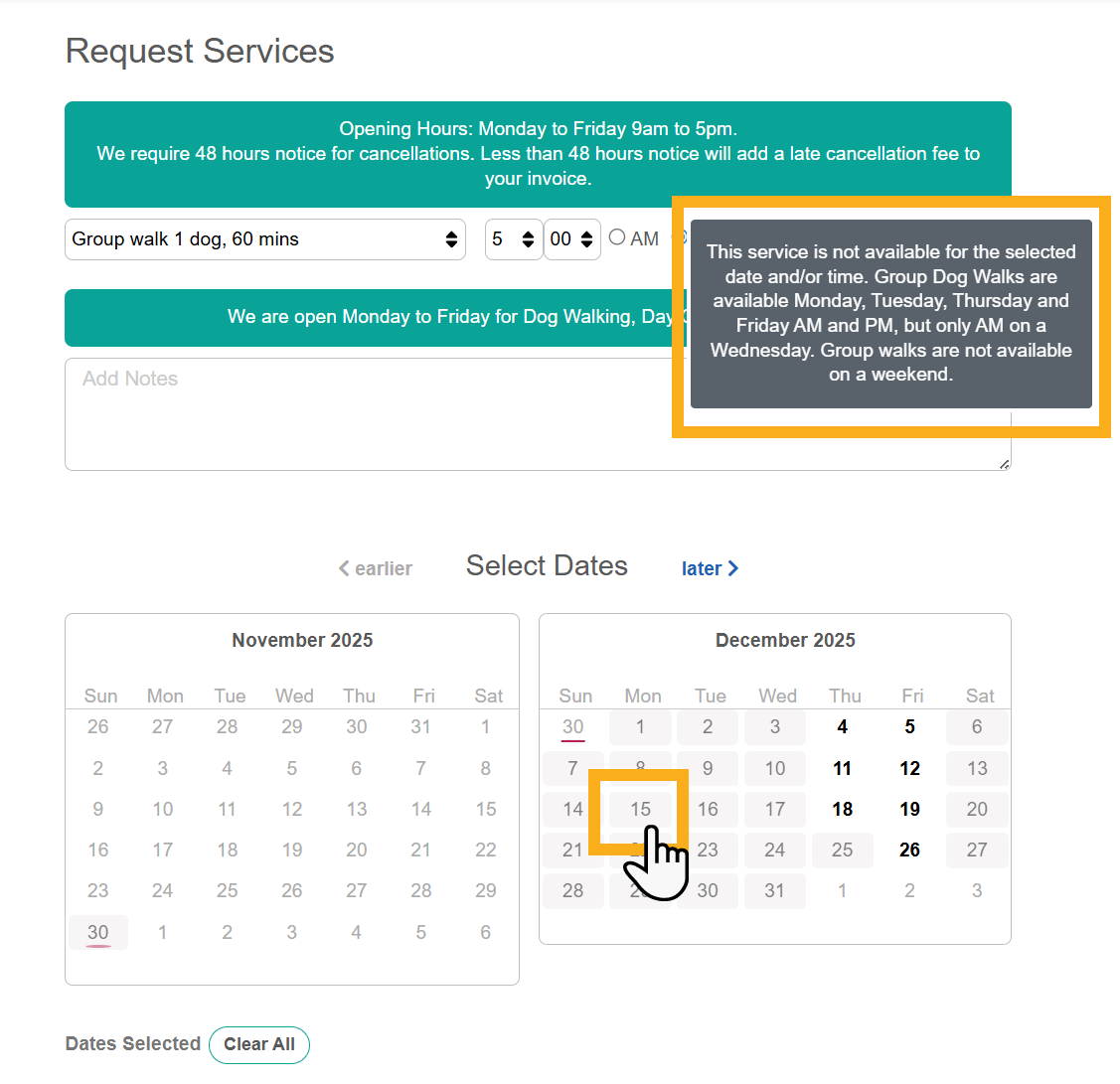
Go on to add other Client Portal Unavailability Notices for other Service Groups, individual services, Public Holidays or Company Vacations.
Tip: Read more about adding specific Service Group or Service availability, prevent clients from being able to request services when its a public holiday or company vacation, or learn how to add customized messages to communicate with your clients about your services and availability.
Was this article helpful?
That’s Great!
Thank you for your feedback
Sorry! We couldn't be helpful
Thank you for your feedback
Feedback sent
We appreciate your effort and will try to fix the article