TABLE OF CONTENTS
Service Availability settings allow Admins and Business Owners to prevent clients from requesting services that are outside of your regular operating days and hours. These settings help you stay in control of your bookings and avoid the hassle of declining requests that you are not able to provide. They can also be applied to your regular services, Public Holidays and Company Vacations.
Setting your company's regular service hours for Service Groups and/or Individual Services is easy and straight forward. These settings can be applied to individual days of the week and can apply to all, or some of your services and help your clients understand your day to day availability. For example, you may want to prevent clients from requesting Dog Daycare services for a weekend or after your usual closing time.
How Do I Prevent Clients Requesting Services When I Am Closed?
From the Regular page under Service Availability, Company's can decide when their Service Groups, or individual services are available to request in the client portal, essentially aligning bookings with your company's operating hours.
As an example scenario, A Daycare operates Monday to Friday only, but also offers Dog Walking on a weekend. The company spends a lot of time turning down service requests for a weekend, so therefore uses Regular Service Availability to block clients from requesting services for a weekend.
There are a few steps involved when setting your Service Availability, initially ensure the appropriate module or modules are switched on.
Step 1 - Enable Regular Service Availability
Navigation: Admin > Services > Service Availability > Settings
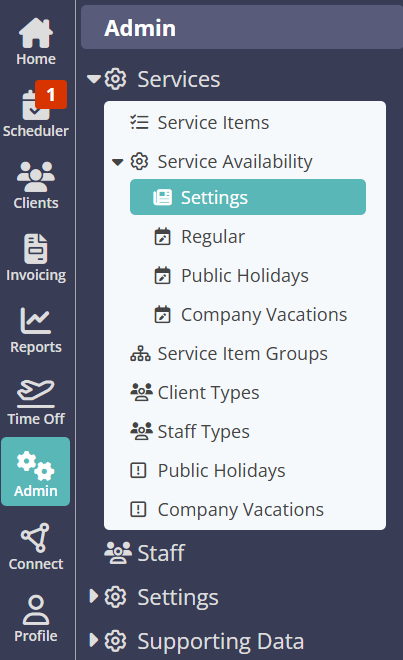
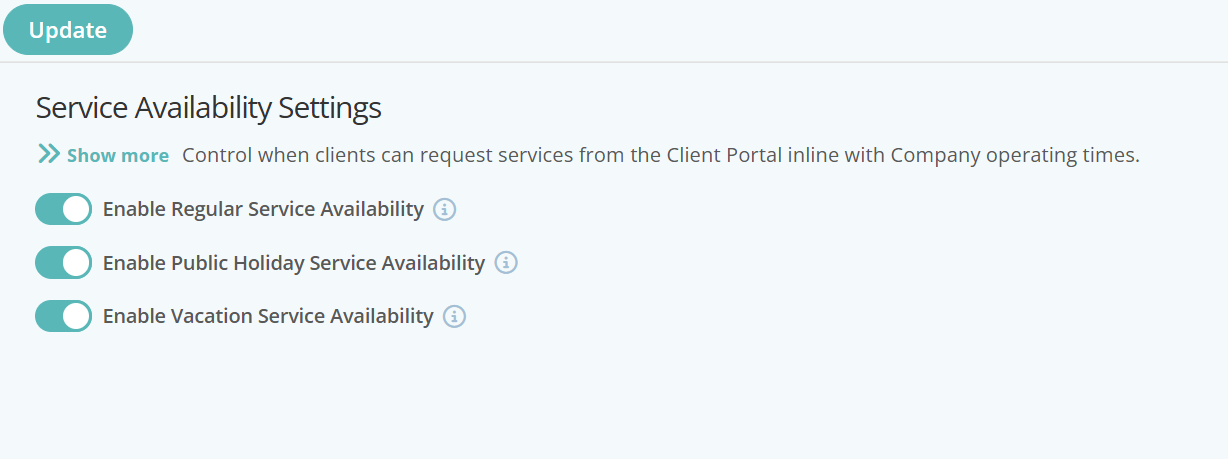
From the Settings page, enable the service availability settings relevant to your business:
- Enable Regular Service Availability - Restricting or blocking service requests outside of normal business operating days/hours
- Enable Public Holiday Service Availability - Restricting or blocking service request for public holidays
- Enable Vacation Service Availability - Restricting or blocking service requests for company vacations or other closures
To enable or disable any of the Service Availability Settings, simply switch ON the relevant button.
Info: By default, all Service Availability Settings are enabled.
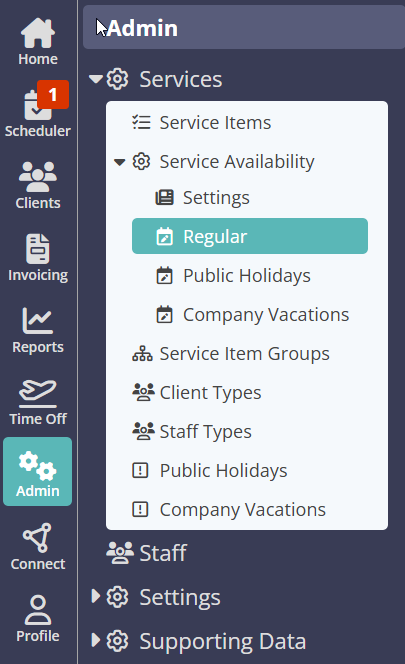
Step 2 - Configure Company Availability For Daycare Services and Dog Walking
Navigation: Admin > Services > Service Availability > Regular
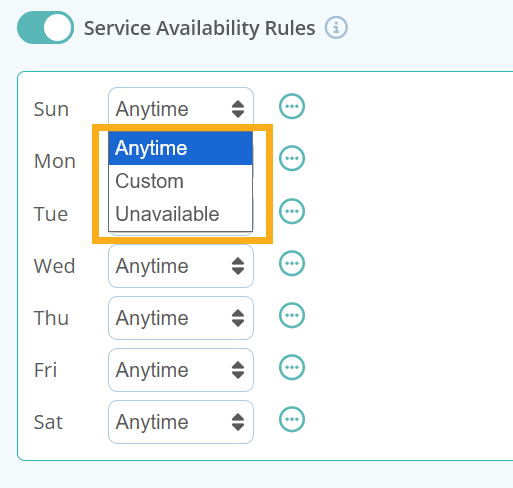
When setting your Company's Service Availability Rules for Regular Services, there are three options to choose from:
- Anytime - Select this rule if there are no restrictions to requesting this service during a 24 hour period.
- Custom - Select this rule to customise if services are only available at certain times during the day. You have the option to add up to 4 different "shifts" to create variable availability for the day.
- Unavailable - Choose “Unavailable” if this service is not available to book during the day.
For this scenario, we will use the Custom Rule to define when Daycare is open and available to book in combination with the Unavailable Rule to block bookings for a weekend.
- Select the Daycare Service Group
- Switch ON "Service Availability Rules"
- Set Sunday to "Unavailable"
- Click the circle with 3 dots and copy to Saturday
- Set Monday to "Custom"
- Add your Company's operating hours e.g. 8am - 6pm as shift 1
- Click the circle with 3 dots and copy to the other weekdays.
- Click "Update" to save your changes.

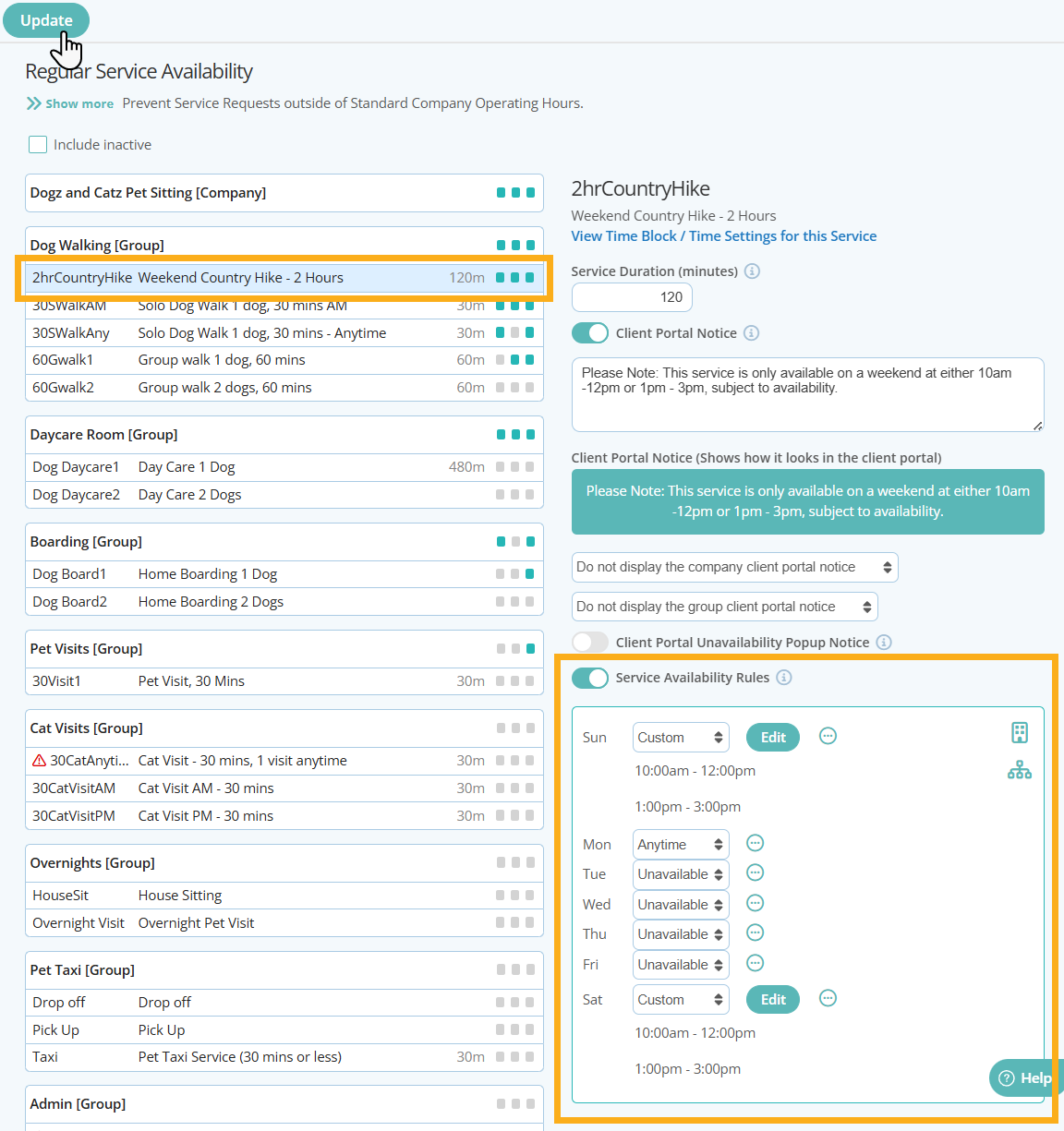
Then as the company also offers two hour country hikes over a weekend, but not during the week.
- Select the 2 hour Country Hike service
- Switch ON "Service Availability Rules"
- Set Sunday to "Custom"
- Click Edit to adjust the times available and add up to 4 different shifts
- Click the circle with 3 dots to copy this rule to Saturday
- Click "Update" to save your changes
Step 3 - Check Service Availability Settings are correct in the Client Portal
Once you have set your Company wide service availability, its a good idea to check that your settings are functioning correctly. Access a clients portal and try to select a few services and times outside of your regular operating hours.
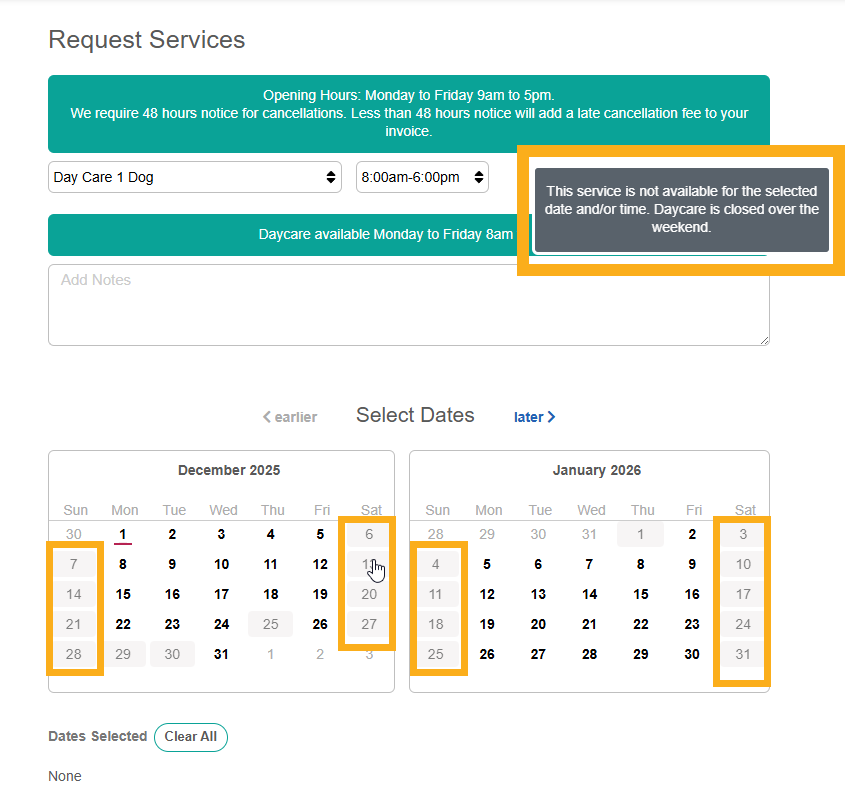
Here we can see that when Daycare is selected as a service, all weekends are greyed out and the client is unable to request them. If the client clicks on one of the greyed out days, the Client Unavailability Pop Up Notice is displayed with an explanation as to why this service cannot be booked.
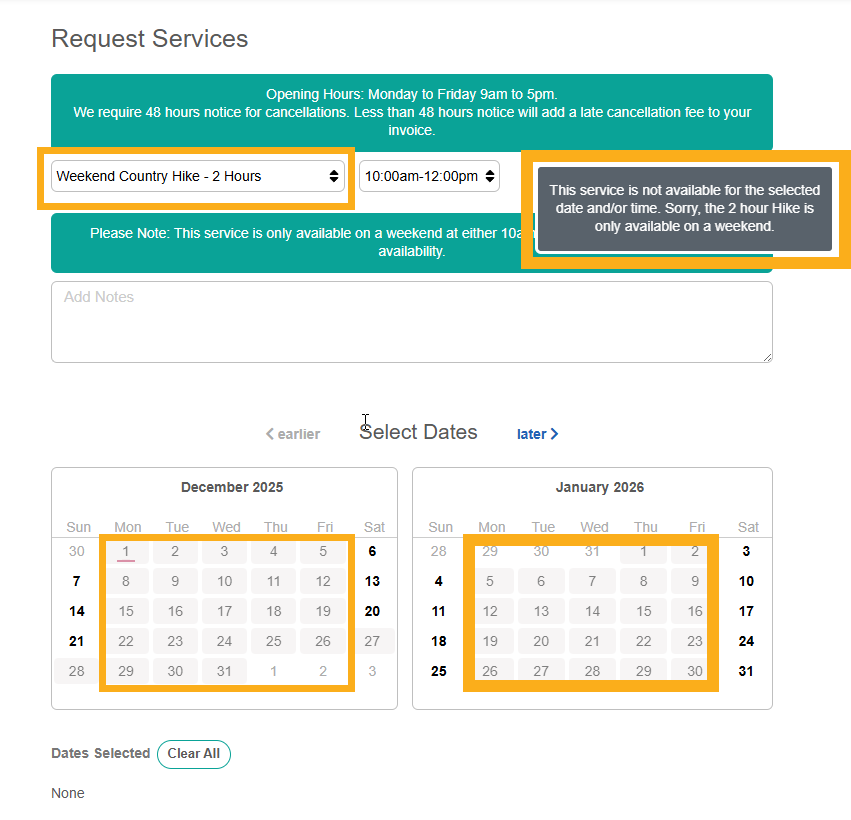
In addition we can see that when the 2 hour Country Hike is selected as a service, all weekdays are greyed out and the client is unable to request them as this service is only available on a weekend. If the client clicks on one of the greyed out days, the Client Unavailability Pop Up Notice is displayed with an explanation as to why this service cannot be booked.
Tip: Read more about preventing clients from being able to request services when its a public holiday or company vacation. Or learn how to add customized messages to communicate with your clients about your services and availability.
Was this article helpful?
That’s Great!
Thank you for your feedback
Sorry! We couldn't be helpful
Thank you for your feedback
Feedback sent
We appreciate your effort and will try to fix the article