The Cancelled Services Report is a useful report which shows the number and associated revenue of all Client Services cancelled across your business within your own defined date range.
Filter by any date range, summary or detailed level and export into a CSV if required.
The Cancelled Services Report has many uses:
- Track lost revenue from cancellations over any date range
- Spot cancellation trends by Client, Service or date
- Compare price before and after cancellation to see the financial impact of each cancelled Service
TABLE OF CONTENTS
- How Do I View and Export the Cancelled Services Report?
- Whats the Difference betwen the Detail and Summary by Client Report?
How Do I View and Export the Cancelled Services Report?
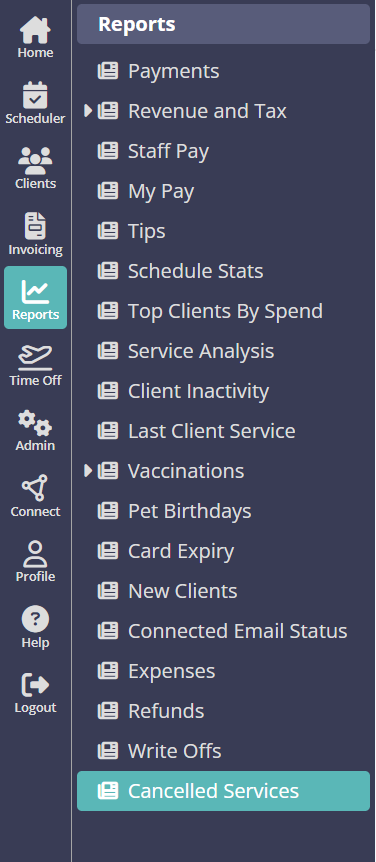
Navigation: Reports > Cancelled Services
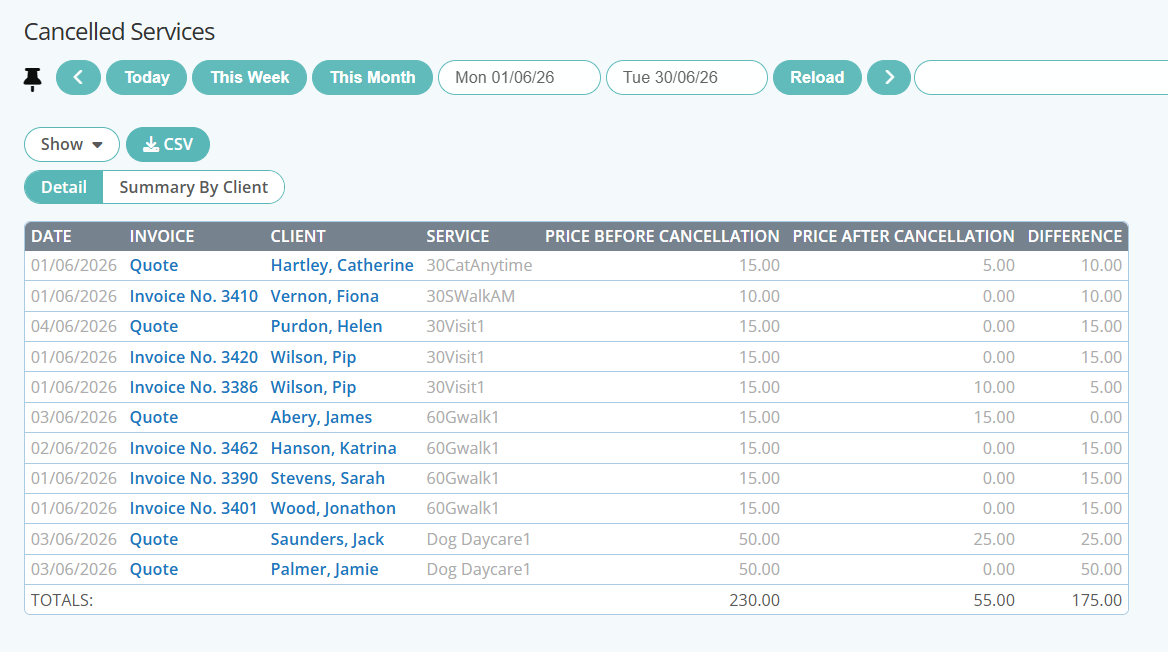
- Select a custom date range or use a quick report button, i.e. "This Week" or This Month"
- To view the previous timeframe click the "<" button.
- To view the next timeframe click the ">" button.
- Show the level of detail for the report such as Invoice Number and price before or after cancellation.
- Choose to view the report as Detail or Summary by Client by clicking the relevant tab.
- Click "Reload" to view your customized Cancelled Services Report.
- (Optional) Select "Download CSV" to export the data displayed onto your device.
Tip:Use the Pin function to keep headers, filters and buttons visible at all times as you scroll, particularly useful when viewing on a mobile device
Note: A .CSV file can be opened with most spreadsheets, such as Microsoft Excel or Google Sheets, as well as uploaded to accounting programs like QuickBooks or Xero
Whats the Difference betwen the Detail and Summary by Client Report?
Detail Report
The Detail tab is best when you need to audit or investigate individual cancellations. Since it breaks things down by date, invoice number, and service, it lets you see exactly which booking was cancelled, when, and the precise financial impact of that one cancellation. This is useful for things like reconciling a specific invoice, answering a client query about a refund or price change, or reviewing cancellation patterns for a particular service type
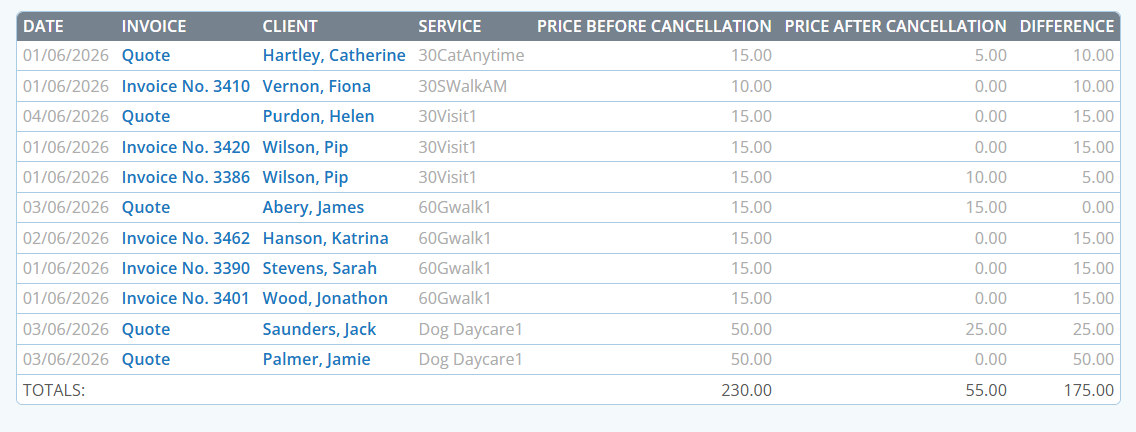
Filter the report by selecting the Detail tab. This option shows every individual cancellation, including:
- Date: Date the cancellation was recorded.
- Invoice Number: Invoice associated with the cancelled Service.
- Client: Last Name, First Name. Click on the name to access the Client Profile. To return to this report, click the orange back button.
- Service: The Service that was cancelled.
- Price Before: Price of the Service prior to cancellation.
- Price After: Price of the Service after cancellation.
- Difference: The change in price as a result of the cancellation.
Summary by Client Report
The Summary by Client tab is best when you want a higher-level, consolidated view of cancellation activity per client rather than per cancellation. It rolls up all of a client's cancellations into one line, showing their total price before and after cancellation. This is more useful for spotting which clients are cancelling most frequently or costing you the most in lost revenue overall, without needing to scroll through every individual transaction.
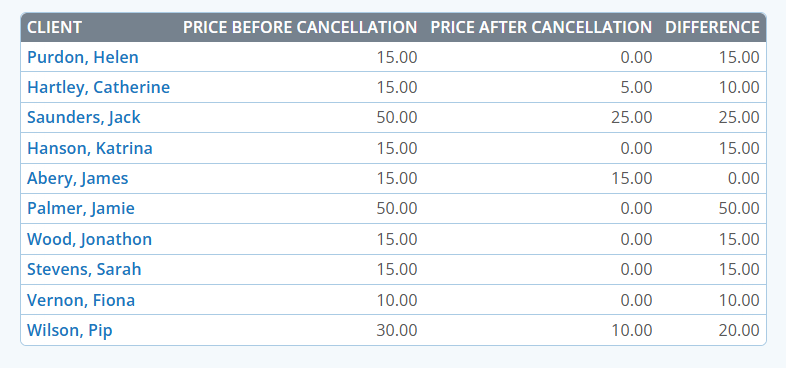
Filter the report by selecting the **Summary by Client** tab. This option provides a consolidated total for each Client, including:
- Client: Last Name, First Name.
- Price Before: Total price before cancellation across all cancelled Services for that Client.
- Price After: Total price after cancellation across all cancelled Services for that Client.
- Difference: Total difference between price before and after cancellation for that Client.
Tip: Further Reading: To gather a contained history of a client's cancellations without needing to filter or search through the full business-wide Cancellation report, view the Cancelled Services Report found under each Client Profile on their Client Admin Tab.
Was this article helpful?
That’s Great!
Thank you for your feedback
Sorry! We couldn't be helpful
Thank you for your feedback
Feedback sent
We appreciate your effort and will try to fix the article